





Story
Desktop Portrait Stand & Enclosure for CrowPanel 5.79" ESP32-S3 e-Paper Display
1. Project Overview
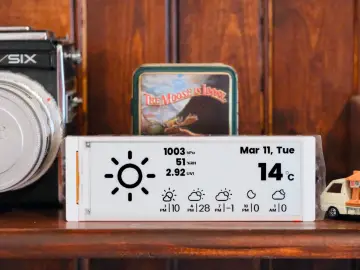
The CrowPanel 5.79-inch e-Paper HMI display features a distinctive, ultra-wide 272×792 resolution. While horizontal setups are common, placing this panoramic aspect ratio into a vertical portrait orientation creates an ideal desktop companion:
-
Smart To-Do & Task List: Real-time sync with Notion, Todoist, or Google Tasks.
-
Live Vertical Telemetry: Crypto/stock tickers, home telemetry, or Home Assistant room cards.
-
Low-Power Desk Calendar & Clock: Sunlight-readable, zero-glare ambient status board.
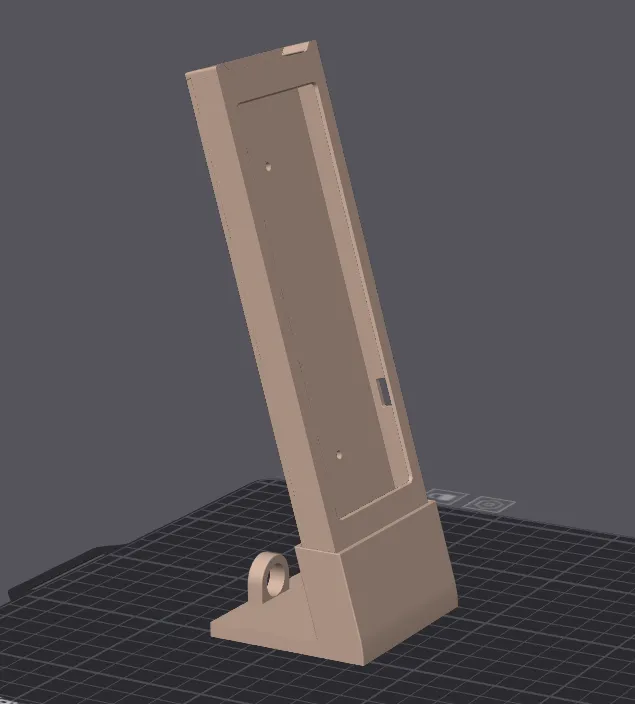
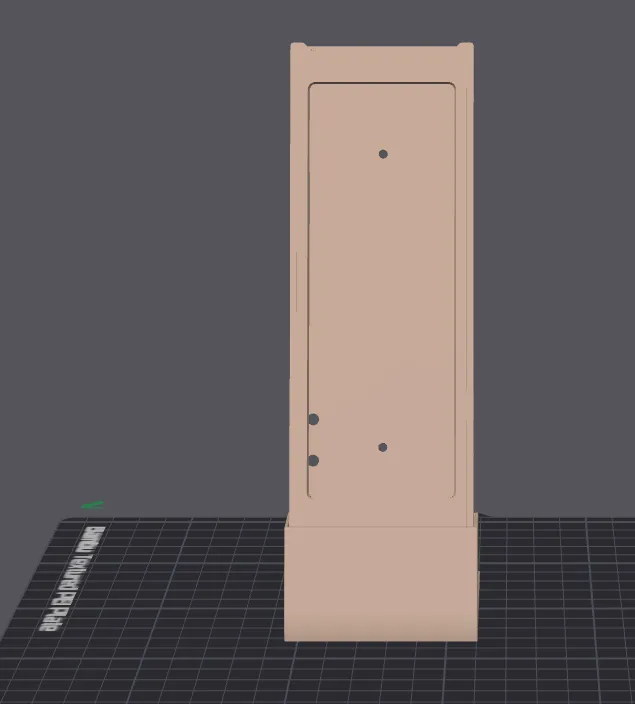
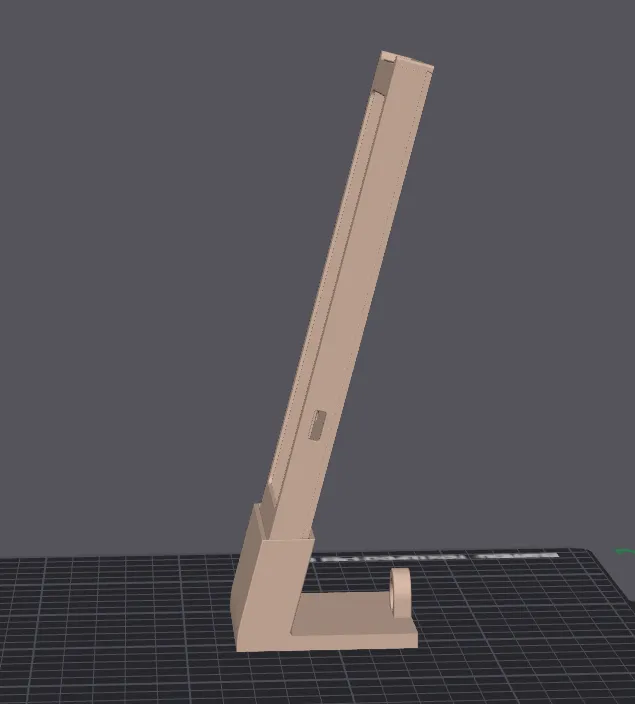
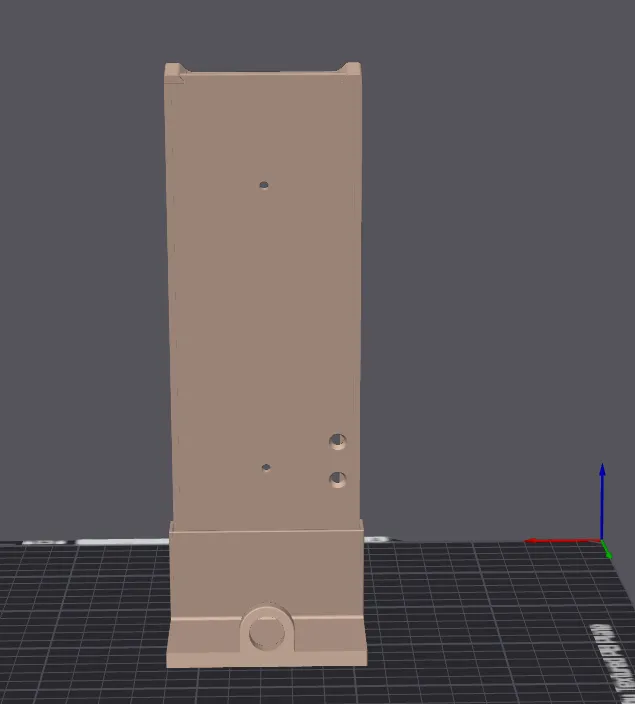
This modular enclosure is engineered to be split into 3 discrete printable parts (Front Bezel Frame, Angled Main Body/Backplate, and Base/Stand with cable guide). Splitting the model ensures optimal layer orientation for strength, eliminates tall support structures, and provides clean surface finishes.
2. Slicer Preparation: Split by Object into 3 Parts
Before slicing, prepare the model in Bambu Studio / OrcaSlicer:
-
Split the Model:
-
Right-click the model on the build plate $\rightarrow$ select Split $\rightarrow$ To Objects (or To Parts depending on your file structure).
-
Separate the model into its 3 functional parts:
-
Part 1 — Front Bezel Frame: The faceplate that secures and frames the 5.79" screen.
-
Part 2 — Main Body / Backplate: The structural upright housing the PCB and port cutouts.
-
Part 3 — Angled Base / Foot: The stable desktop stand with the integrated cable routing loop.
-
-
-
Plate Layout & Orientation:
-
Part 1 (Bezel): Lay flat face-down on the textured PEI plate for a clean textured face. No supports required.
-
Part 2 (Body): Lay flat on its back to optimize layer lines across mounting standoffs and side port cutouts. Minimal supports.
-
Part 3 (Base): Place flat on its bottom footprint for maximum bed adhesion and stability.
-
3. 3D Printing & Slicer Configuration
Tested and sliced for standard 0.4 mm nozzle setups:
-
Printer / Nozzle: Bambu Lab A1 / 0.4 mm Hardened or Stainless Nozzle
-
Material: Generic PLA or PETG (Matte PLA or PETG recommended)
-
Build Plate: Textured PEI Plate
-
Print Setup: Can be printed sequentially or placed on separate plates for best quality.
Critical Slicer Settings:
-
Layer Height:
0.20 mm Standard(Initial layer:0.20 mm) -
Line Widths:
-
Default:
0.42 mm -
Initial Layer:
0.50 mm -
Outer Wall:
0.42 mm| Inner Wall:0.45 mm -
Top Surface:
0.42 mm
-
-
Wall Loops (Perimeters):
3(ensures strong screw standoffs and durable interlocking joints) -
Infill:
15% – 20%(Gyroid pattern recommended for balanced rigidity) -
Supports:
-
Part 1 (Bezel): None needed.
-
Part 2 (Body): Normal or Tree supports enabled only for overhangs at the side connector port cutout.
-
Part 3 (Base): Tree supports inside the circular cable loop opening (easily removable).
-
4. Hardware Requirements & Bill of Materials (BOM)
-
1x CrowPanel 5.79-inch ESP32-S3 e-Paper Display module
-
3D Printed Parts (3 Pieces): Front Bezel, Main Body, and Base Stand
-
4x M2 / M2.5 self-tapping screws (4 mm–6 mm length) or CA glue / snap-alignment tabs for joining the base and body
-
1x USB-C right-angle or slim profile cable
5. Step-by-Step Assembly Instructions
Step 1: Pre-Assembly Inspection & Clean-up
-
Remove all 3 printed parts from the build plate.
-
Clear away the tree support material from the body side cutout and the circular cable loop in the base.
-
Test-fit the joint between the Main Body and the Angled Base to verify a snug, flush connection before installing electronics.
Step 2: Cable & Electronics Installation
-
Thread your USB-C cable through the circular cable guide ring on the Base.
-
Align the CrowPanel 5.79" PCB into the Main Body, routing the connector through the side port access slot.
-
Fasten the board onto the pre-modeled internal mounting posts using your M2 screws. Hand-tighten only to avoid stripping plastic threads or stressing the PCB.
Step 3: Securing Base & Front Bezel
-
Interlock/fasten the Main Body to the Angled Base.
-
Align the Front Bezel over the screen. Ensure the e-paper glass edge sits freely inside the recessed border without pinch points, then secure the bezel into place.
6. Display Orientation & Firmware Setup
Because the enclosure holds the CrowPanel in an upright vertical stance, set your display rotation to portrait mode in software:
-
Arduino / GxEPD2:
C++// Set rotation to portrait (1 or 3 depending on orientation) display.setRotation(1); display.fillScreen(GxEPD_WHITE); display.setTextColor(GxEPD_BLACK); display.setCursor(10, 30); display.print("PORTRAIT DESK DASHBOARD"); display.display(true); -
ESPHome / Home Assistant:
YAMLdisplay: - platform: ... rotation: 90° # Adjust to 270° if inverted
7. Files Included
-
CrowPanel_5.79_Front_Bezel.stl -
CrowPanel_5.79_Main_Body.stl -
CrowPanel_5.79_Base_Stand.stl