ESP32 HMI 3.5-inch MicroPython Tutorial
Overview
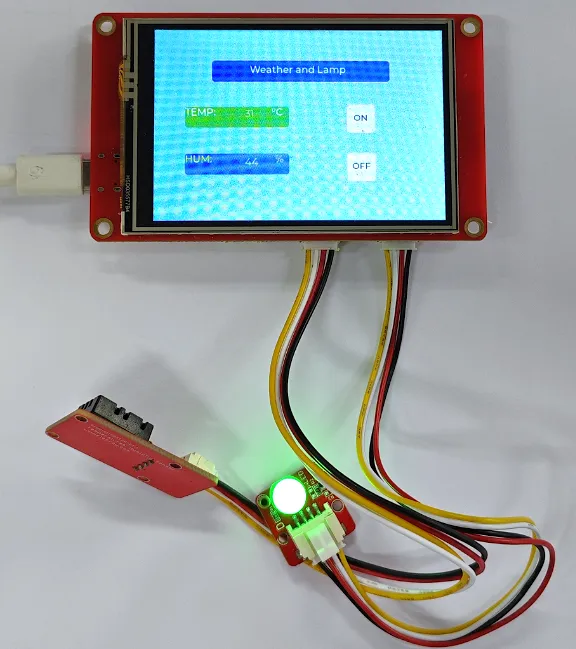
The example tutorial is an environmental monitoring project, demonstrate how to create a UI and use a DHT20 sensor to obtain the environment temperature and humidity and display it on the screen; and how to control the LED on and off by the buttons on the screen.
Since the 3.5-inch version uses SquareLine Studio to import images, it will run out of memory and fail to execute. This lesson will not import the ui_image.py file; instead, we will generate the UI interface directly using Python.
Hardware Preparation
| CrowPanel ESP32 3.5'' HMI | Crowtail-DHT20 | Crowtail-LED |
|---|---|---|
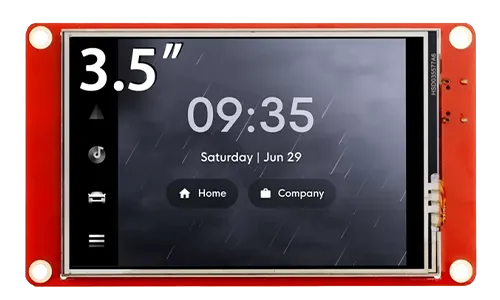 | 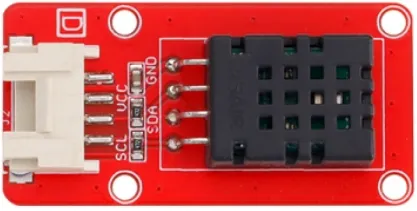 | 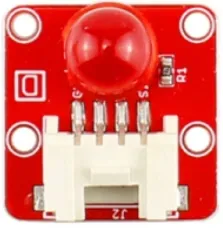 |
 | | |
Build the Project with Thonny IDE
Download Thonny IDE
-
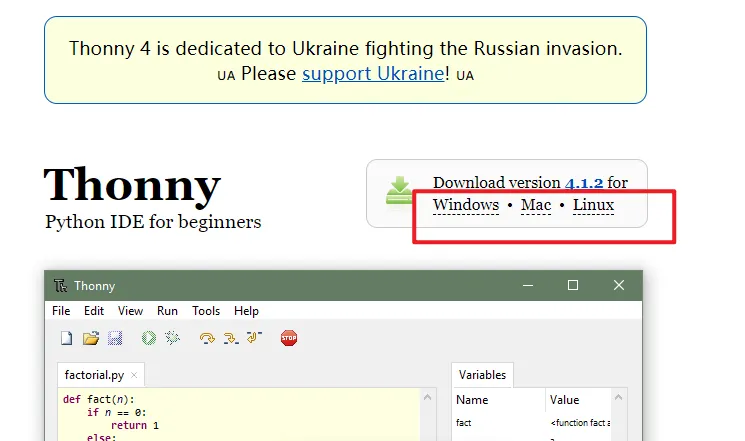
Go to the website https://thonny.org/ and download the corresponding software version (here we take the Windows version as an example)
Note: If the latest version of Thonny cannot run this project, please roll back to version 4.1.7.(https://github.com/thonny/thonny/releases/tag/v4.1.7)
-
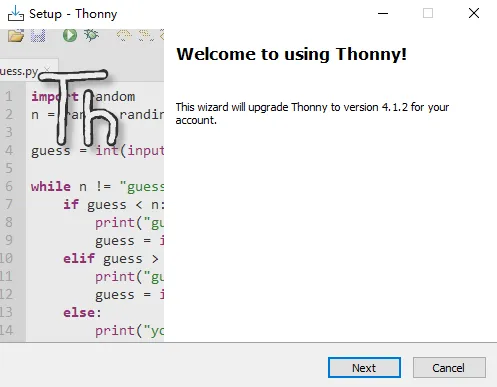
Double-click the downloaded exe file to install the software.
Upload firmware
Please click  to download the bin file.
-
Connect the CrowPanel ESP32 HMI with your computer.
-
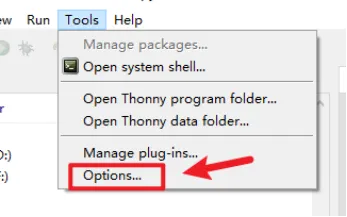
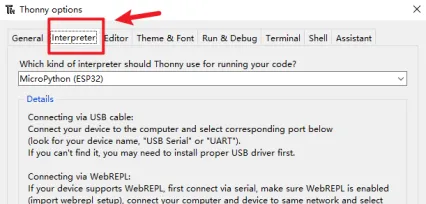
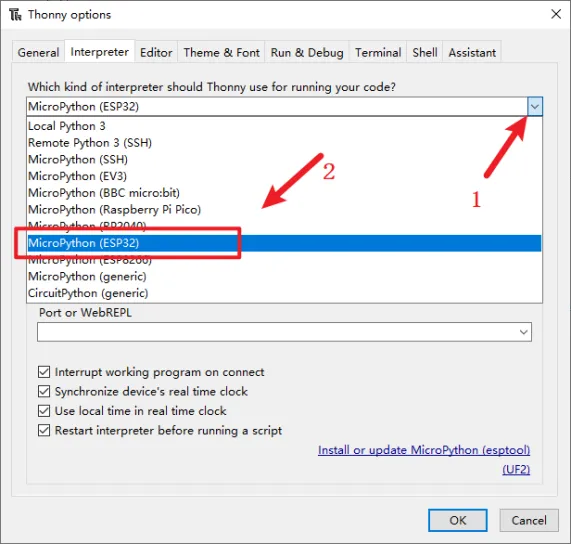
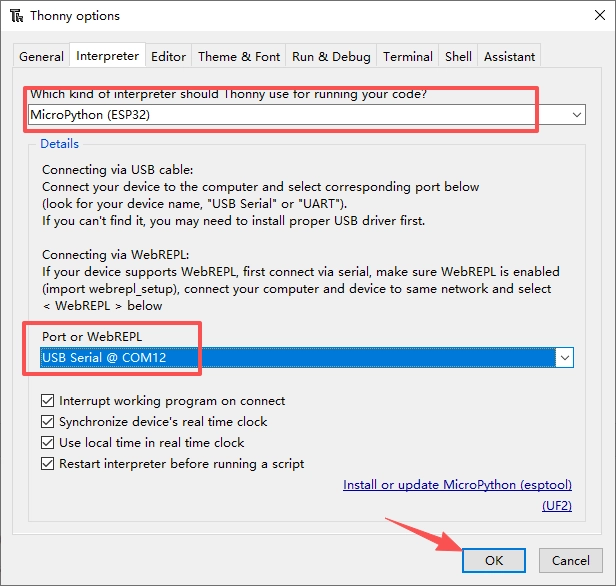
Open Thonny IDE and click "Tools"->"Options"->"Interpreter".
-
Select "MicroPython(ESP32)" for interpreter.
-
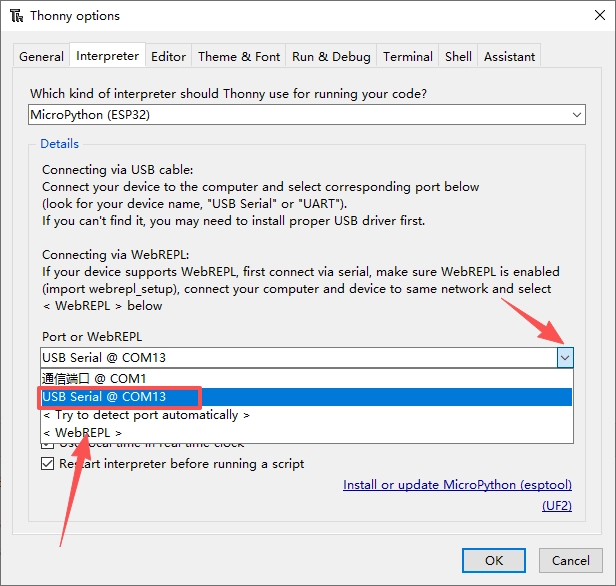
Select the corresponding serial port(or Try to detect port automatically).
-
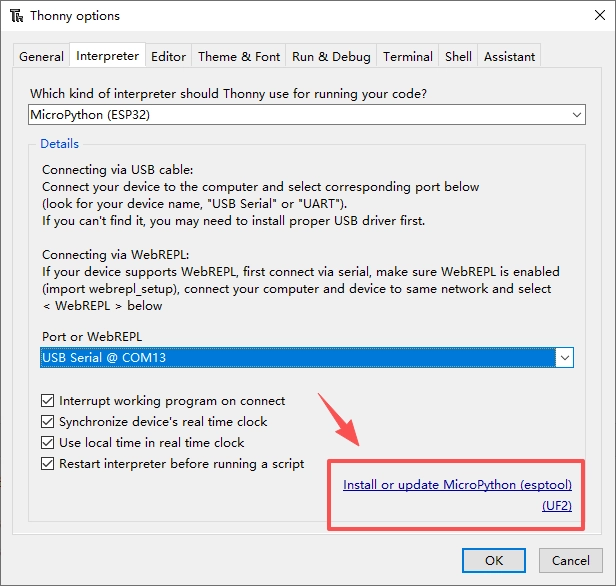
Click "Install or update MicroPython (esptool)"
-
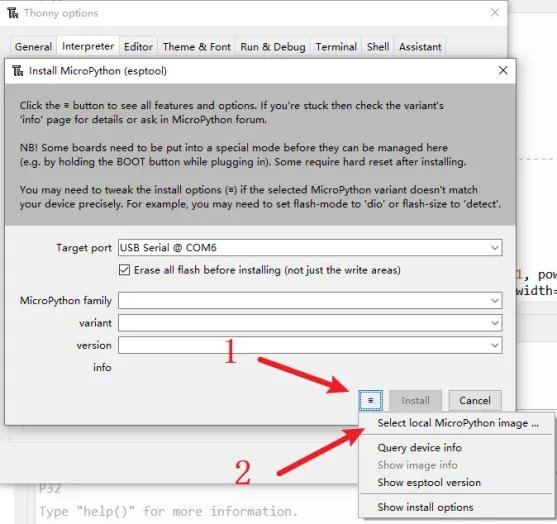
Click the icon with 3 lines, and click "select local MicroPython image...".Select the "lv_micropython.v1.19.1-ili9341-xpt2046.bin" and install.
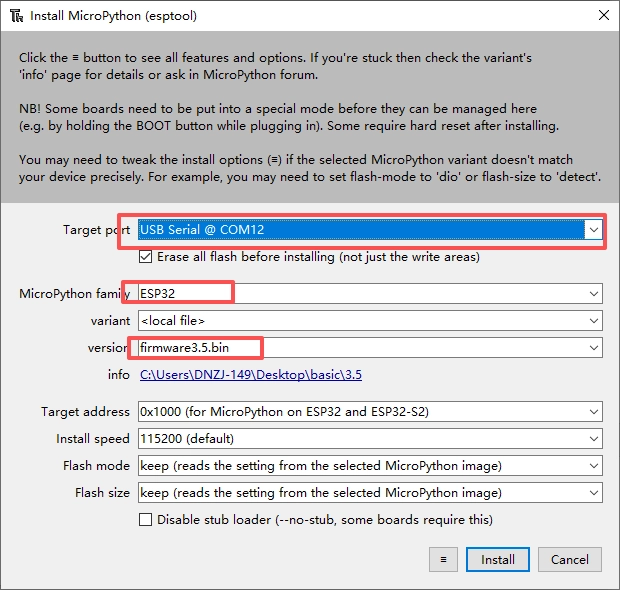
-
Waiting for downloading...
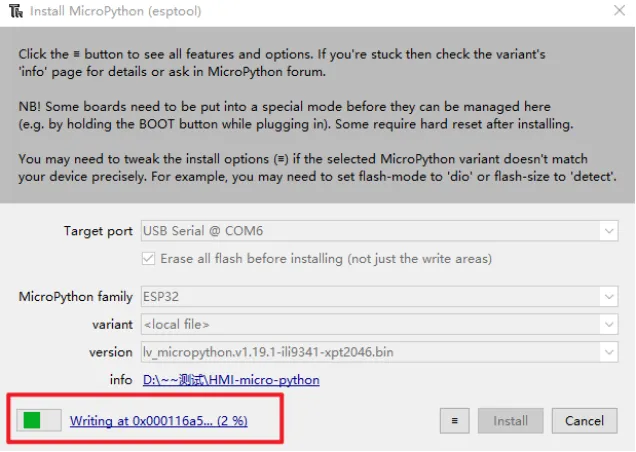
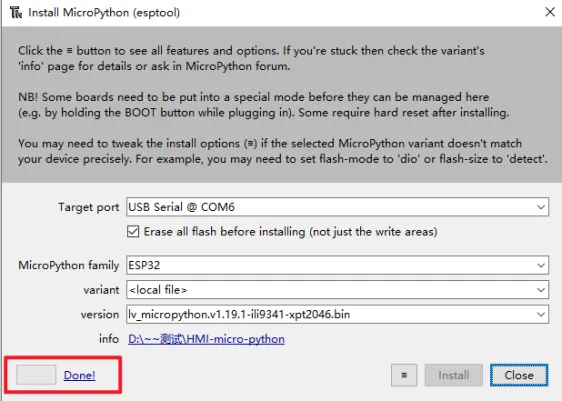
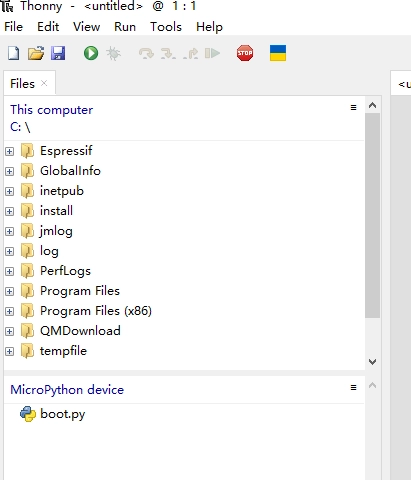
After successful addition, a boot.py file will appear in the lower-left corner.
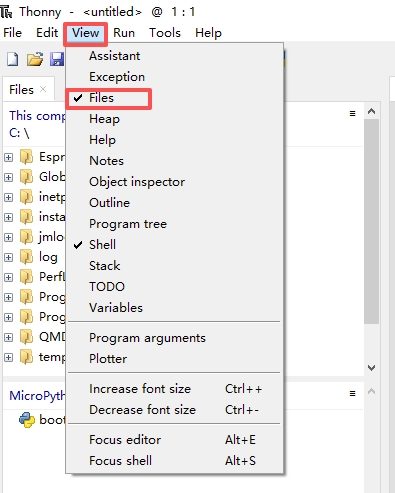
If it does not appear, check whether the extension files are enabled.
Upload the code
Please click to download the code file and libraries.
Upload the libraries
DHT20
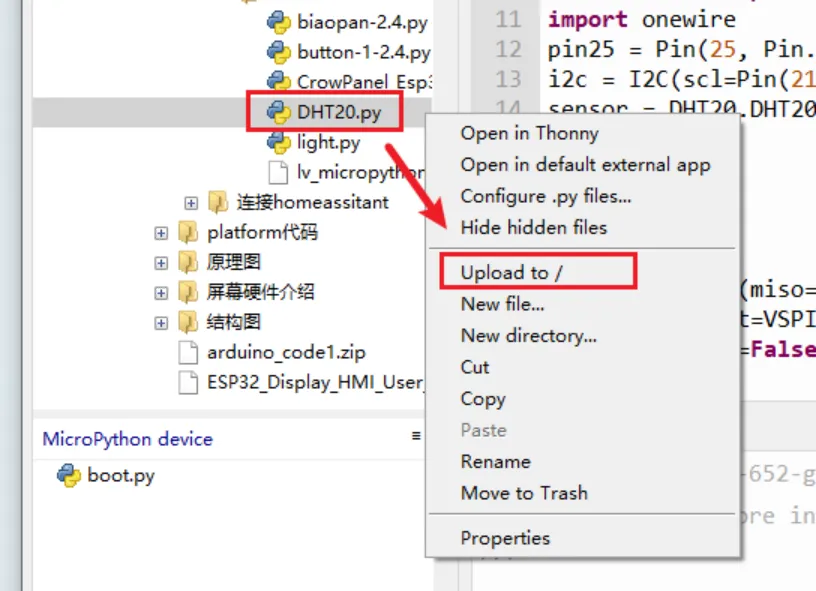
- In the upper left corner of the thonny, enter the path where DHT20.py is located, right-click DHR20.py, and click Upload to/
- Waiting for uploading
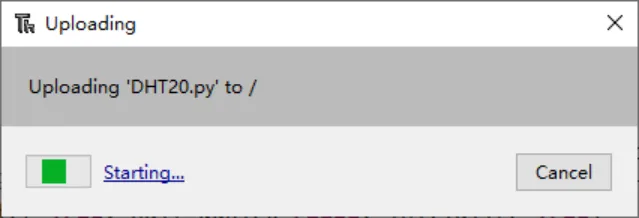
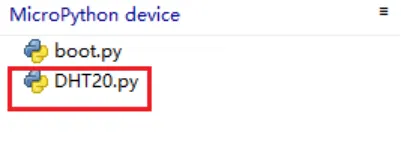
- The DHT20.py will be added to the MicroPython device column.
Upload the code
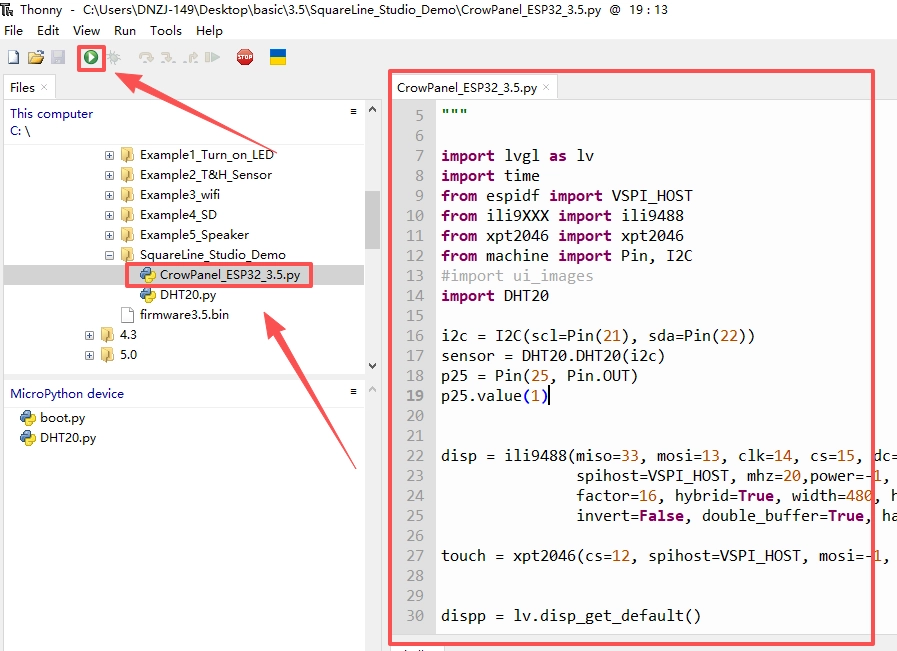
Double-click to open the main program.Click the "run" icon.
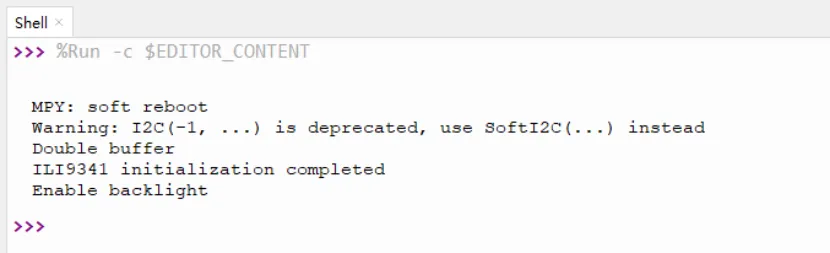
Successfully uploaded.
Code Explanation
Libraries imported in this example
import lvgl as lv
import time
from espidf import VSPI_HOST
from ili9XXX import ili9488
from xpt2046 import xpt2046
from machine import Pin, I2C
import DHT20
lvgl: This is a popular embedded graphics library for creating graphical user interfaces (GUIs). It allows developers to create complex user interfaces that support multiple display and input devices.
time: The time module in the Python standard library is used to handle time-related operations such as getting the current time, delays, etc.
espidf: This library is part of the ESP-IDF (Espressif IoT Development Framework) and provides access to ESP32 hardware features such as SPI communication.
VSPI_HOST: This is a class in the ESP-IDF library that is used to configure and control the VSPI (Very Simple Peripheral Interface) host interface.
ili9488: This is a library for driving ILI9488 LCD displays. ILI9488 is a common TFT LCD display driver IC.
xpt2046: This library is used to drive the XPT2046 touch controller, which is commonly used in touchscreen devices to provide touch detection capabilities.
DHT20: This library is used to drive the DHT22 temperature and humidity sensor, which can read the ambient temperature and humidity.
machine: This is a module of MicroPython that provides direct access to machine hardware, such as I2C, SPI, GPIO, etc.
I2C: This is a class in the machine module that implements the I2C communication protocol and is often used to connect low-speed devices.
Pin: It is also a class in the machine module that is used to control GPIO (general input and output) pins.
Basic Definition
Set up the hardware interface and initialize the sensor so that the subsequent program can read the temperature and humidity data and control the LCD display.
# Configure GPIO 25 as an output mode
pin25 = Pin(25, Pin.OUT)

# Initialize the I2C bus, specifying the SCL (clock line) and SDA (data line) GPIO pins
# Here, GPIO 21 is set as SCL, and GPIO 22 is set as SDA
i2c = I2C(scl=Pin(21), sda=Pin(22))

# Create an instance of the DHT20 temperature and humidity sensor, using the I2C bus initialized above
sensor = DHT20.DHT20(i2c)

# Define the width and height of the LCD display
# Here, the width is set to 320 pixels, and the height is set to 240 pixels
WIDTH = 320
HEIGHT = 240

# Re-declaration of pin25 (This line seems redundant and may not be necessary in your final code)
pin25 = Pin(25, Pin.OUT)

# Re-initialization of I2C and creation of DHT20 sensor instance (These lines seem redundant as well)
i2c = I2C(scl=Pin(21), sda=Pin(22))
sensor = DHT20.DHT20(i2c)
Screen driver initialization
disp = ili9488(miso=33, mosi=13, clk=14, cs=15, dc=2, rst=-1,backlight=27, backlight_on=1, power_on=1,rot=0xa0|0x40,
               spihost=VSPI_HOST, mhz=20,power=-1,
               factor=16, hybrid=True, width=480, height=320,
               invert=False, double_buffer=True, half_duplex=False)

# Initialize the ili9488 display driver, configure its connection parameters with the ESP32
# miso, mosi, clk: The input, output, and clock pins for SPI communication
# cs, dc: The chip select and data/command control pins
# rst: The reset pin, set to -1 to indicate it is not used
# backlight: The backlight control pin, set to 27
# backlight_on: The state to turn on the backlight, set to -1 to indicate it is not used
# power_on: The state to turn on the power, set to 1
# rot: The screen rotation parameter (rot=0xa0|0x40, indicating landscape orientation)
# spihost: The SPI host to use, here using VSPI_HOST
# mhz: The SPI communication frequency, set to 20MHz
# factor: A factor related to display performance, set to 16
# hybrid: Whether to use hybrid mode
# width, height: The width and height of the display, consistent with the previously defined WIDTH and HEIGHT
# invert: Whether to invert colors
# double_buffer: Whether to use double buffering
# half_duplex: Whether to use half-duplex mode
# initialize: Whether to initialize the display
Touch driver initialization
touch = xpt2046(cs=12, spihost=VSPI_HOST, mosi=-1, miso=-1, clk=-1, cal_x0 = 353, cal_x1=3568,cal_y0 = 269, cal_y1=3491,transpose = 0)

# Initialize the xpt2046 touch screen controller, configure its connection parameters with the ESP32
# cs: The chip select pin, set to 12
# spihost: The SPI host to use, here using VSPI_HOST
# mosi, miso, clk: Since the xpt2046 is a touch screen controller, these pins are typically not needed, so they are set to -1
# cal_x0, cal_x1, cal_y0, cal_y1: Calibration parameters for the touch screen
# transpose: Whether to transpose the touch screen coordinates (0 indicates flipped, 1 indicates not flipped)
UI display code
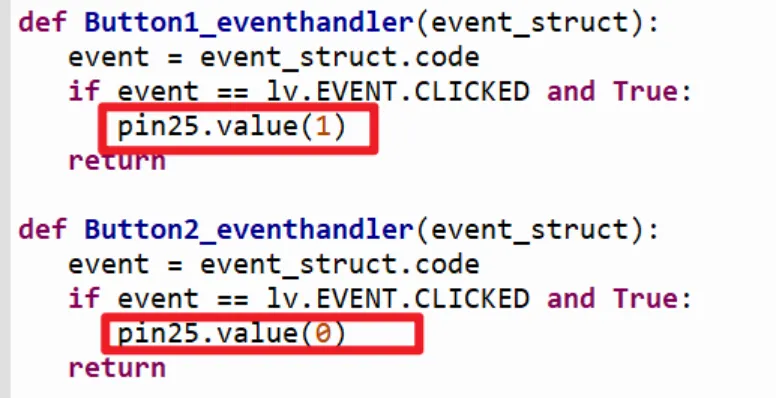
This part copies the code of ui.py generated by Squareline Studio. We need to modify the part that control the button.
From
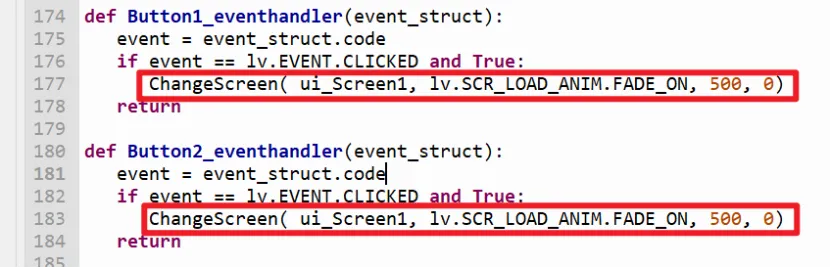
to
Temperature and humidity display
Define a class named TEM_HUM to display temperature and humidity information in the LVGL GUI.
sensor.read_dht20()
class TEM_HUM():
    def __init__(self, ui_Screen1):
        # Read the temperature and humidity values of the DHT20 sensor
        global Tem, Hum
        Tem = sensor.dht20_temperature()
        Hum = sensor.dht20_humidity()

        # Update the temperature and humidity display on the UI interface
        ui_Label4.set_text(f"{round(Tem)} °C")  # Update temperature
        ui_Label5.set_text(f"{round(Hum)} %")       # Update humidity
Create a function to display and update temperature and humidity.
# Make sure the TEM_HUM class is instantiated in the program and ui_Screen1 is passed as a parameter
def update_temperature_humidity():
    global Tem, Hum
    # Read the temperature and humidity values of the DHT20 sensor
    sensor.read_dht20()  # Make sure read_dht20() is called to update the sensor data
    Tem = sensor.dht20_temperature()
    Hum = sensor.dht20_humidity()

    # Update the temperature and humidity display on the UI interface
    ui_Label4.set_text(f"{round(Tem)}")
    ui_Label5.set_text(f"{round(Hum)}")
Main Loop
Define the main loop function main_loop to continuously update the temperature and humidity display on the UI interface.
def main_loop():
    while True:
        update_temperature_humidity()
        time.sleep(1)  # Pause for 10 seconds and then update again

#Instantiate the TEM-HUM class and pass ui_Screen1 as a parameter
TEM_HUM(ui_Screen1)

#Loading UI

lv.scr_load(ui_Screen1)
main_loop() #Start the main loop and continuously update the temperature and humidity display on the UI
GPIO Examples
Please click to download the code files.
Note! You need to reflash the firmware for each project, otherwise errors may occur.
Example 1 Turn on/off the LED in a loop
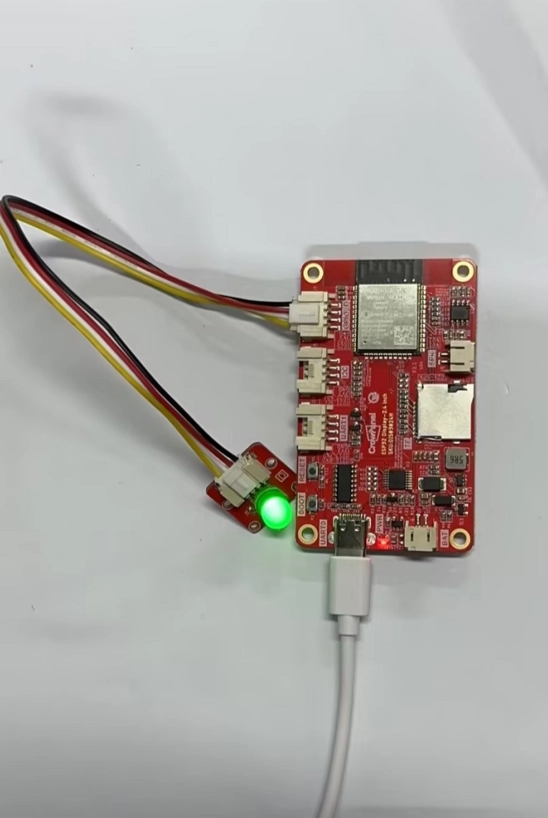
Connect an LED module to the D port(pin25) of ESP32 display, and upload the following code. The LED will turn on and off in a loop.
#Make by Elecrow
#Web:www.elecrow.com

import time
from machine import Pin
pin25 = Pin(25, Pin.OUT)
while True:

    pin25.value(1)
    time.sleep(0.5)
    pin25.value(0)
    time.sleep(0.5)
Example 2 Obtain temperature and humidity value
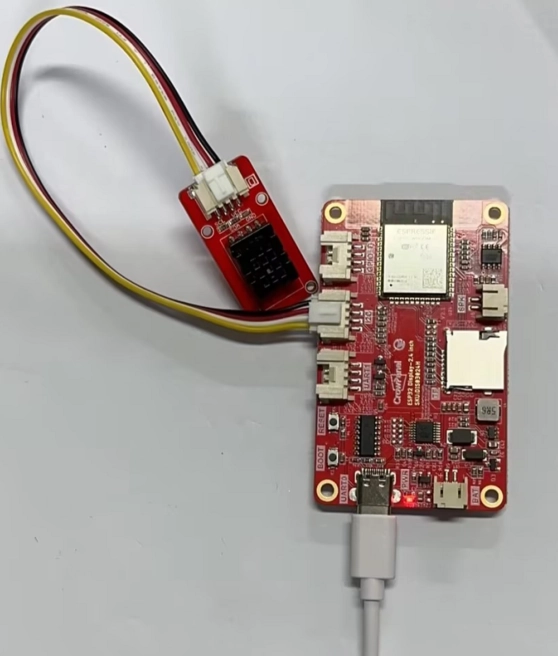
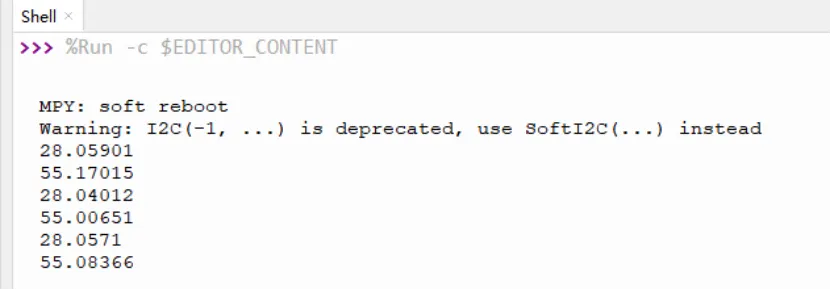
Plug DHT20 module to the IIC port. Add DHT20.py to the device(check the method in "Upload the libraries" section.) and upload the code below, the value of temperature and humidity will be printed.
import time
import DHT20
from machine import I2C, Pin
i2c = I2C(scl=Pin(21), sda=Pin(22))
sensor = DHT20.DHT20(i2c)

while True:
    sensor.read_dht20()
    print(sensor.dht20_temperature())
    print(sensor.dht20_humidity())
    time.sleep_ms(4000)
Example 3 Connect WiFi
Upload the following code to ESP32 HMI(note to modify the WiFi ssid and password to yours)
import network
import time

def connect():
    ssid = 'yanfa_software'
    password = 'yanfa-123456'

    wlan = network.WLAN(network.STA_IF)  # Create a WLAN object in station mode
    wlan.active(True)  # Activate the network interface
    wlan.connect(ssid, password)  # Connect to the specified WiFi network

    while not wlan.isconnected():  # Wait for the connection to be established
        print('Waiting for connection...')
        time.sleep(1)

    print('Connected on {ip}'.format(ip=wlan.ifconfig()[0]))  # Print the IP address

connect()
Running result:
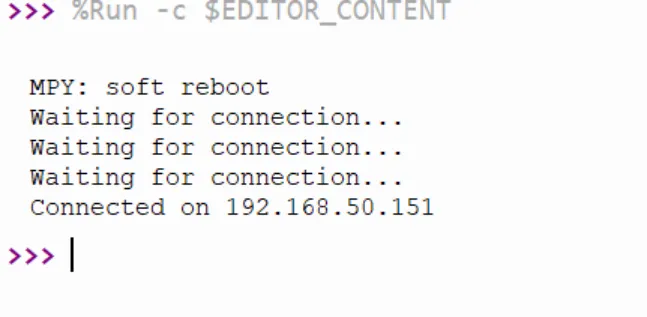
Example 4 Initialize SD card
Upload the following code to ESP32 HMI
Note: Please use an SD card formatted in FAT; otherwise, it may not be recognized.
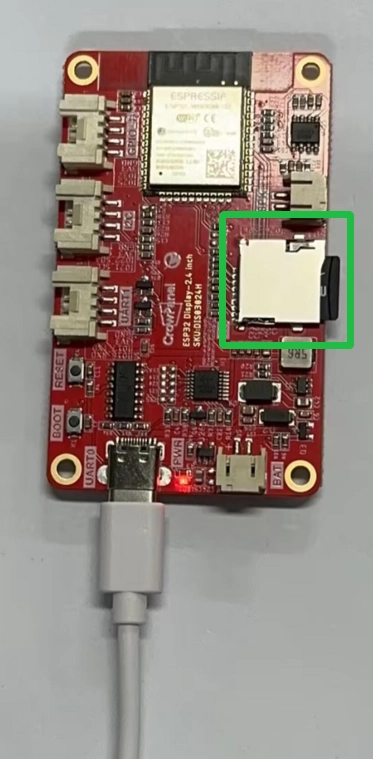
import machine
import os
import sdcard
import uos

#  SD Card Initialization
def init_sd():
    # Creating SPI Objects
    spi = machine.SPI(2, baudrate=1000000, polarity=0, phase=0, sck=machine.Pin(18), mosi=machine.Pin(23), miso=machine.Pin(19))
    cs = machine.Pin(5, machine.Pin.OUT)

    # SD Card Initialization
    sd = sdcard.SDCard(spi, cs)
    vfs = uos.VfsFat(sd)
    uos.mount(vfs, "/sd")

    print("SD card initialization complete")
    print("List of documents:", os.listdir("/sd"))

# write to a file
def write_file(filename, data):
    with open("/sd/" + filename, "w") as file:
        file.write(data)
    print("Data has been written to file:", filename)

# Read file
def read_file(filename):
    with open("/sd/" + filename, "r") as file:
        data = file.read()
    print("readout:", data)
    return data

# Example: Initialize SD card and read/write files
def main():
    init_sd()

    filename = "example.txt"
    data = "Hello, SD Card!"

    write_file(filename, data)
    read_file(filename)

if __name__ == "__main__":
    main()
Running result:
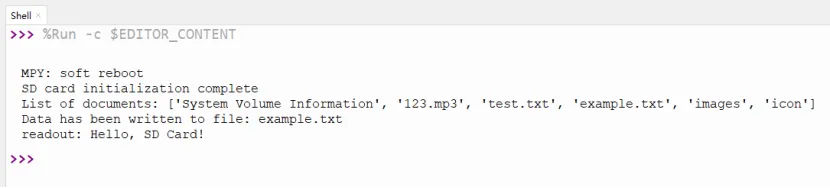
Example 5 Playing music
Connect a speaker to the ESP32 HMI. Upload the following code. ESP32 HMI will play the song 'Twinkle Twinkle Little Star'.
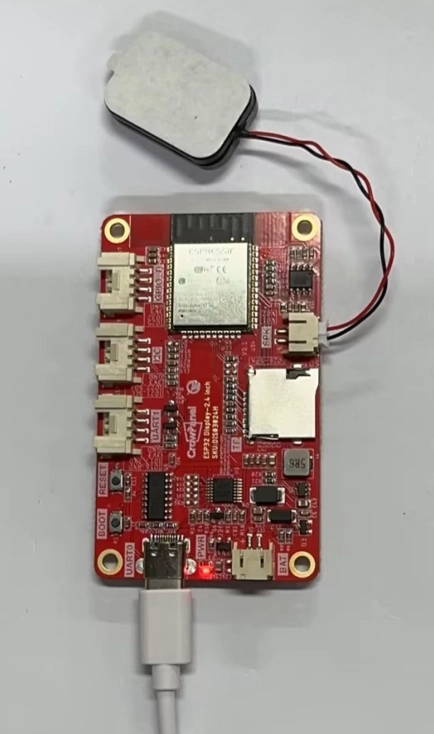
import math
import time
from machine import Pin, DAC


NOTE_C5 = 523
NOTE_D5 = 587
NOTE_E5 = 659
NOTE_F5 = 698
NOTE_G5 = 784
NOTE_A5 = 880


TwinkleTwinkle = [
    NOTE_C5, NOTE_C5, NOTE_G5, NOTE_G5, NOTE_A5, NOTE_A5, NOTE_G5,
    NOTE_F5, NOTE_F5, NOTE_E5, NOTE_E5, NOTE_D5, NOTE_D5, NOTE_C5,
    NOTE_G5, NOTE_G5, NOTE_F5, NOTE_F5, NOTE_E5, NOTE_E5, NOTE_D5,
    NOTE_G5, NOTE_G5, NOTE_F5, NOTE_F5, NOTE_E5, NOTE_E5, NOTE_D5,
    NOTE_C5, NOTE_C5, NOTE_G5, NOTE_G5, NOTE_A5, NOTE_A5, NOTE_G5,
    NOTE_F5, NOTE_F5, NOTE_E5, NOTE_E5, NOTE_D5, NOTE_D5, NOTE_C5
]

DURATION = 500

dac = DAC(Pin(26))

def play_tone(frequency, duration_ms):

    if frequency == 0:
        time.sleep_ms(duration_ms)
        return

    SAMPLE_RATE = 10000
    samples_per_cycle = int(SAMPLE_RATE / frequency)

    wave_table = []
    for i in range(samples_per_cycle):
        angle = 2 * math.pi * i / samples_per_cycle
        sample = int(128 + 127 * math.sin(angle))

        sample = max(0, min(255, sample))
        wave_table.append(sample)


    total_samples = int(SAMPLE_RATE * duration_ms / 1000)


    for i in range(total_samples):
        dac.write(wave_table[i % samples_per_cycle])
        time.sleep_us(100)

def play_melody(melody, duration_ms):
    for note in melody:
        play_tone(note, duration_ms)
        time.sleep_ms(50)

def setup():
    print("play music...")
    play_melody(TwinkleTwinkle, DURATION)

def loop():
    while True:
        pass

setup()
loop()