ESPHOME Lesson01 Installation Tutorial
Lesson01—Setting Up the ESPHome Platform
1. Course Introduction
In this lesson, we will teach you how to use and operate the rotary screen through ESPHome. Next, we will learn how to install the ESPHome environment so that you can edit code on it and implement the related functions of the rotary screen.
2. Learning Objectives
Gain a basic understanding of the software required to drive the rotary screen using ESPHome
Learn how to install the required software
3. Software Introduction
Home Assistant (often called "HA" for short) is a free, open-source smart home management platform—think of it as the central "control brain" for all your smart devices. It works on computers, small servers, or even dedicated smart home hubs, and lets you manage every smart product you own (lights, thermostats, sensors, your rotary screen, etc.) in one unified interface—regardless of the brand or technology the device uses. For your rotary screen, HA acts as the "command center": it can receive inputs from the screen (like knob rotations or touch taps), control other devices based on those inputs (e.g., turn up the lights when you twist the knob), and send data (like room temperature or music volume) to the screen for display.
ESPHome is a free, open-source tool built to configure smart hardware (specifically devices powered by ESP32/ESP8266 chips—your rotary screen uses an ESP32). The key benefit? You don't need to write complex code to make the screen work. Instead, you use simple, plain-text configurations (like filling in a template) to define what the rotary screen does: e.g., "show 'Hello World' on the display," "adjust the thermostat when the knob turns," or "wake the screen when touched." ESPHome takes these configurations, converts them into instructions the ESP32 can understand, and uploads them to your rotary screen—while also automatically synchronizing the screen's status (what it's displaying, how the knob is being used) with Home Assistant.
Together, Home Assistant and ESPHome turn your rotary screen into a flexible, customizable smart device: ESPHome provides the screen with its "basic capabilities" (display, knob/touch response), and HA connects those capabilities to your entire smart home—allowing the screen to both control your devices and display their status, all without requiring technical expertise.
4. How to Install the Software
First, we need to prepare:
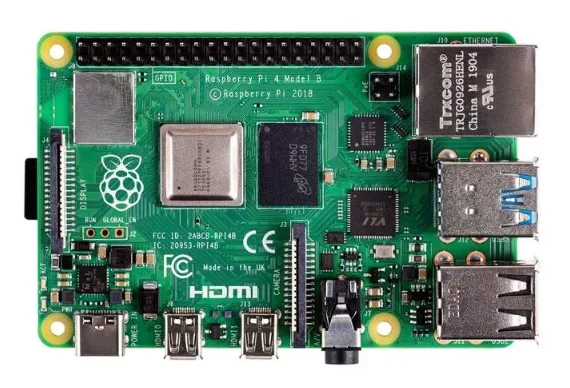
① a Raspberry Pi;
② a 64GB SD card;
③ a CrowPanel 2.1inch-HMI ESP32 Rotary Display 480480 IPS Round Touch Knob Screen
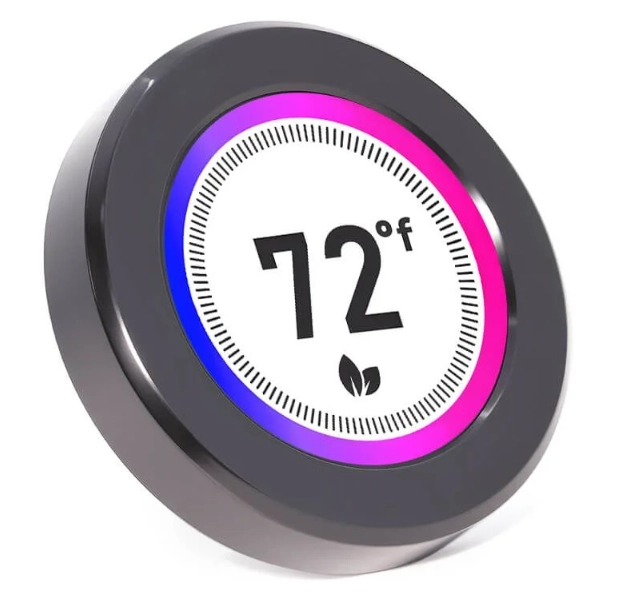
Product link: https://www.elecrow.com/crowpanel-2-1inch-hmi-esp32-rotary-display-480-480-ips-round-touch-knob-screen.html?r=cmVsYXRl
OR
CrowPanel 1.28inch-HMI ESP32 Rotary Display 240240 IPS Round Touch Knob Screen
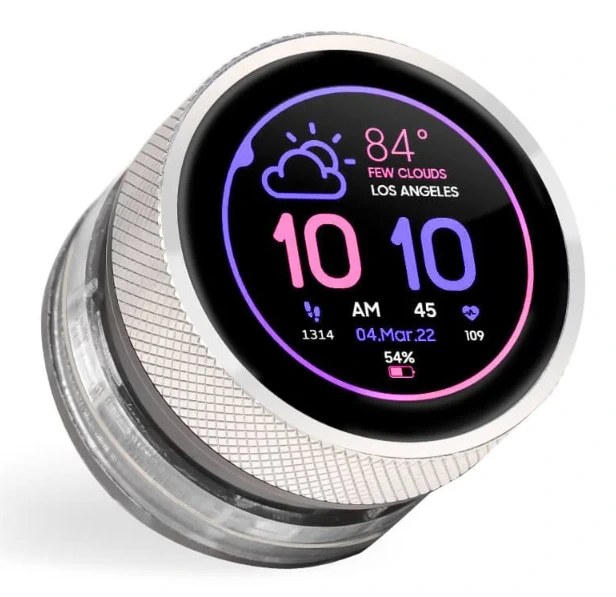
Product link: https://www.elecrow.com/crowpanel-1-28inch-hmi-esp32-rotary-display-240-240-ips-round-touch-knob-screen.html?r=cmVsYXRl
Download Home Assistant
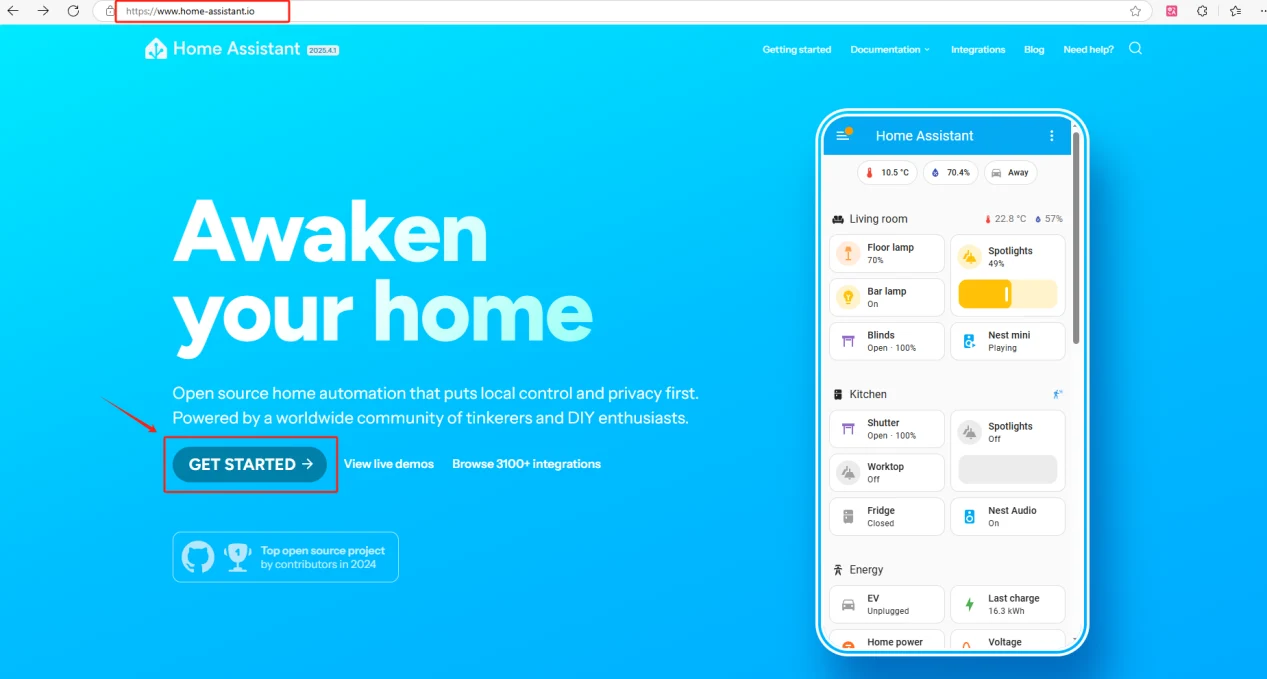
Open the official Home Assistant website: https://www.home-assistant.io/
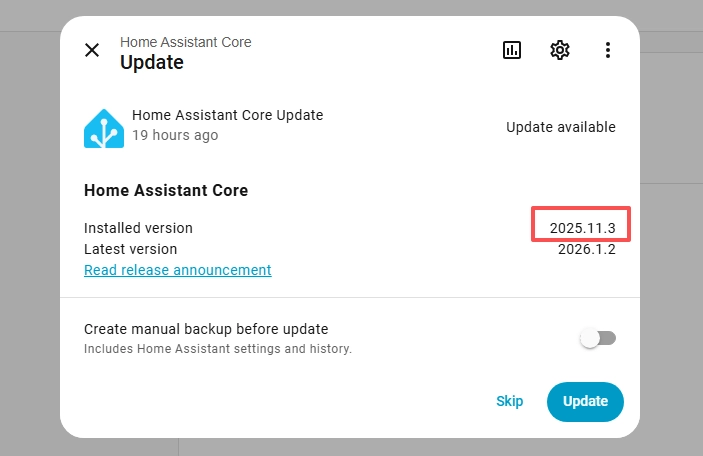
The version we are using here is 2025/11/3
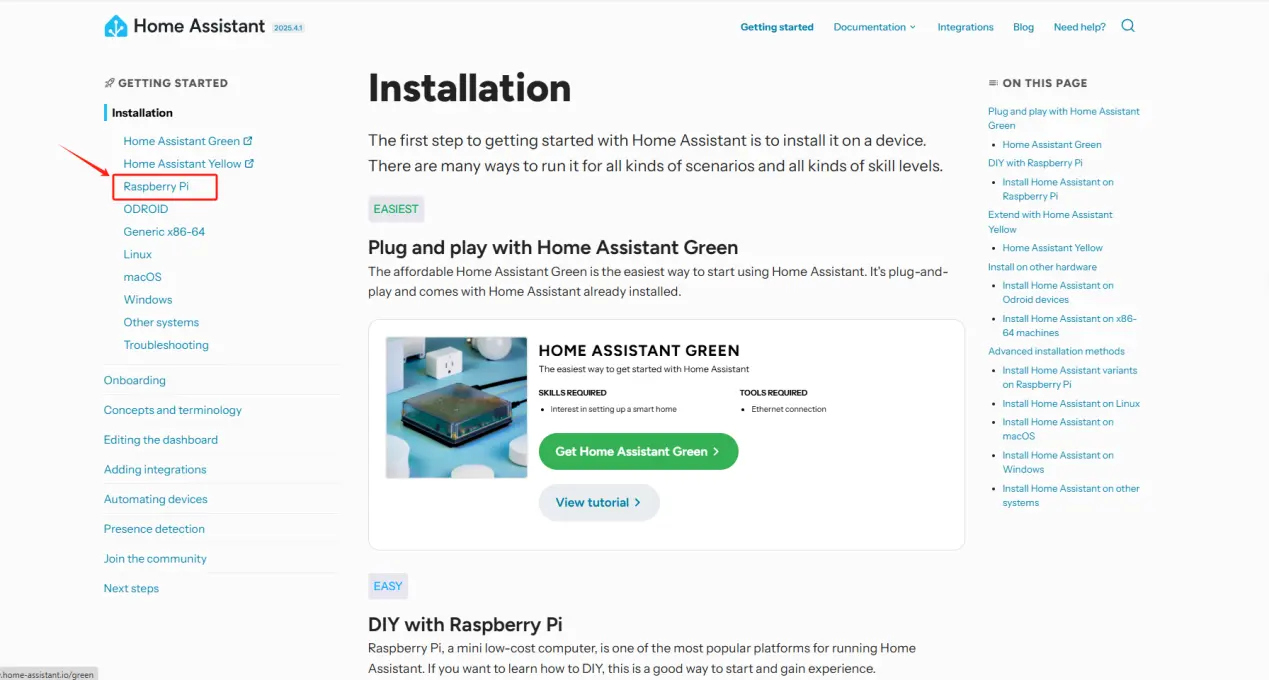
Select Raspberry Pi and install the Home Assistant system according to this installation guide (install according to the official installation guide).
After the installation is complete, insert the SD card with the Home Assistant system into the Raspberry Pi and connect the Ethernet cable.
Note: Make sure that the Wi-Fi network your CrowPanel HMI ESP32 Rotary Display will connect to is on the same local area network (LAN) as the Raspberry Pi.
The following devices must be on the same LAN:
① Your computer
② CrowPanel HMI ESP32 Rotary Display
③ Raspberry Pi with the Home Assistant system
Note: The Raspberry Pi must be connected to a screen to view information. Once everything is ready, power on the Raspberry Pi and wait for it to load. The screen will display the following image.
(You need to connect a display screen to the Raspberry Pi in order to see this information.)
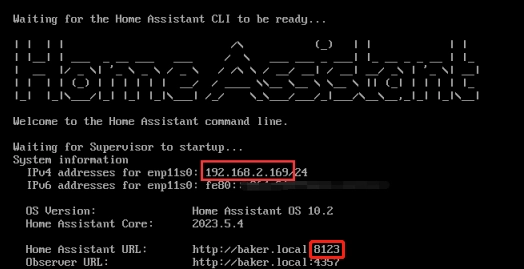
Remember the IP address and the Home Assistant URL.
In my case, the IP address is: 192.168.50.11
So I enter 192.168.50.11:8123 in the browser.
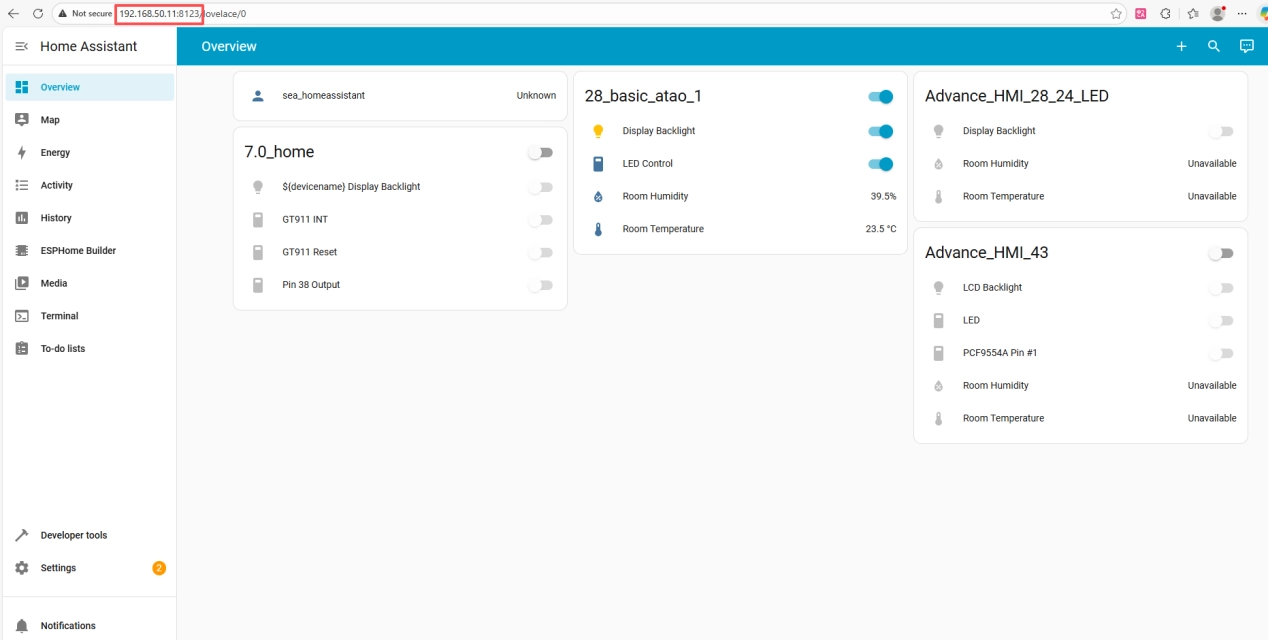
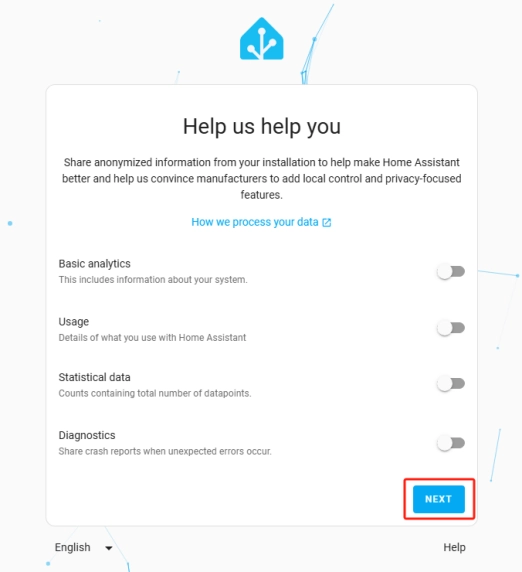
Next, start configuring the Home Assistant system.

You can either manually set your location or allow it to be detected automatically.

By default, click "Next."
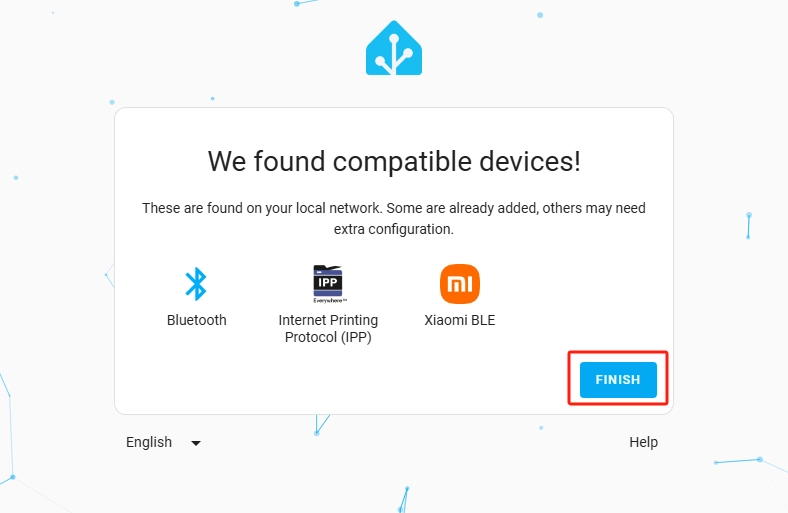
You can either add smart devices now or click Finish to add them later.
Here, we will add the devices later.
Add ESPHome
This will bring you to the main interface of Home Assistant.

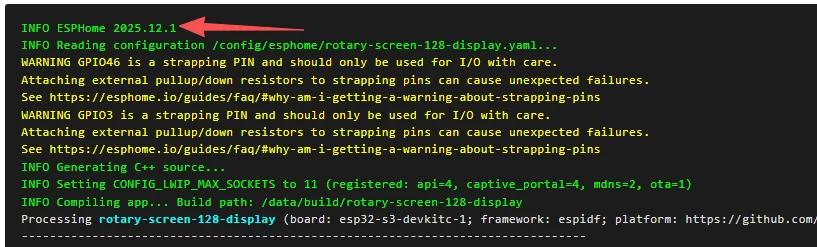
The version of ESPHome we are using is 2025/12/1
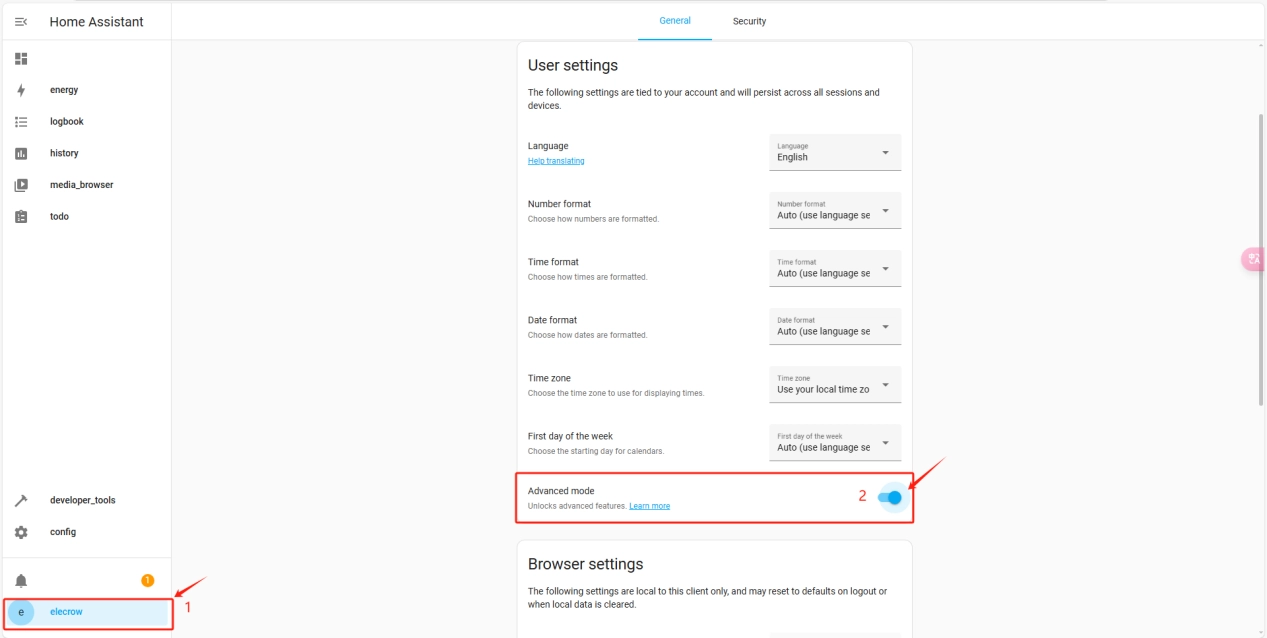
Click on the username and enable "Advanced Mode."
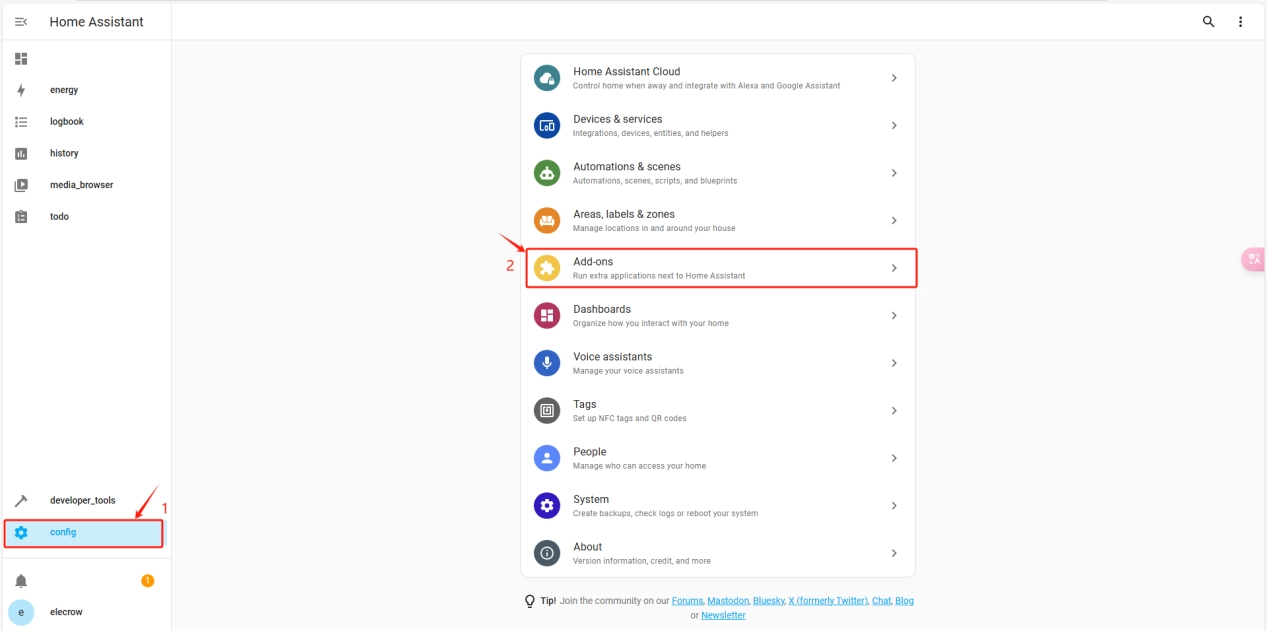
Click on "Settings" and then "Add-ons."
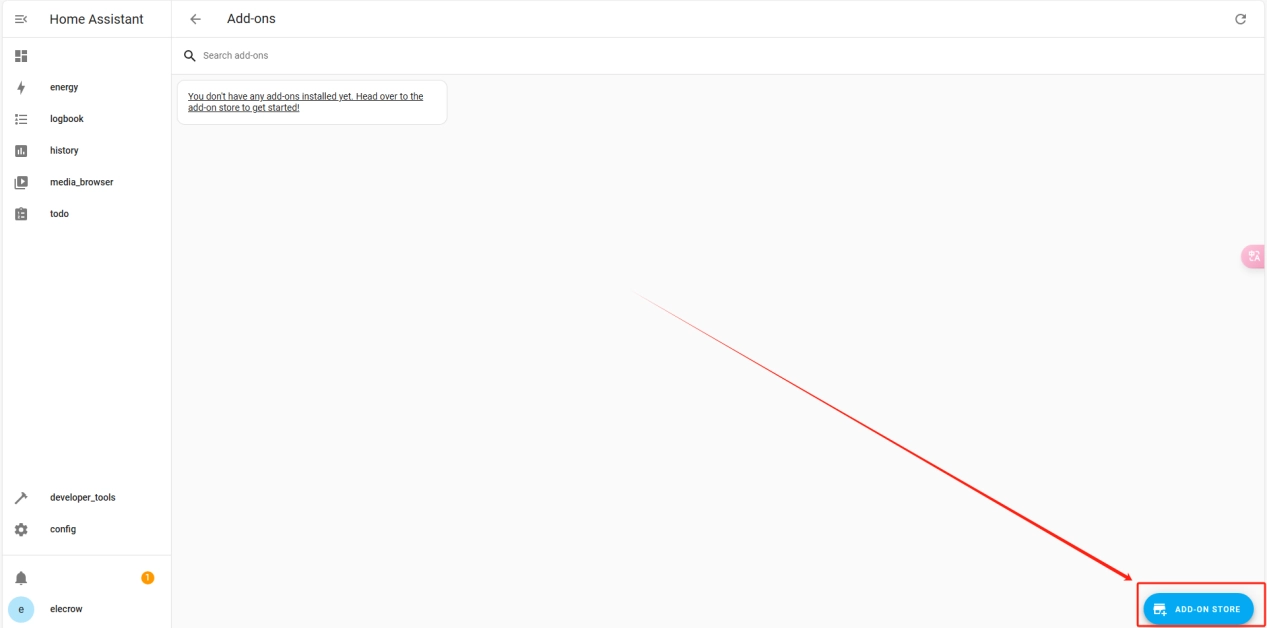
Click on "ADD-ON STORE" and type ESPHome to install it.
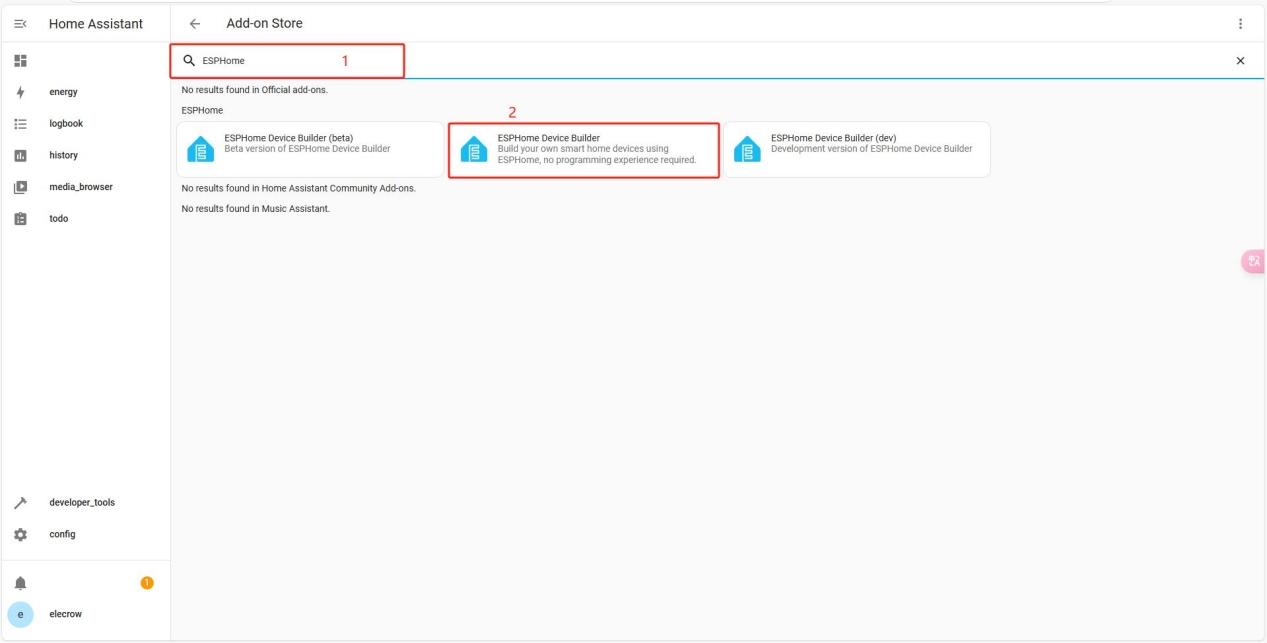
The installation is in progress, as shown in the image.
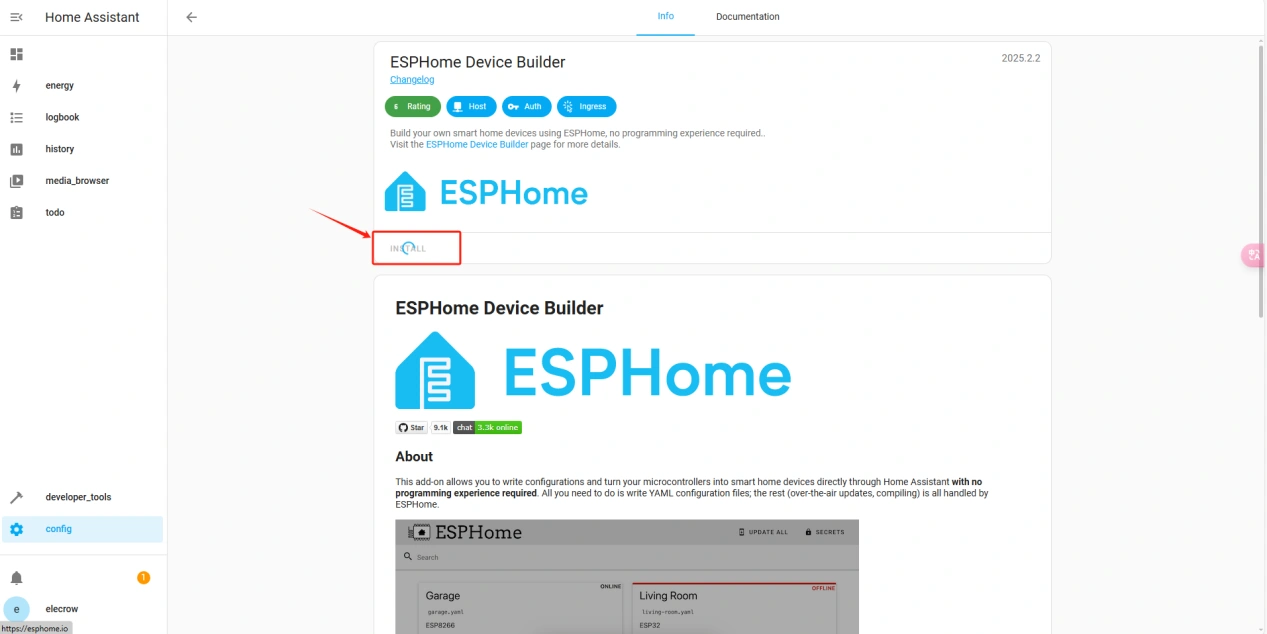

In this way, we have successfully installed ESPHome. From now on, we can use ESPHome to edit code and implement the functions we want to achieve.