Display_Touch_LVGL_4.3: Driving a 4.3-inch HMI, XPT2046 Touch, and LVGL 9.1 with Arduino
1. Course Introduction
This lesson uses Arduino IDE 2.3.10, ESP32 Arduino Core 3.3.8, Arduino GFX 1.6.5, and LVGL 9.1.0 to drive a 4.3-inch, 480 × 272 HMI display based on the ESP32-S3. The program refreshes the NV3047 LCD through an RGB parallel bus, reads the XPT2046 resistive touch controller over SPI, and loads the SquareLine_Project UI exported from SquareLine Studio 1.6.1.
After the program is flashed and the board is reset, the LCD backlight turns on and the screen shows a background image and two image buttons labeled ON and OFF. When a button is touched, LVGL receives the mapped coordinates and the Serial Monitor outputs the touch position. The ON button turns on the GPIO 38 indicator LED, and the OFF button turns it off. This experiment verifies the complete interaction chain consisting of display, touch, LVGL input, UI events, and GPIO output.
Reference materials:
2. Learning Objectives
- Be able to configure the build parameters for Arduino IDE 2.3.10, ESP32 Arduino Core 3.3.8, and the ESP32S3 Dev Module.
- Be able to explain the relationship between RGB timing, the LVGL partial drawing buffer, and the flush callback.
- Be able to explain the data flow between the XPT2046 raw coordinates, calibration mapping, and LVGL pointer input.
- Be able to compile and flash the project, and determine whether display initialization succeeded based on the startup log.
- Be able to verify whether the entire interaction chain works correctly through the UI, touch coordinates, and the GPIO 38 indicator LED.
3. What You Need to Prepare
- One ESP32-S3 4.3-inch HMI development board with an LCD resolution of 480 × 272 and an XPT2046 touch controller.
- One USB data cable that supports data transfer.
- One LED module connected to GPIO38.
esp32 by Espressif Systemsversion 3.3.8 from the Boards Manager.- Keep the
4.3inch/Arduino/librariesfolder intact; it contains LVGL 9.1.0, Arduino GFX 1.6.5, XPT2046_Touchscreen 1.4, and the audio library. - Keep the
.ino,touch.h,ui*.c,ui*.h, and image resource source files inside theLVGL_Arduino4.3directory intact.
4. Software Operation Steps
This tutorial uses Arduino IDE 2.3.10 for demonstration. The IDE version is not strictly required, and other versions work as well.
The first time you perform the steps, please follow them in order; do not skip ahead to uploading after a failed compilation.
Launch the Arduino IDE, open Help > About Arduino IDE, and confirm that the version is 2.3.10. Close the About window before continuing. 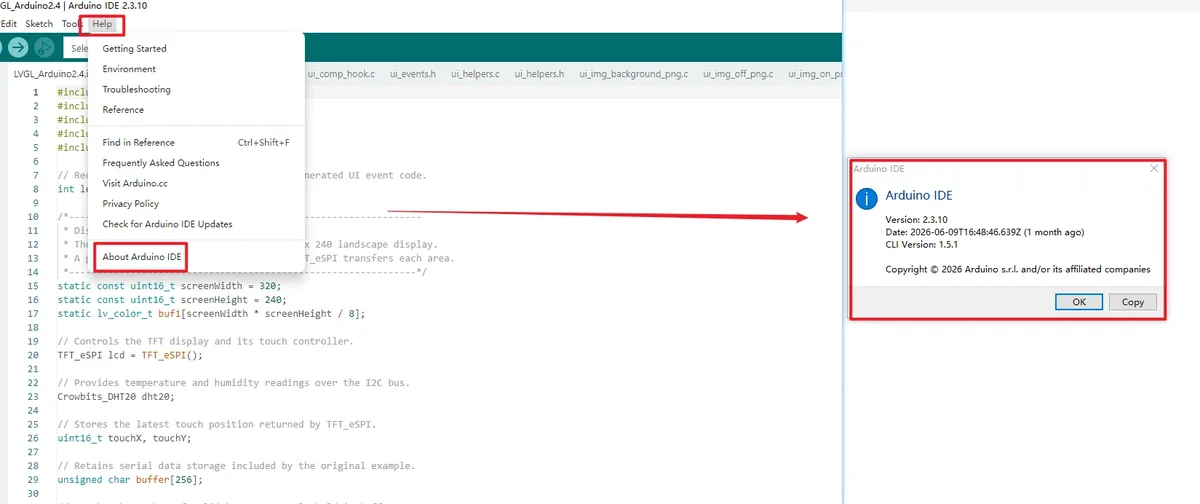
Select File > Open and navigate to LVGL_Arduino4.3. Confirm that you are opening the complete project directory, not a separately copied .ino file.
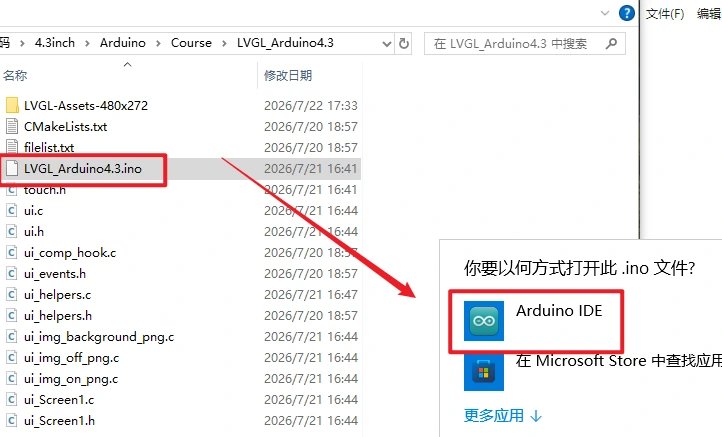
Select and open LVGL_Arduino4.3.ino.
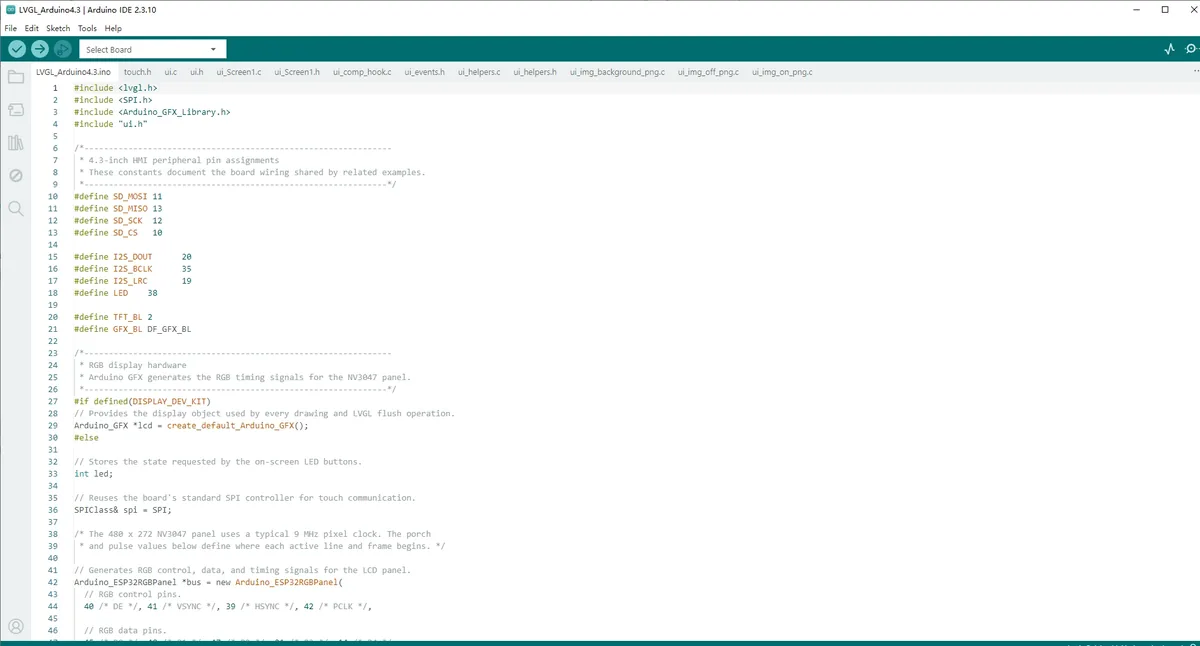
Check the file tabs above the editor area and confirm the presence of touch.h, ui.c, ui.h, ui_Screen1.c, the helper files, and the three ui_img_*_png.c image arrays. If any UI file is missing, copy the complete project again before continuing. 
Open the Arduino IDE and go to File > Preferences.
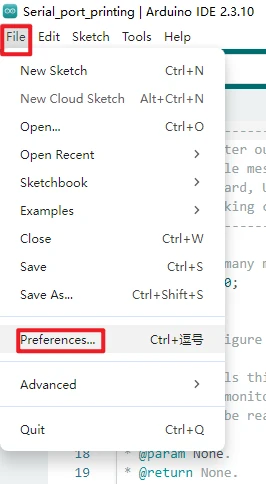
In Additional boards manager URLs, add the Espressif ESP32 board index address:
Remember to click confirm after making changes.
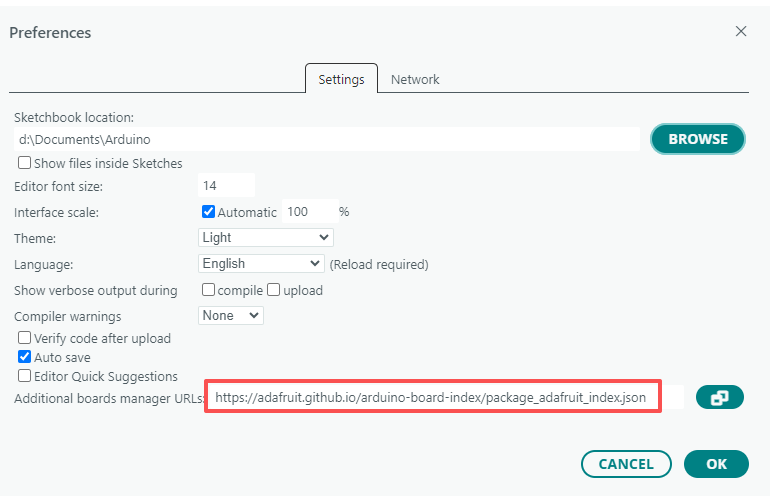
Open the Board Manager, search for esp32. Locate esp32 by Espressif Systems, select it, and install 3.3.8. If the interface already shows 3.3.8 installed, simply close the Board Manager.
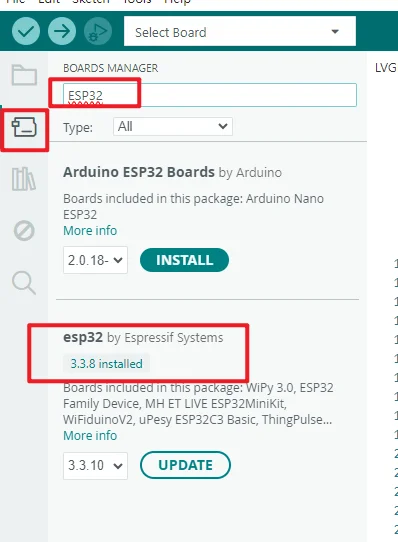
Open File > Preferences and note the "Sketchbook location". Close the Arduino IDE, then confirm that a libraries folder exists in that directory.
How to add the library files: https://www.elecrow.com/wiki/Arduino_IDE_Library_Import_Guide.html.
Note: The course dependency libraries must be placed in the libraries directory under the Arduino sketchbook folder. After copying, restart the Arduino IDE to prevent it from using the old library index.
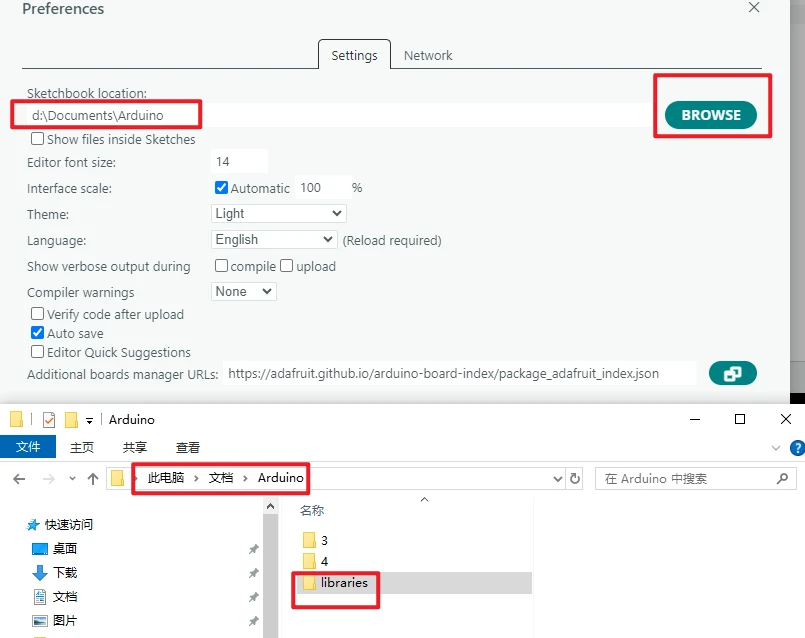
In the file manager, check the libraries folder of the Sketchbook and confirm that at least lvgl, GFX_Library_for_Arduino, XPT2046_Touchscreen, and the audio library are present. Do not install different versions of a library with the same name at the same time, otherwise the build log may show that an incorrect path was loaded. 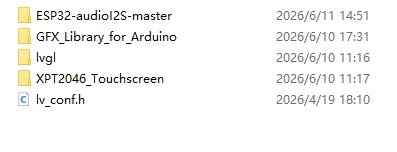
Connect the development board using a USB data cable.
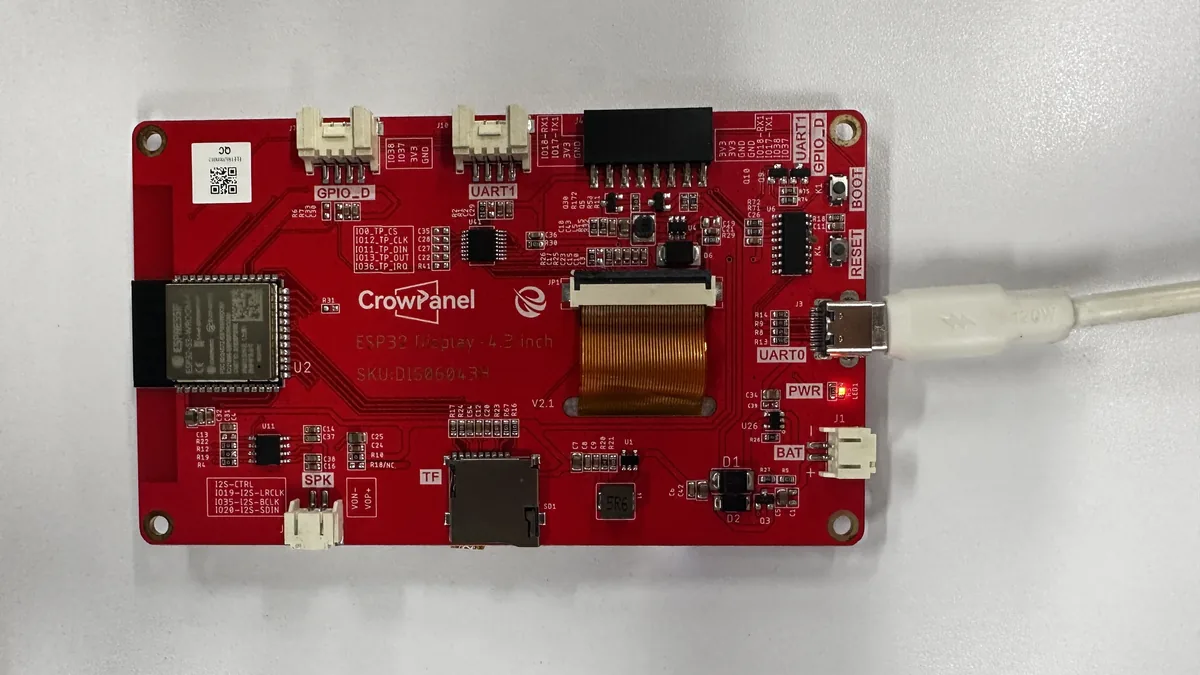
Open Tools > Board > esp32 and select ESP32S3 Dev Module. After this, the IDE top bar or status bar must show ESP32S3 Dev Module. 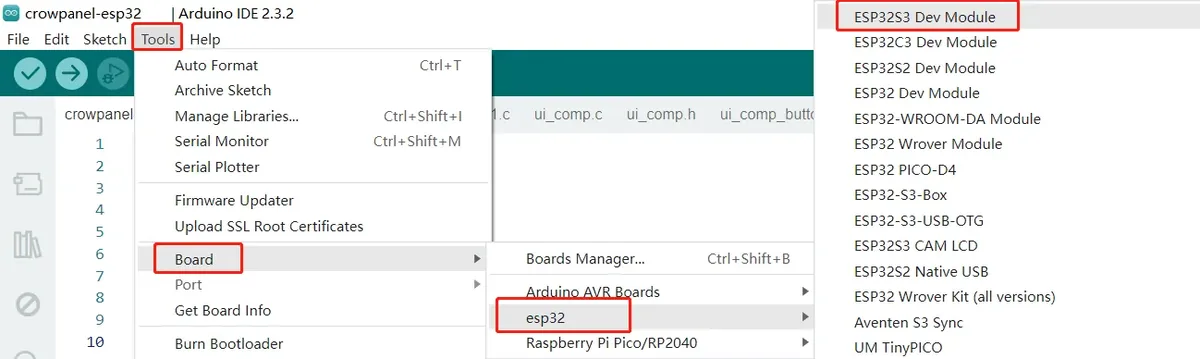
Open Tools > Port and select the COM port that newly appears after connecting the board. If no port appears, first replace the USB cable with one that supports data transfer, then check the serial port status in the system Device Manager. 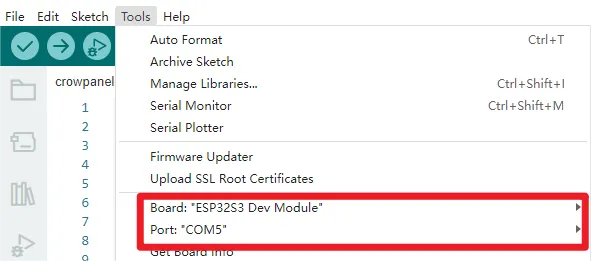
In the Tools menu, set Flash Mode: QIO 80MHz, Flash Size: 4MB (32Mb), Partition Scheme: Huge APP (3MB No OTA/1MB SPIFFS), PSRAM: QSPI PSRAM, Upload Mode: UART0 / Hardware CDC, and Upload Speed: 921600. Keep the other options at their default values used during project validation. 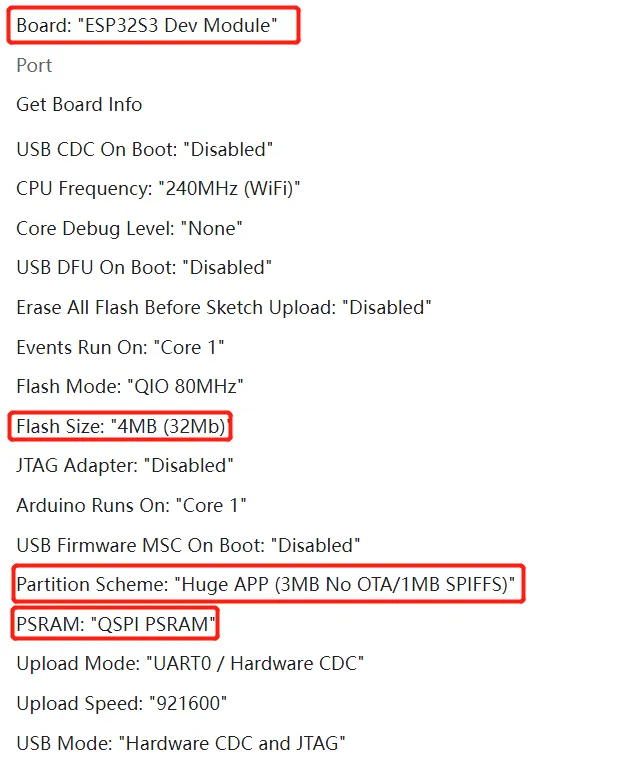
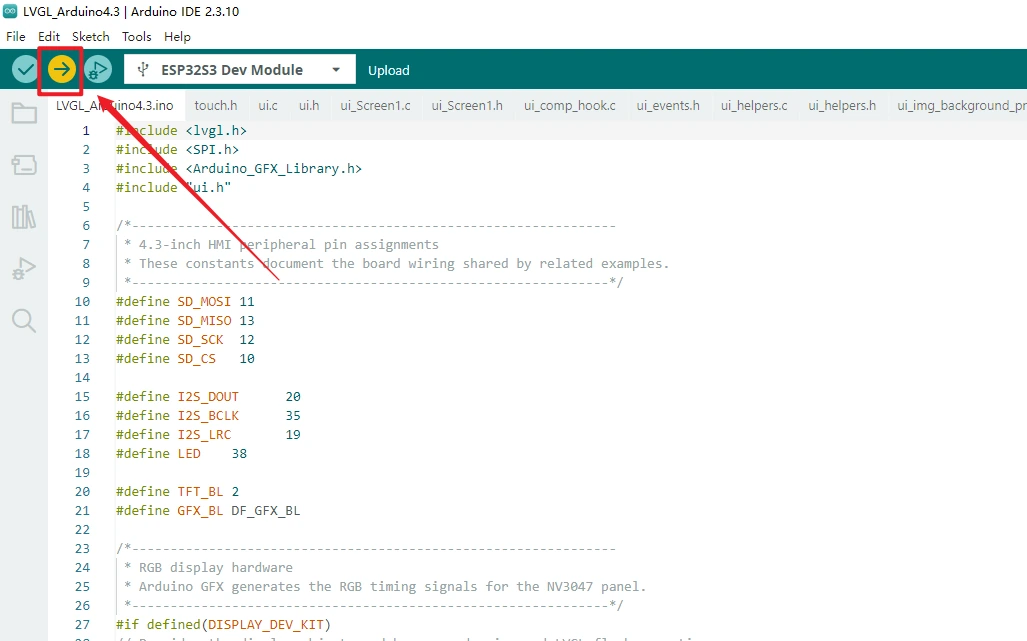
After a successful verification, click Upload and wait for the upload progress to reach 100%. If it stays at Connecting... for a long time, hold down the board's BOOT button, release it once writing begins, then re-check the port and upload mode.
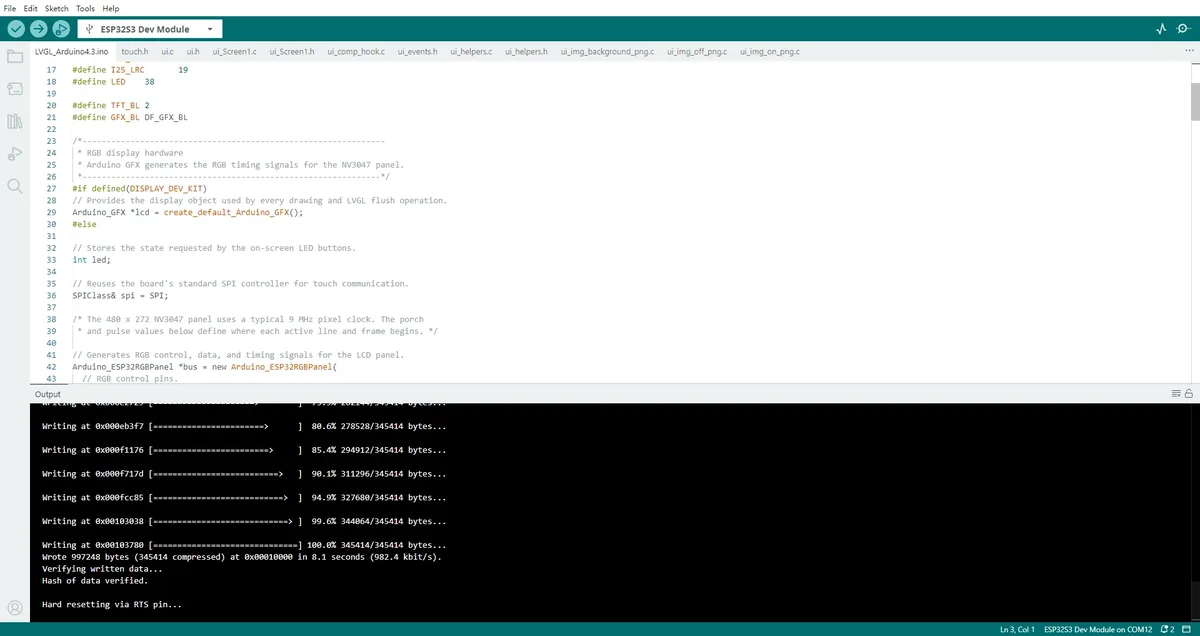
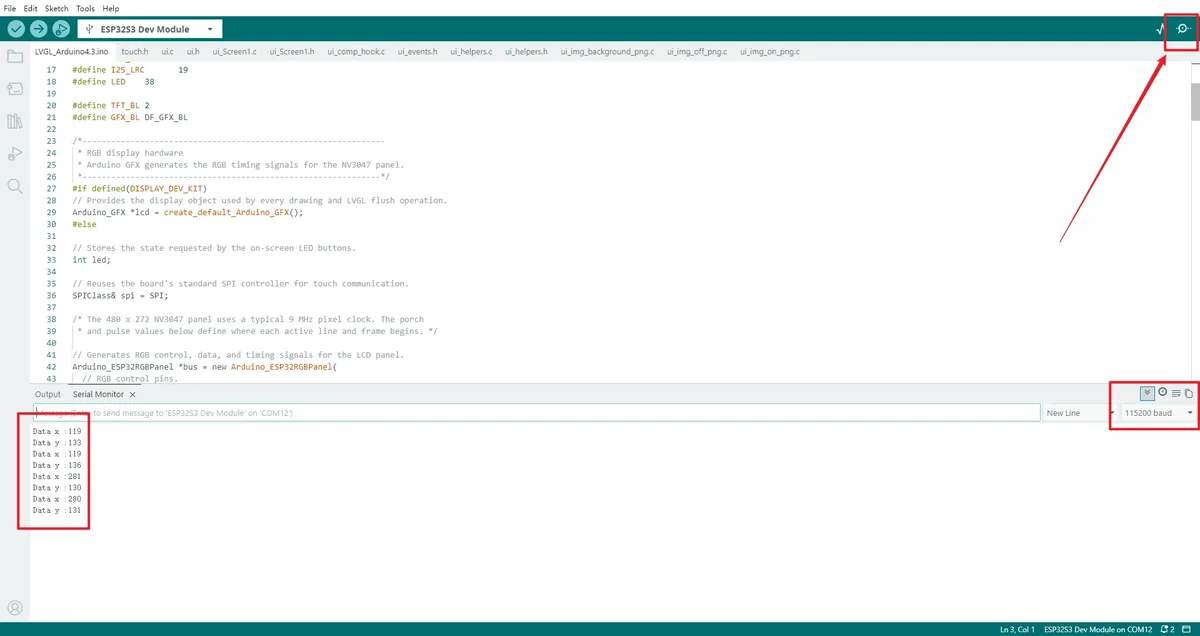
Click Serial Monitor in the top-right corner and set the baud rate to 115200. After reset, you should see Starting..., Backlight ON, lcd->begin() OK, Screen: 480x272, and Setup done in order; touching the screen should also output Data x and Data y.
5. Hardware Operation Steps
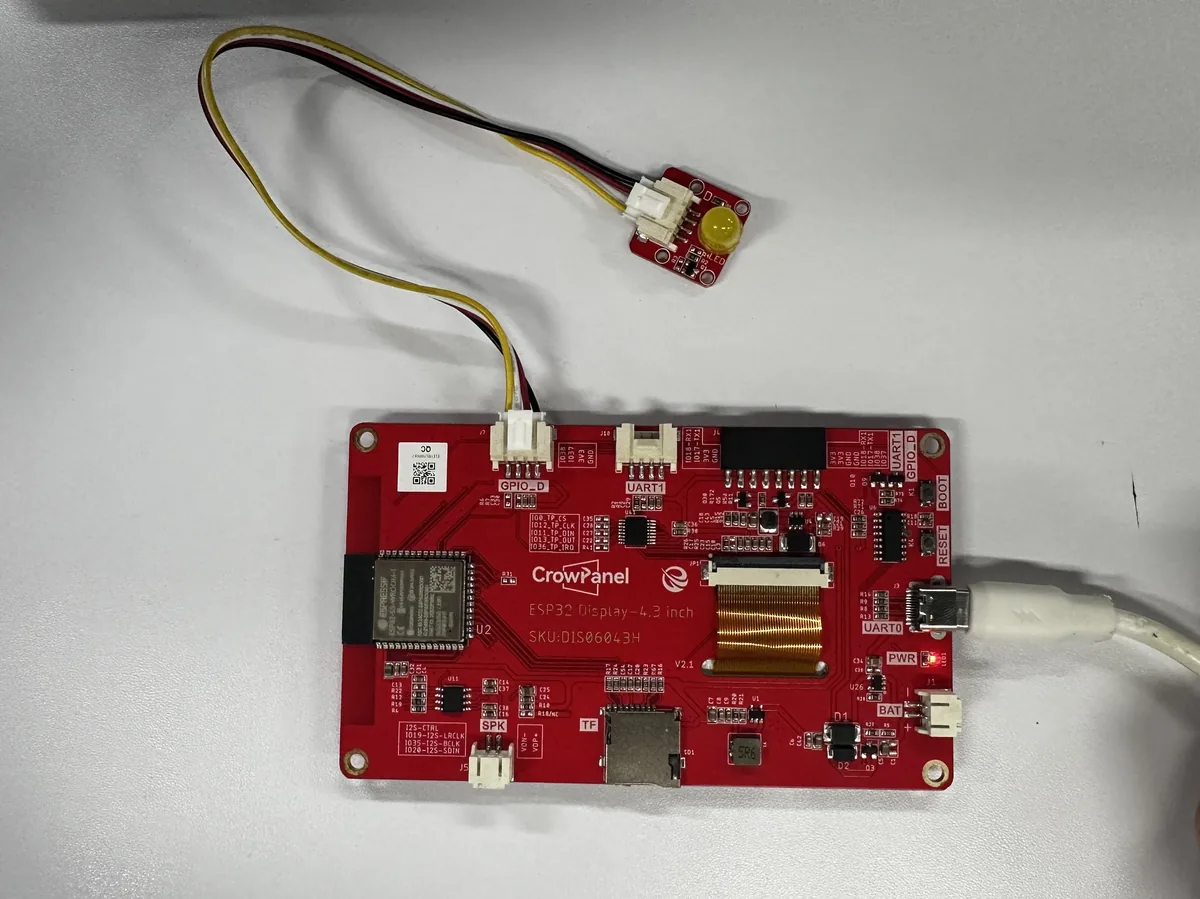
Keep the board powered off and confirm that the LCD and touch ribbon cables are secured. If you are using an external LED, connect it to the connector labeled GPIO_D, whose signal line corresponds to GPIO 38; after confirming the orientation and power pins, connect the board to the computer using a USB-C cable that supports data transfer.
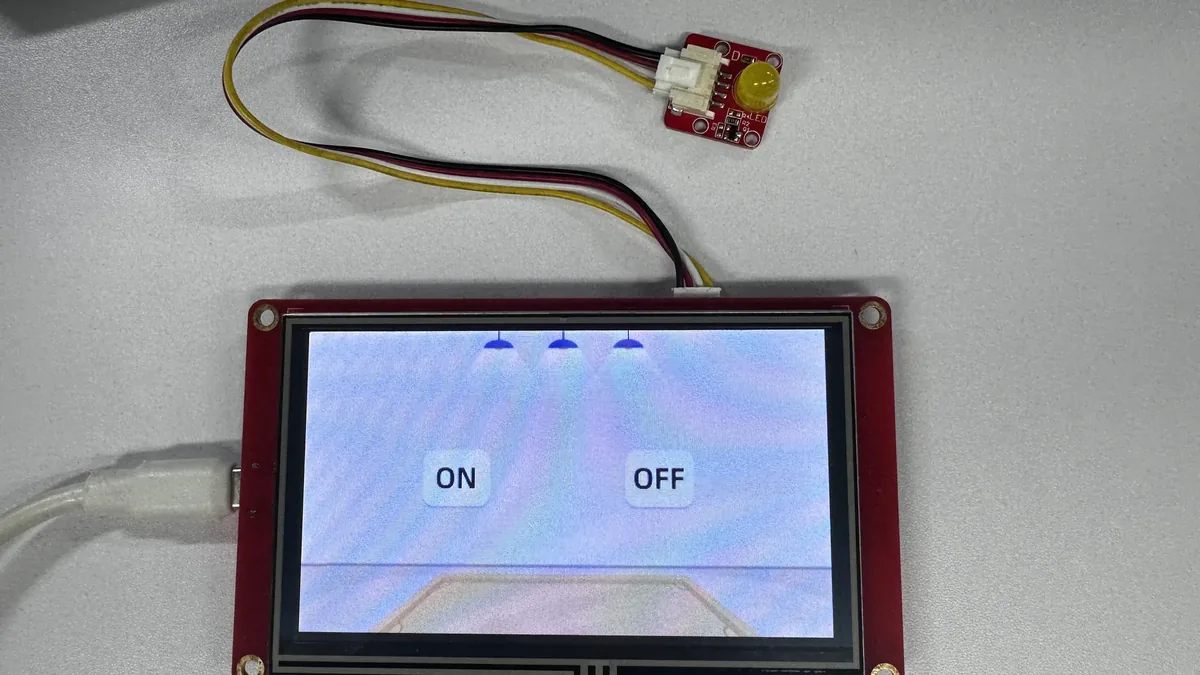
After flashing is complete, press the reset button. The LCD backlight should turn on, and the screen should fully display the background and the two image buttons ON and OFF; there must be no garbled display, misalignment, white blocks, or missing areas.
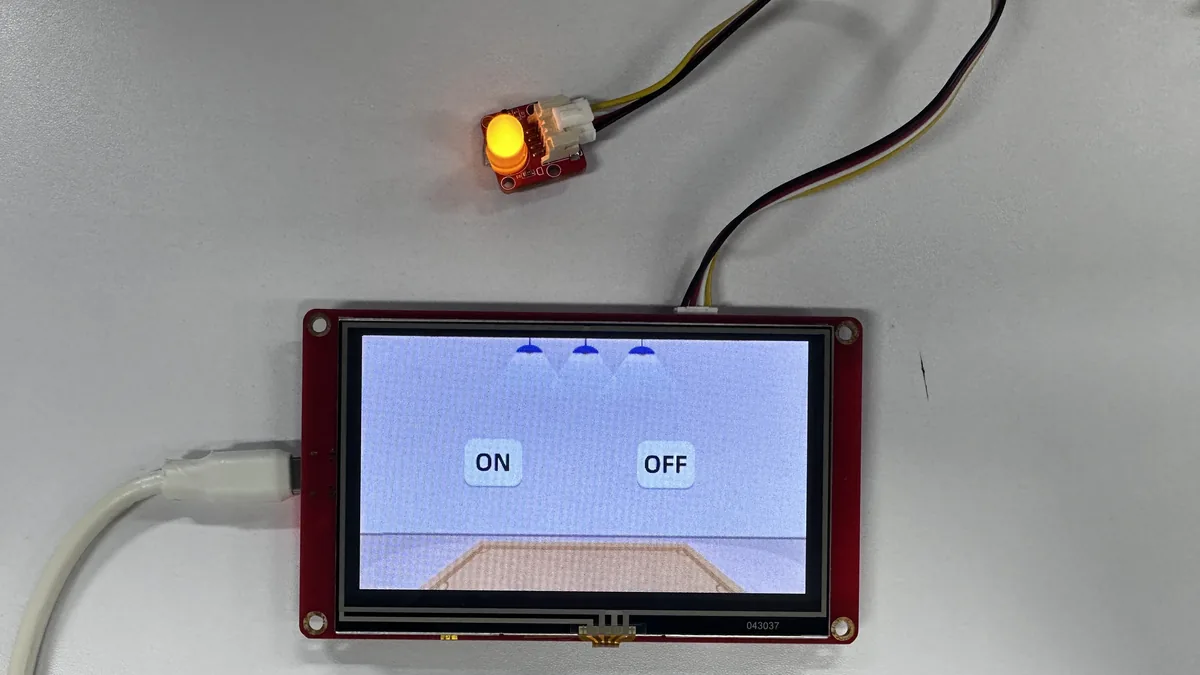
Tap the ON image button with your finger; do not use sharp or conductive objects. The GPIO 38 LED should light up.
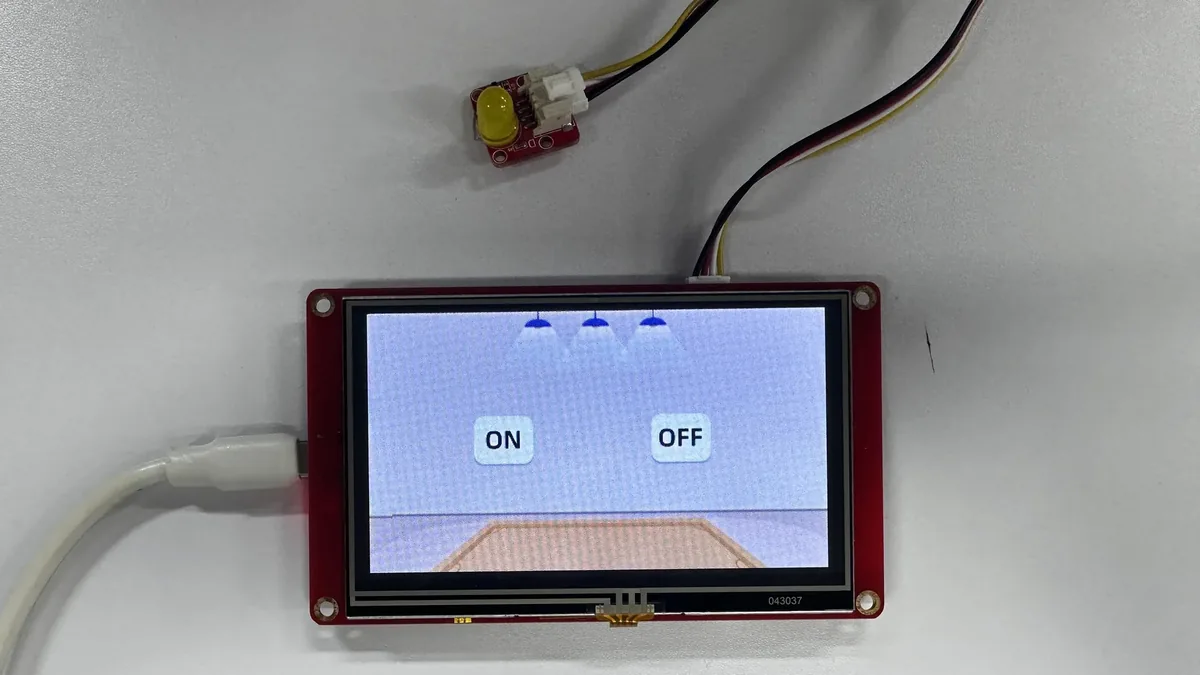
Tap the OFF image button; the GPIO 38 LED should turn off.
6. Key Code Explained
6.1 RGB Panel Timing
/*---------------------------------------------------------------
 * Configure the RGB display bus for the 4.3-inch NV3047 panel.
 * The pin order follows Arduino_ESP32RGBPanel's control/data groups.
 *--------------------------------------------------------------*/
Arduino_ESP32RGBPanel *bus = new Arduino_ESP32RGBPanel(
  // RGB control pins: DE, VSYNC, HSYNC, and PCLK.
  40, 41, 39, 42,
  // RGB565 red, green, and blue data pins.
  45, 48, 47, 21, 14,
  5, 6, 7, 15, 16, 4,
  8, 3, 46, 9, 1,
  // Horizontal and vertical synchronization timing.
  0, 8, 4, 43,
  0, 8, 4, 12,
  // Pixel clock, byte order, and bounce-buffer settings.
  1, 9000000, false,
  0, 0, 480
);
This object is created during global initialization. Its four parameter groups specify the RGB control lines, 16-bit color data lines, horizontal/vertical blanking timing, and the 9 MHz pixel clock. Incorrect data pins will cause color anomalies or no display; sync timing errors may cause the image to scroll, shift, or go black. If something goes wrong, first restore the course parameters and do not rewire the ribbon cable while the board is powered on.
6.2 LVGL Partial Drawing Buffer and Flush Callback
// Store one-eighth of a frame so LVGL can refresh in partial areas.
static lv_color_t disp_draw_buf[480 * 272 / 8];

// Create the display and connect its flush callback and render buffer.
lv_display_t *disp = lv_display_create(screenWidth, screenHeight);
lv_display_set_flush_cb(disp, my_disp_flush);
lv_display_set_buffers(disp, disp_draw_buf, NULL,
                       sizeof(disp_draw_buf),
                       LV_DISPLAY_RENDER_MODE_PARTIAL);
The drawing buffer is about one-eighth of the total screen pixels, so LVGL splits one frame into multiple rectangular regions for refresh. my_disp_flush() uses draw16bitRGBBitmap() to copy the region to the LCD and must call lv_display_flush_ready(). If this completion notification is missing, LVGL will keep waiting after the first region, making the interface appear to stop refreshing.
6.3 XPT2046 Coordinate Mapping
// XPT2046 calibration endpoints; reversing a pair reverses that axis.
#define TOUCH_MAP_X1 4000
#define TOUCH_MAP_X2 100
#define TOUCH_MAP_Y1 100
#define TOUCH_MAP_Y2 4000

// Convert raw ADC samples into the calibrated LVGL screen coordinates.
touch_last_x = map(p.x, TOUCH_MAP_X1, TOUCH_MAP_X2, 0, 430 - 1);
touch_last_y = map(p.y, TOUCH_MAP_Y1, TOUCH_MAP_Y2, 0, 272 - 1);
The XPT2046 returns raw ADC values close to 0–4095, and the calibration endpoints convert them into screen pixels. The endpoint order also determines the axis direction. The current project limits the X axis to 0–429 and the Y axis to 0–271; this is not exactly the same as the LCD's 480 × 272 display range. These are the existing calibration parameters of this project, so you should not simply change them to 479 just because the screen width is 480. When the parameters do not match, the screen may still display normally, but the touch position will be offset or reversed; you should first record the raw coordinates of the four corners of the screen, then adjust the endpoints and mapping range based on the measured results.
6.4 Registering the Display and Input Devices
// Connect LVGL's display output to the LCD flush callback.
lv_display_set_flush_cb(disp, my_disp_flush);

// Register the touch controller as a pointer input device.
lv_indev_t *indev = lv_indev_create();
lv_indev_set_type(indev, LV_INDEV_TYPE_POINTER);
lv_indev_set_read_cb(indev, my_touchpad_read);

// Build the background, image buttons, and event callbacks exported by SquareLine.
ui_init();
The three calls connect LCD flushing, touch reading, and the SquareLine UI respectively. Commenting out the flush callback will prevent LVGL from displaying correctly; commenting out the input callback lets the UI display but the buttons will not respond; commenting out ui_init() may keep the backlight and display driver working, but the lesson's UI will not be created.
6.5 UI Events Controlling GPIO 38
// Only a completed click changes the shared LED request.
if(event_code == LV_EVENT_CLICKED) {
    led = 1;
}
The ON and OFF callbacks only modify the shared variable led, and the main loop then writes to GPIO 38 based on this variable. This division of labor keeps the LVGL callbacks short. If you change the button event to another event type, a light tap may no longer trigger it; if the main loop no longer executes digitalWrite(), the button will still give touch feedback, but the physical indicator will not change.
7. UI Asset Creation and Integration
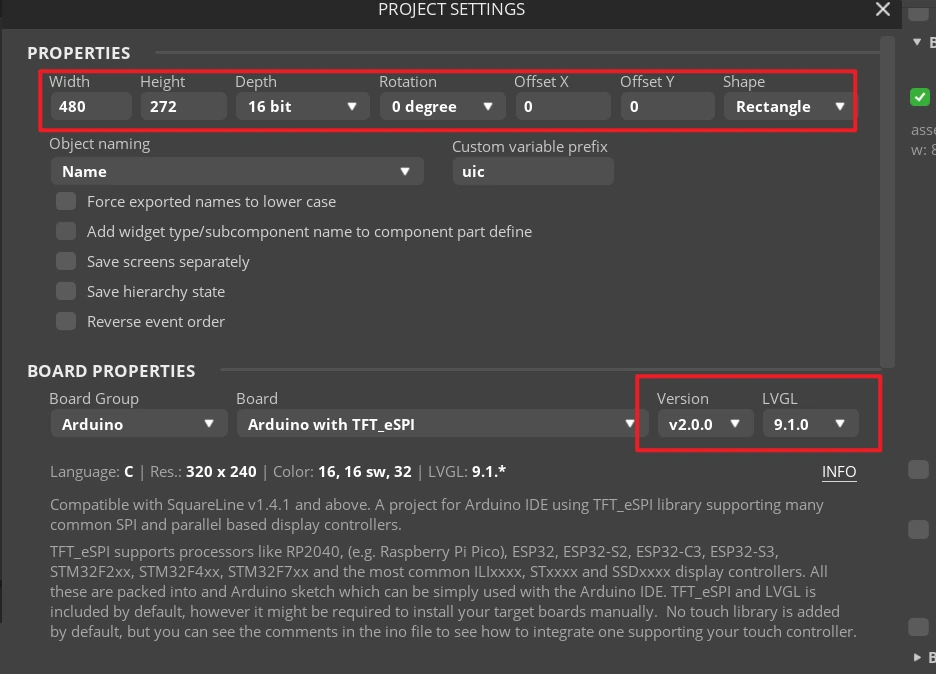
This section uses SquareLine Studio 1.6.1 to demonstrate the UI creation method again. The course already provides the exported UI files; beginners can first read this section to understand the workflow, then directly use the files in the project to complete the build. When creating a new project, you must select LVGL 9.1.0;
How to download SquareLine Studio: https://www.elecrow.com/wiki/Create_LVGL_UI_with_SquareLine_Studio.html.
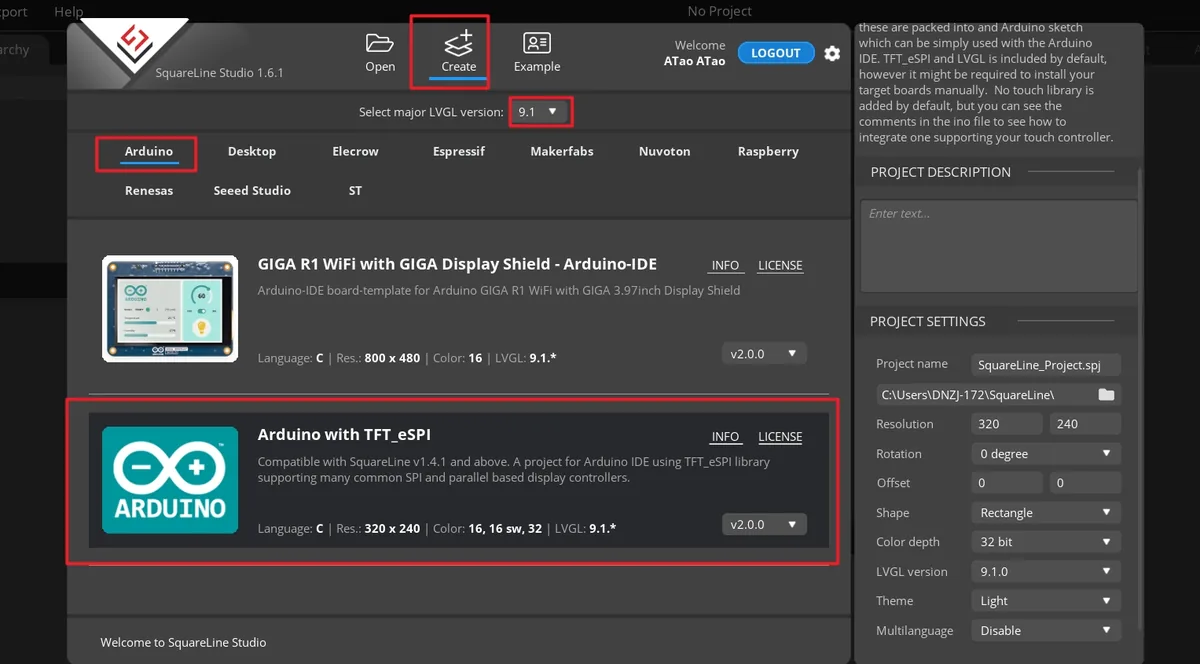
Launch SquareLine Studio 1.6.1, click Create, and select the Arduino with TFT_eSPI template for the Arduino platform. This template generates a UI file framework suitable for Arduino and TFT_eSPI projects.
Note: When the Arduino framework is selected, SquareLine Studio only shows the Arduino with TFT_eSPI option. It generates template code for TFT_eSPI, but SquareLine Studio also supports other graphics libraries; when switching to other hardware, you need to modify the display code according to the actual library.
Enter the project name SquareLine_Project, set the resolution to width 480 and height 272, set the color depth to 16 bit, set the LVGL version to 9.1.0, then click CREATE.
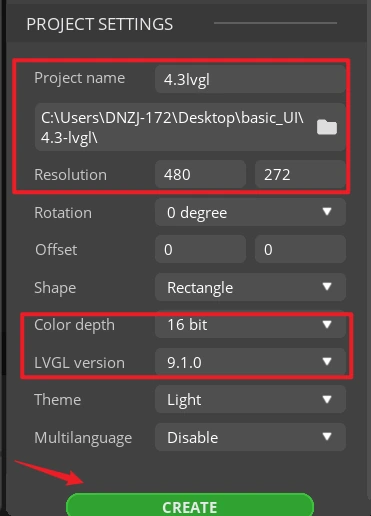
Note: A 16 bit color depth can represent 65,536 colors using the RGB 5:6:5 pixel format. Keep it consistent with the project's color configuration.
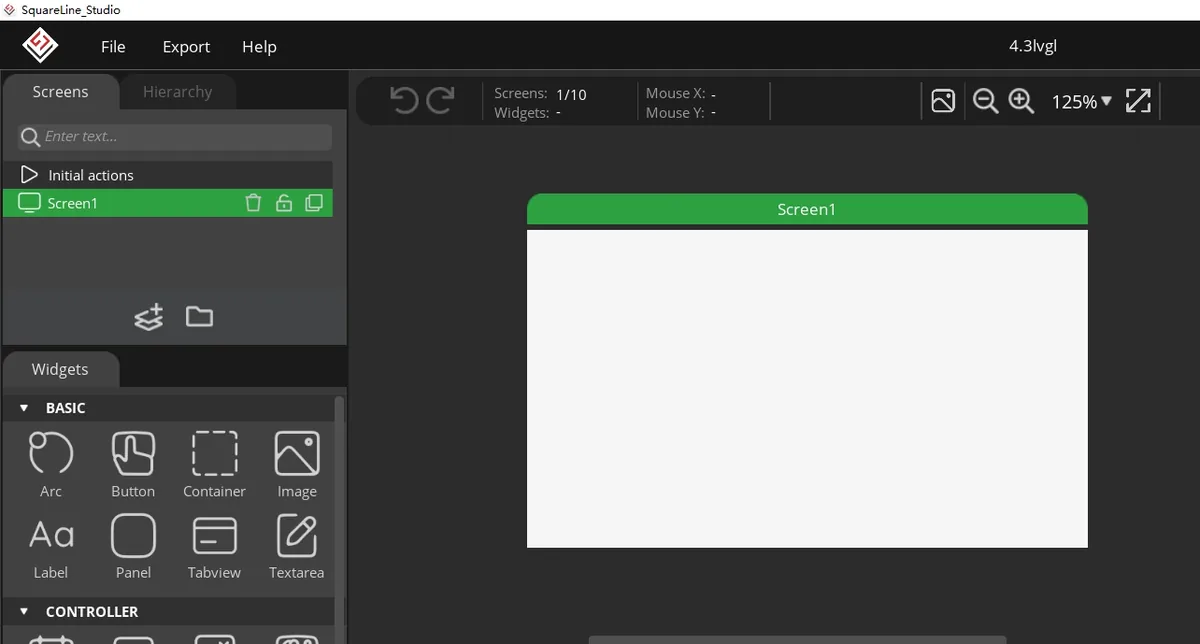
After the project opens, select Screen1 in the Screens panel on the left.
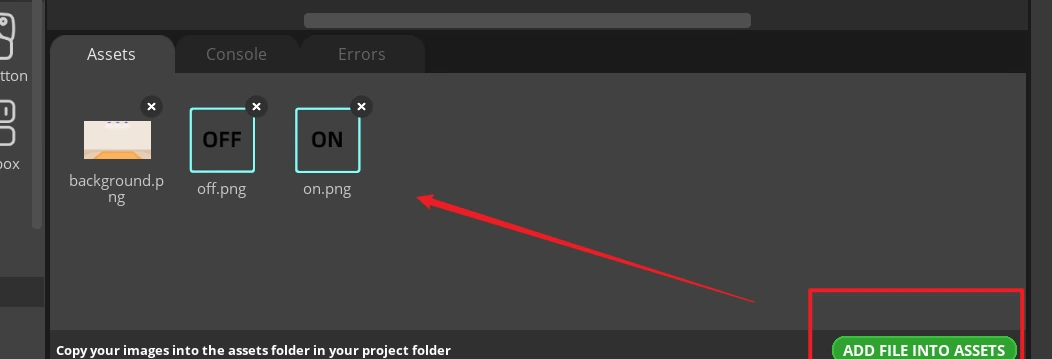
In the Assets area, click ADD FILE TO ASSETS and import the course-provided background.png, on.png, and off.png. After importing, three thumbnails should appear.
Material link:
Select Screen1, expand STYLE SETTINGS > STYLE (MAIN) > Background on the right, and enable the background image setting. 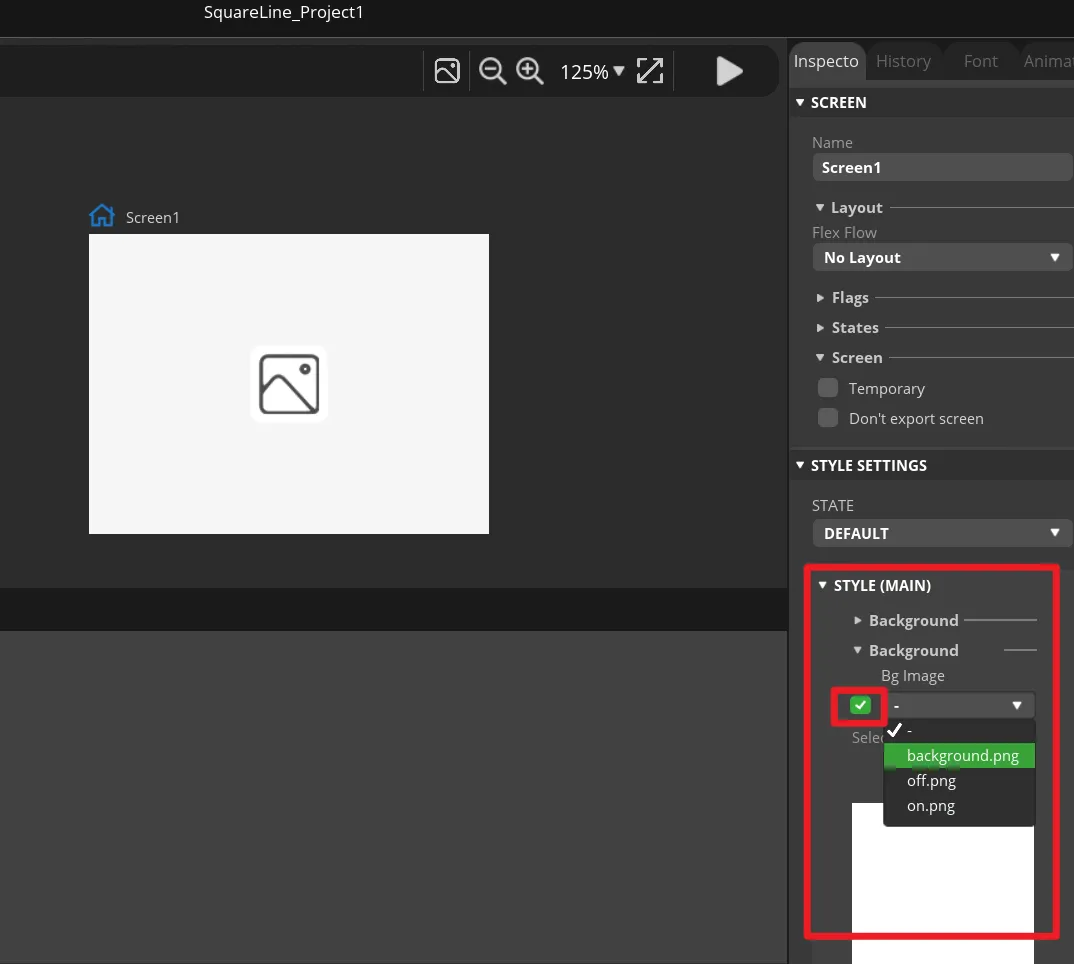
In Bg Image, select background, and disable the page scrolling if it is not needed. The background should fully cover the 480 × 272 canvas. 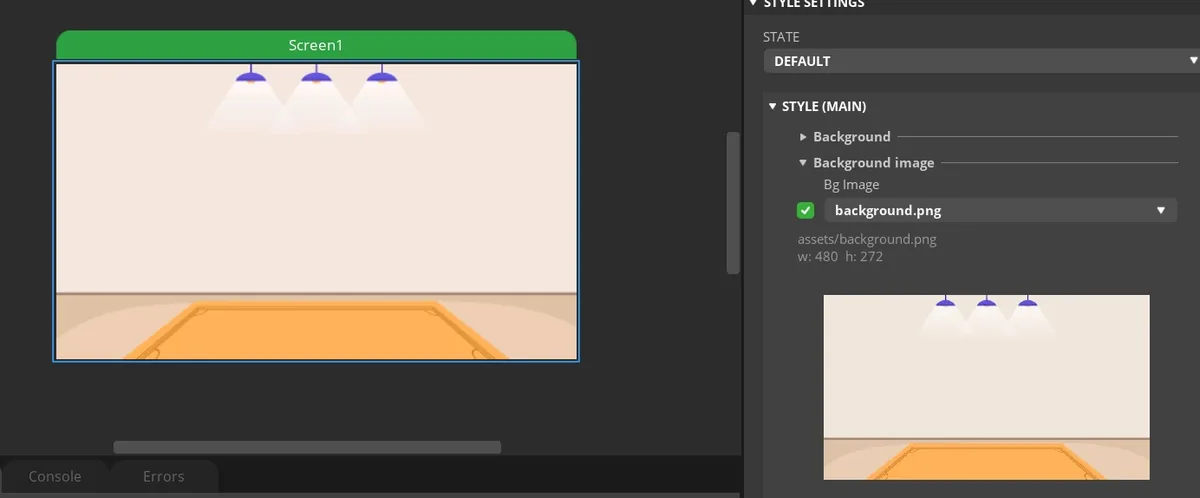
In the Widgets panel on the left, click Button to add Button1 to Screen1, then move the button to the ON area on the left side of the screen. 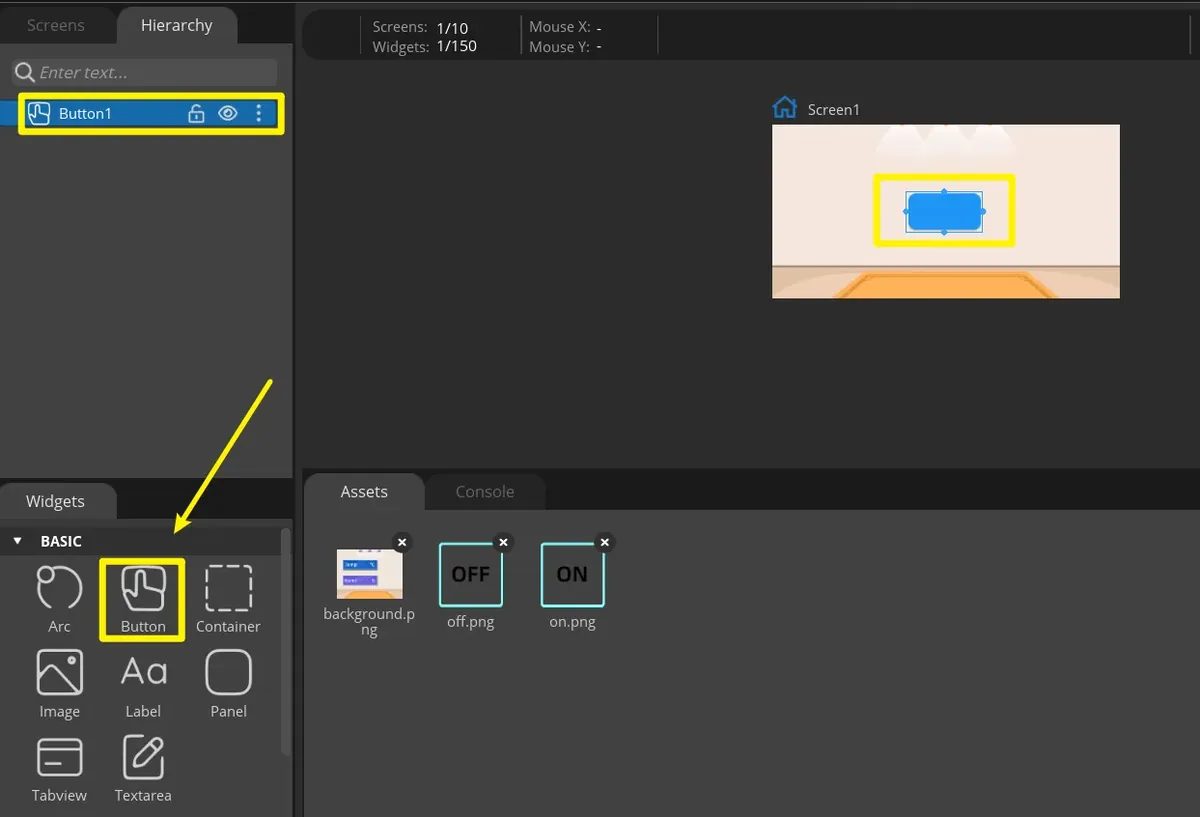
Select Button1 and set its position and size in Transform. 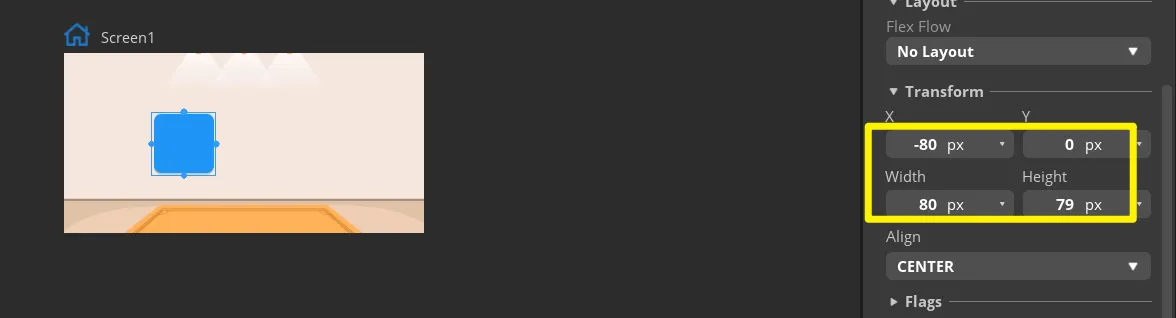
Expand Button1's STYLE (MAIN) > Background and select on.png. The ON icon should appear on the canvas, and the image should not be stretched or cropped. 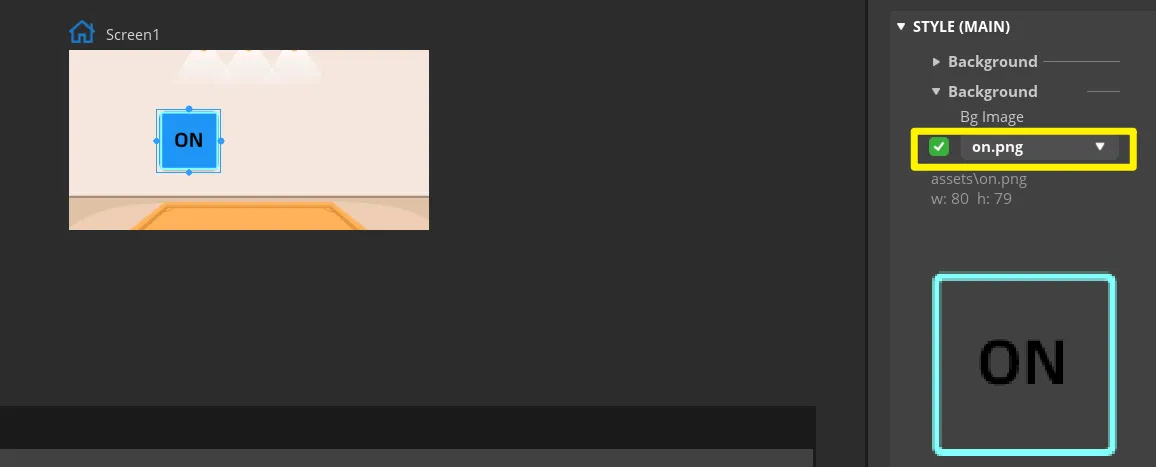
Duplicate Button1 to get Button2 and move it to the OFF area on the right side. Duplicating preserves the same size and base style. 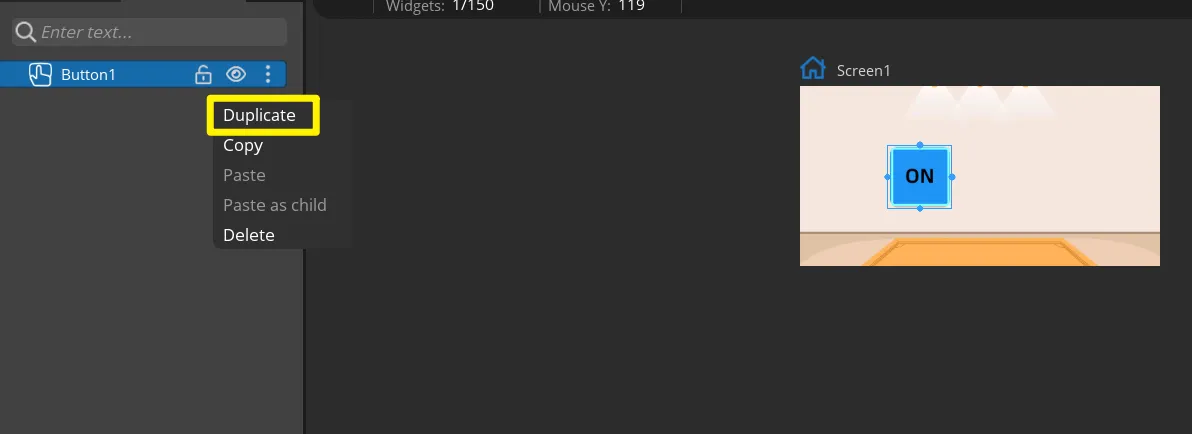
Select off.png in Button2's background settings and confirm that the ON and OFF images are on the left and right sides of the screen respectively. 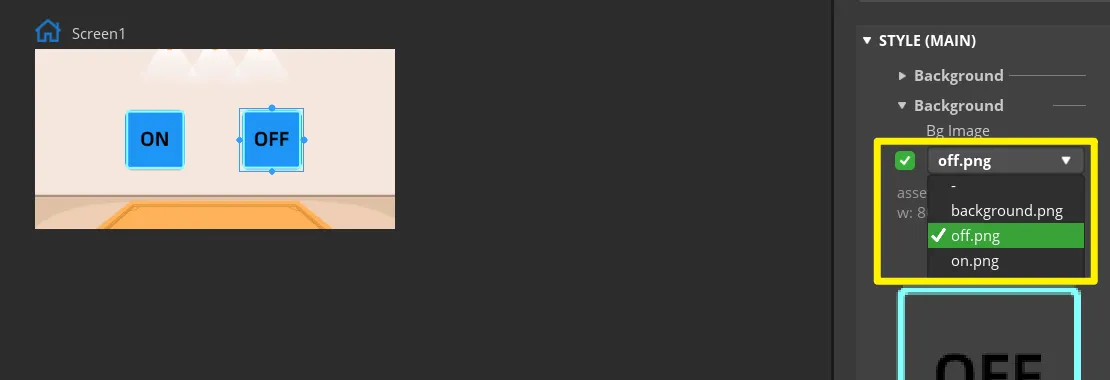
Select the button, check the DEFAULT state in STATE, and set the displayed background color to white. 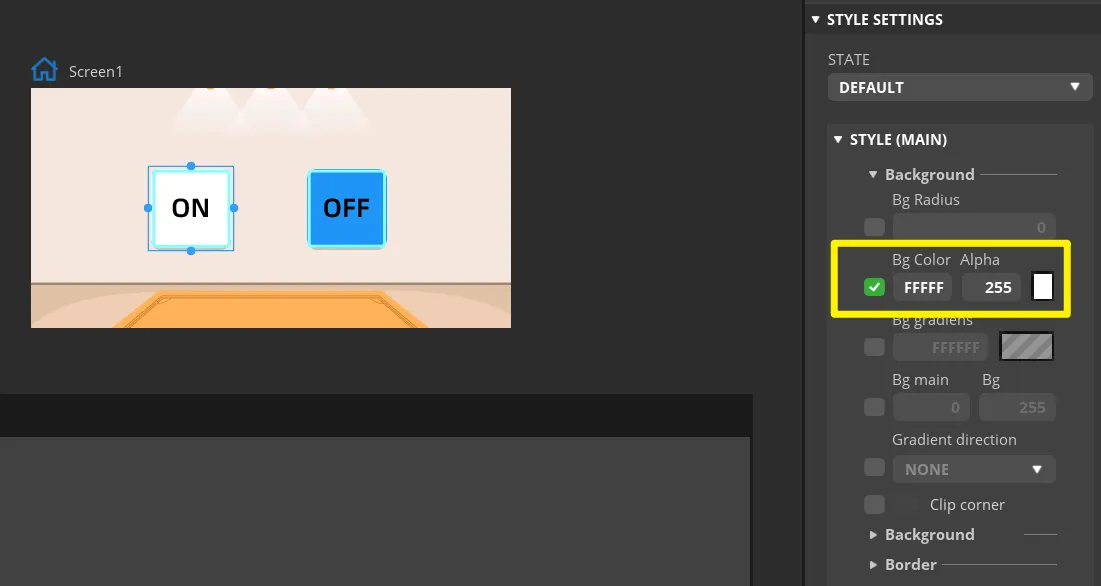
Switch to the PRESSED state, set a recognizable press feedback, and set the displayed background color to red. 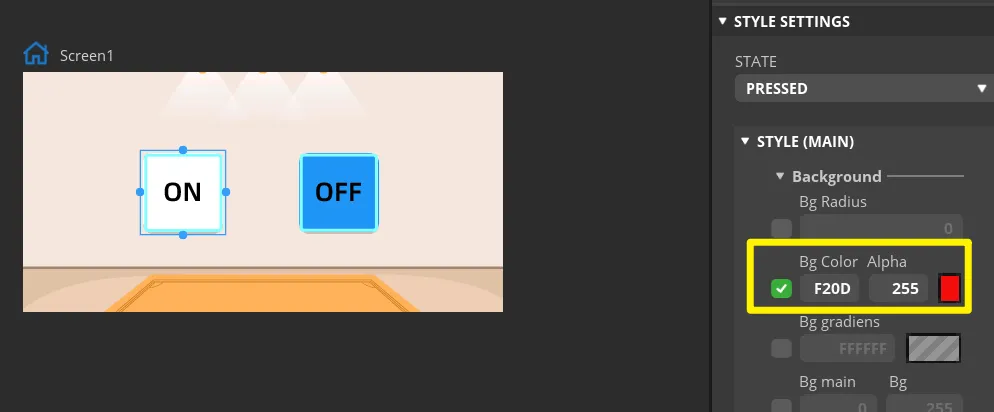
Set the same parameters for the "OFF" button.
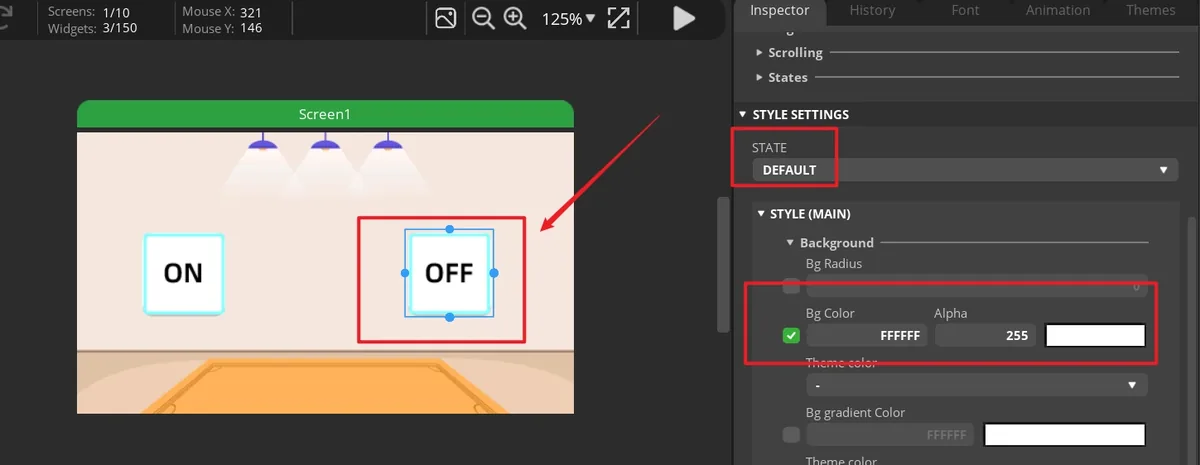
Note: Because the buttons can control the on/off state of the LED, we can add any event here to handle button events. When the UI files are exported, these events are used as a code framework. Later, we will modify the button event code to control the on/off state of the LED.
Select Button1, open the EVENTS panel, and click ADD EVENT to create the first button event. 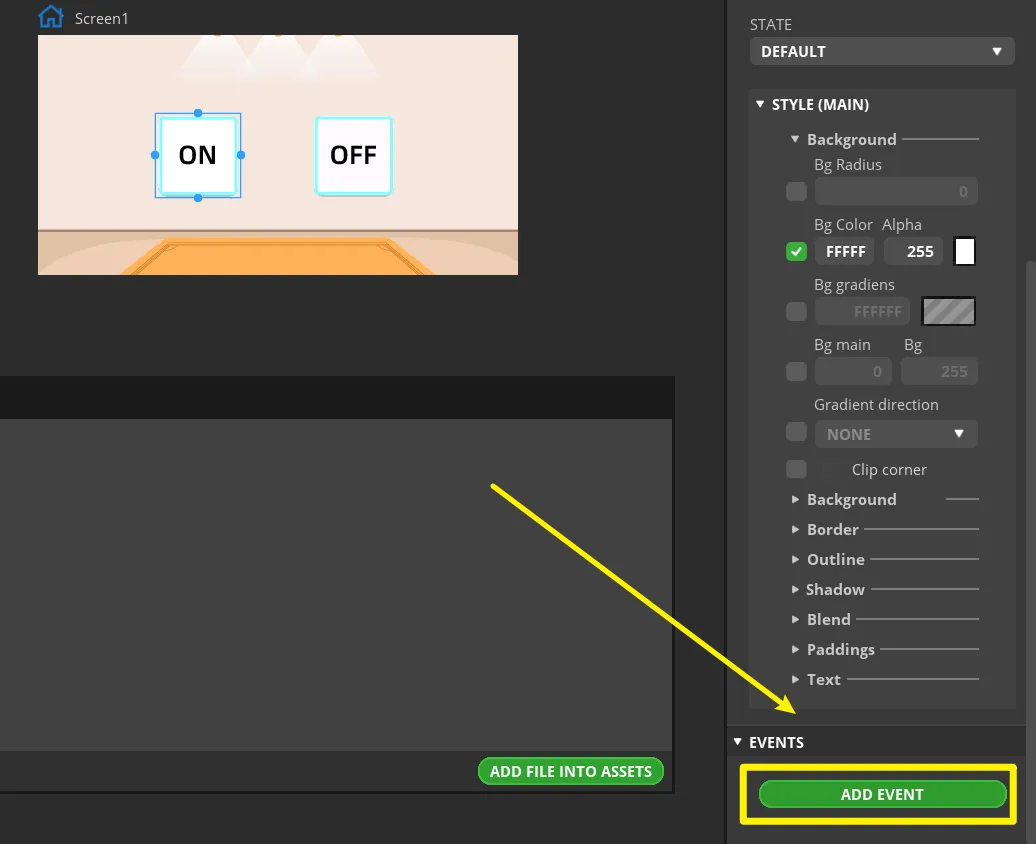
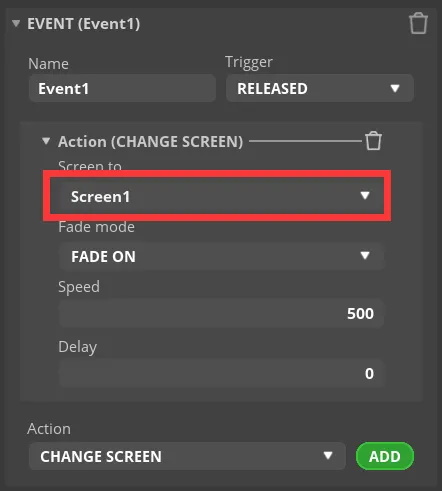
Select "CLICKED" as the trigger condition, and choose the trigger event under "Action". The LED control logic will be modified later in the generated program.
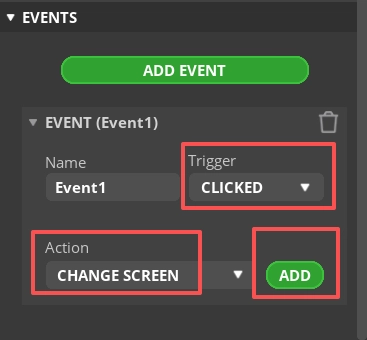
Note: Because the button ultimately controls the LED on/off, you can add any event here for now so that the exported UI file generates the button event code framework; the LED control code will be modified in a later step.
Finish this event. Here, I choose to switch screens, that is, switch to the Screen1 screen.
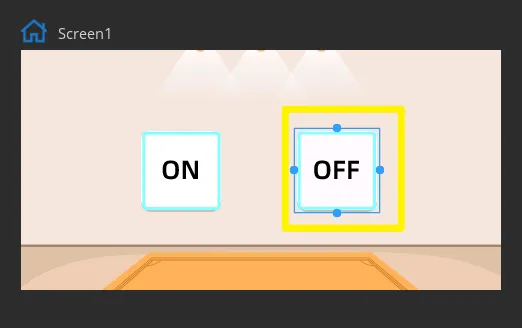
Add an event for Button2 using the same method. The two buttons must generate separate event functions, into which the on and off states will be written later, respectively.
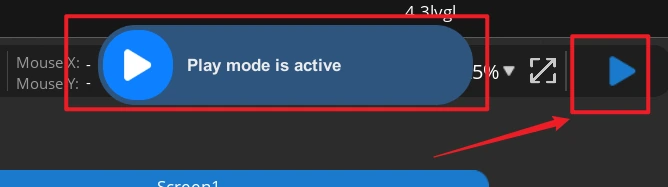
Click Run.
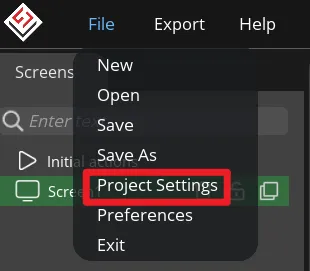
Open File > Project Settings, then configure the relevant settings for the exported files.
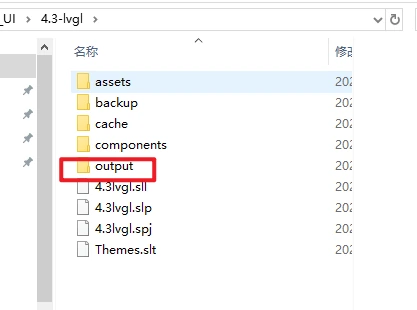
Set the export directory to an easy-to-find, all-English path, create a new output folder, and enter/confirm that the LVGL Include Path is lvgl.h, then click APPLY CHANGES after confirming.
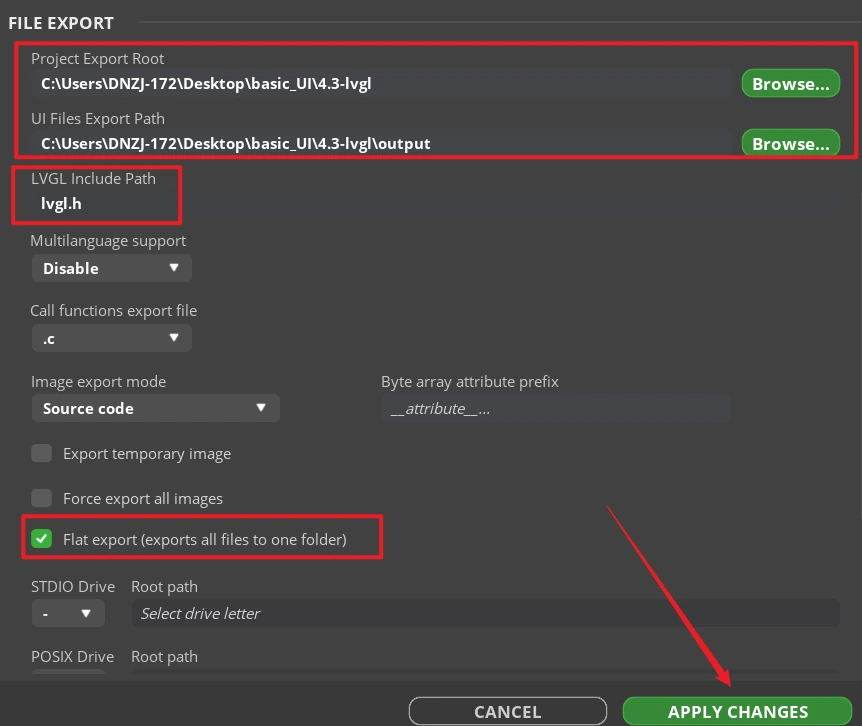
Tip: After selecting Flat export, all output files are placed in the same folder, so the program does not need to modify file paths. If Flat export is not selected, files are scattered across different folders, and the compiler may fail to locate them automatically—usually requiring manual path changes—so it is recommended to leave it checked.
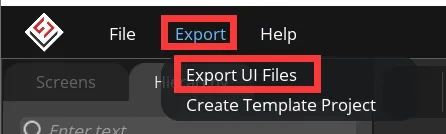
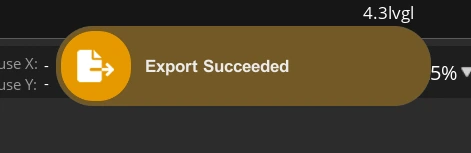
Click Export > Export UI Files. Wait for the export to finish. Once complete, the target directory should contain ui.c, ui.h, ui_Screen1.c, event files, helper files, and image array files.
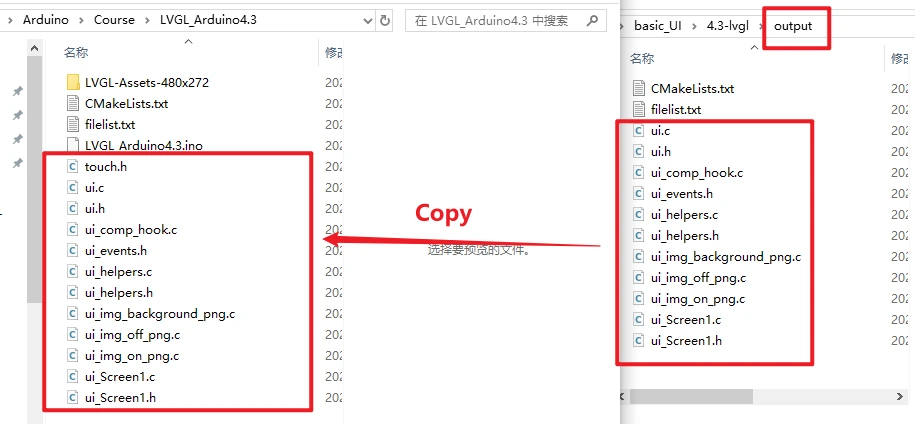
Close the Arduino IDE, and copy all the exported .c and .h files into the directory containing LVGL_Arduino4.3.ino.
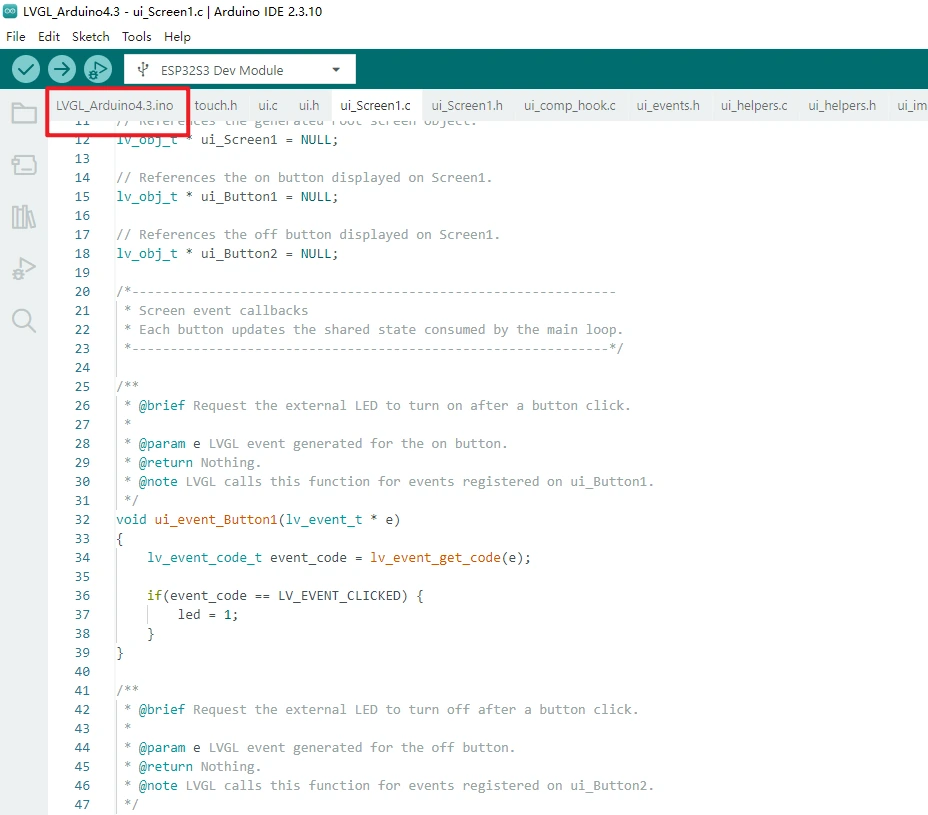
Reopen the project.
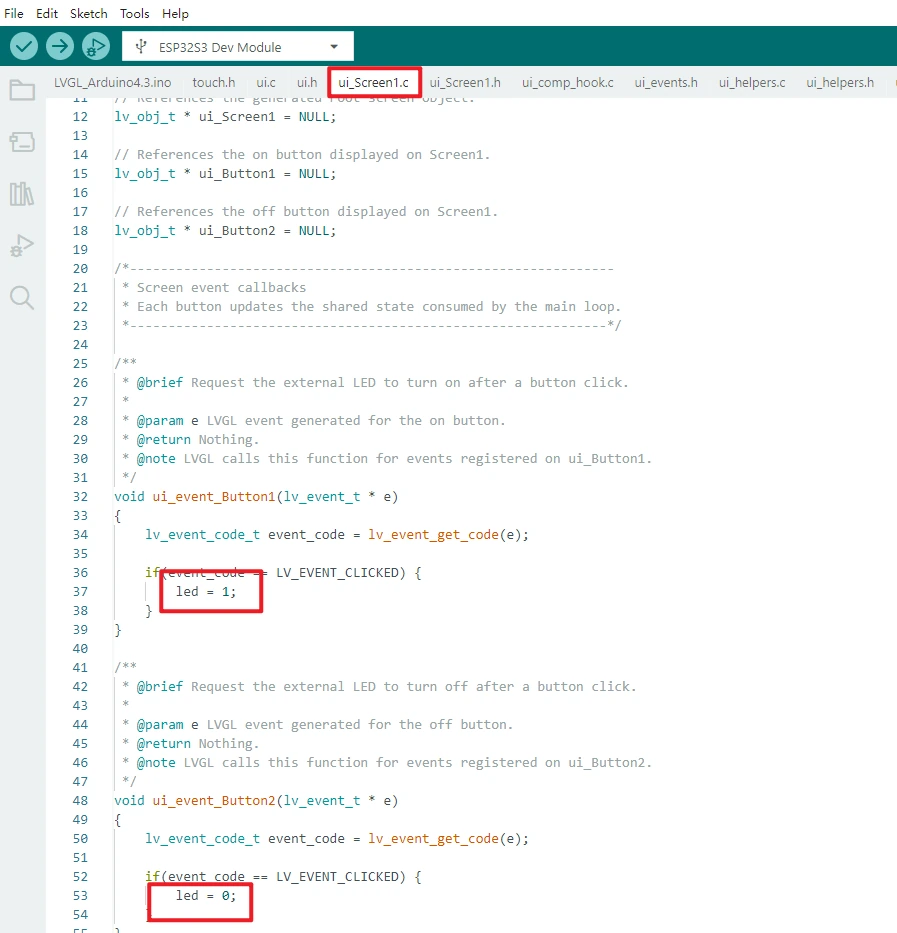
Open ui_Screen1.c, keep the event type check in the event functions corresponding to ON and OFF, and set led = 1; and led = 0; respectively. The declaration of led must stay consistent with its reference in the main sketch.
In the project, ui_Screen1.c ultimately creates two white numeric labels and two image buttons. If you change control names or resource names in SquareLine Studio, you must also check the ui.h declarations, the ui_Screen1.c references, and ui_Label1 and ui_Label2 in the main program.
8. Experimental Phenomenon
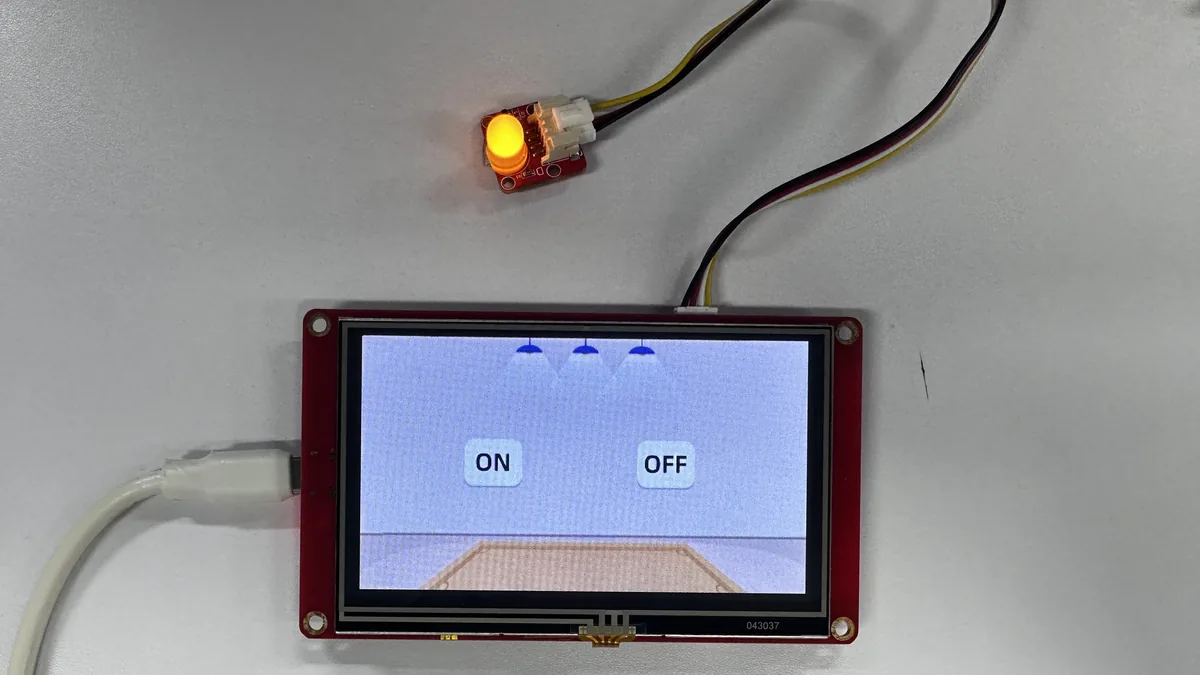
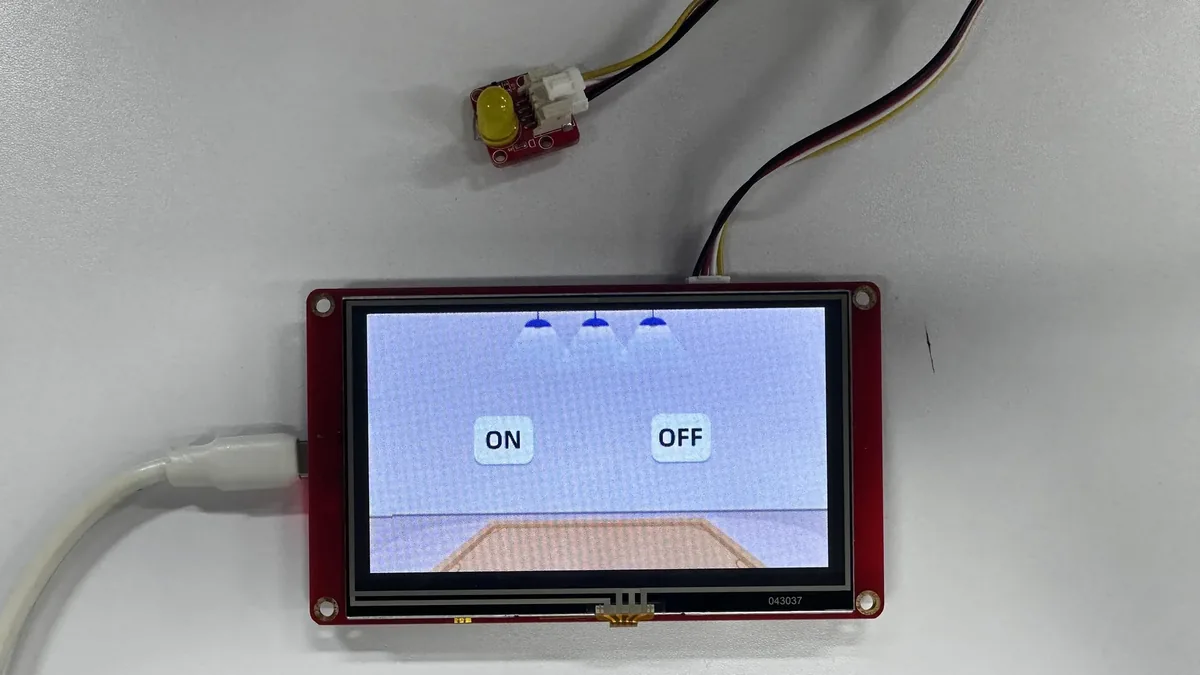
After the program resets, the serial port first outputs startup information, then the LCD backlight turns on and display initialization completes. Once running stably, the screen shows the full background and two image buttons. While a finger is pressed on the screen, the serial port continuously outputs the mapped x and y coordinates; after tapping the left ON button, the GPIO 38 indicator lights up, and after tapping the right OFF button, the indicator turns off.
ON → LED lights up.
OFF → LED turns off.
9. Code Download
Example Demo of ESP32 HMI Function
Example1: LED blinking.
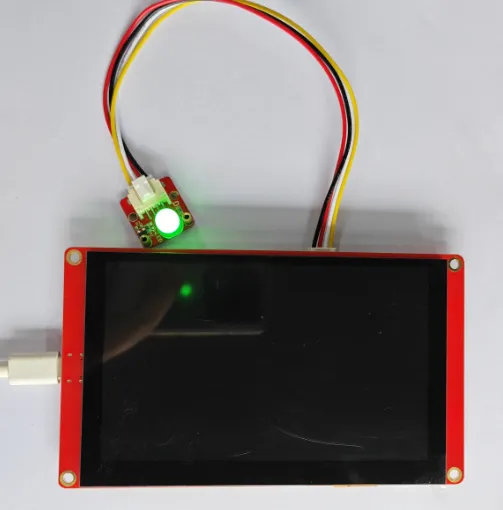
Connect the LED to the GPIO_D (IO38) port, then flash the following code to the chip. The LED will then start blinking.
/*---------------------------------------------------------------
 * LED hardware configuration
 * GPIO 38 drives the indicator LED used by this example.
 *--------------------------------------------------------------*/
#define D_PIN 38

/**
 * @brief Configure the serial port and indicator LED.
 *
 * The pin is configured as an output before the loop starts toggling it.
 *
 * @param None
 * @return Nothing.
 * @note Arduino calls this function once after startup or reset.
 */
void setup() {
  Serial.begin(115200);
  pinMode(D_PIN, OUTPUT);
}

/**
 * @brief Blink the indicator LED at a one-second period.
 *
 * Each output state is held for 500 ms, producing equal on and off times.
 *
 * @param None
 * @return Nothing.
 * @note Arduino calls this function repeatedly after setup() finishes.
 */
void loop() {
  digitalWrite(D_PIN, HIGH);
  delay(500);
  digitalWrite(D_PIN, LOW);
  delay(500);
}
Example 2: Play Music
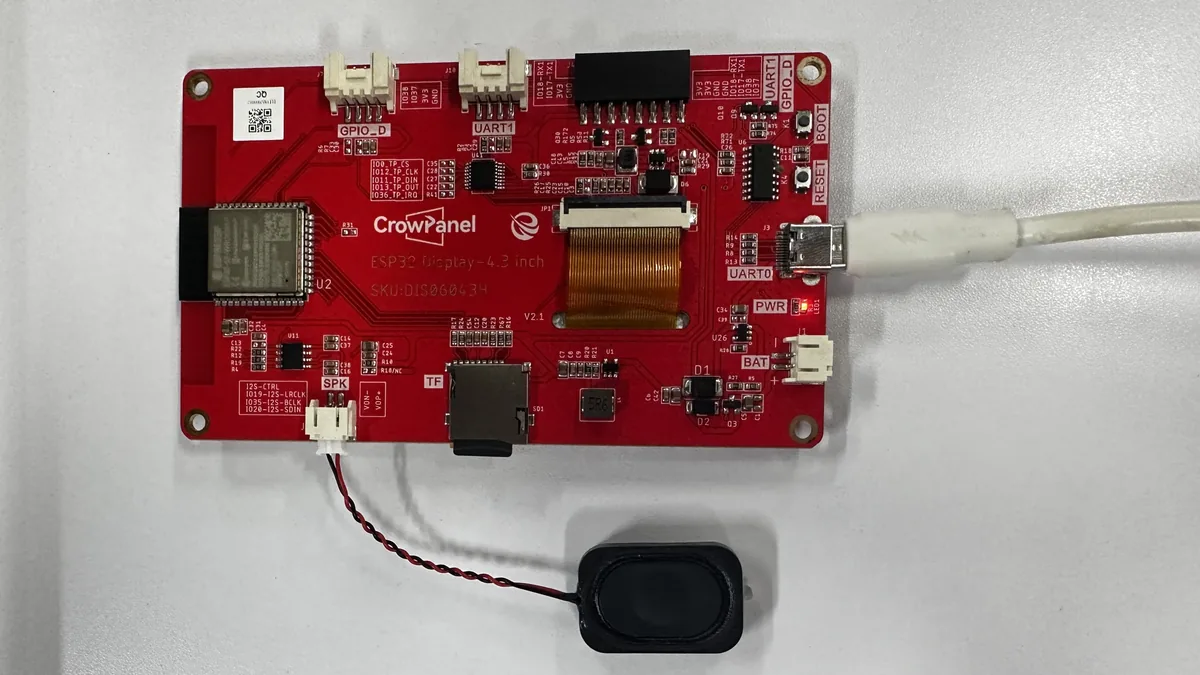
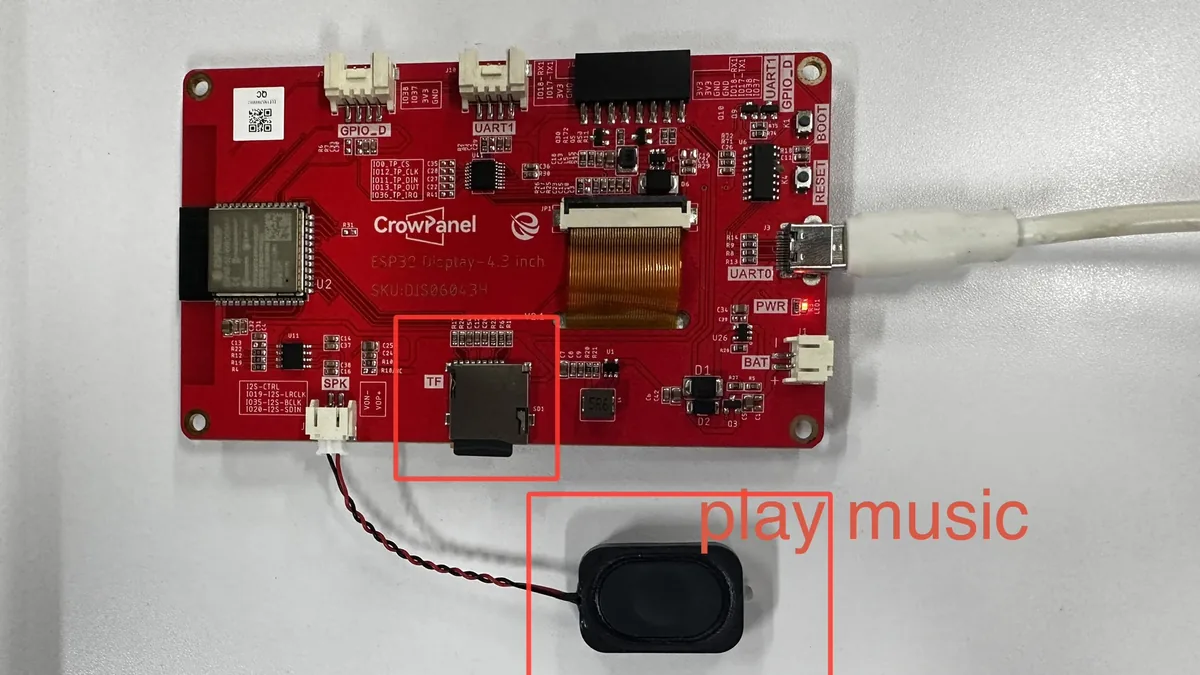
Connect the speaker to the SPK port, and the SD card to the TF card slot.
#include <Wire.h>
#include <SPI.h>
#include <SD.h>
#include <FS.h>
#include "Audio.h"

// Maintains the MP3 decoder and I2S audio output state.
Audio audio;

/*---------------------------------------------------------------
 * Audio and SD card pin assignments
 * These GPIO connections match the 4.3-inch HMI board wiring.
 *--------------------------------------------------------------*/
#define I2S_DOUT      20
#define I2S_BCLK      35
#define I2S_LRC       19

#define SD_MOSI 11
#define SD_MISO 13
#define SD_SCK 12
#define SD_CS 10

/**
 * @brief Prepare the SD card and start MP3 playback over I2S.
 *
 * The example expects a file named 123.mp3 in the SD card root directory.
 * GPIO 2 is driven high after the audio path has been configured.
 *
 * @param None
 * @return Nothing.
 * @note Arduino calls this function once after startup or reset.
 */
void setup() {
  Serial.begin( 9600 );
  pinMode(SD_CS, OUTPUT);
  digitalWrite(SD_CS, HIGH);
  SPI.begin(SD_SCK, SD_MISO, SD_MOSI);
  SPI.setFrequency(1000000);
  SD.begin(SD_CS);
  audio.setPinout(I2S_BCLK, I2S_LRC, I2S_DOUT);
  audio.setVolume(21); // The library accepts volume levels from 0 to 21.
  audio.connecttoFS(SD, "/123.mp3");
  pinMode(2, OUTPUT);
  digitalWrite(2, HIGH);
}

/**
 * @brief Keep the MP3 decoder supplied with audio data.
 *
 * audio.loop() must run continuously or playback will pause and the decoder
 * buffers may underrun.
 *
 * @param None
 * @return Nothing.
 * @note Arduino calls this function repeatedly after setup() finishes.
 */
void loop() {
  audio.loop();
  // audio.stopSong(); // Enable this call when the lesson needs to stop playback.
}
Example 3: SD Card
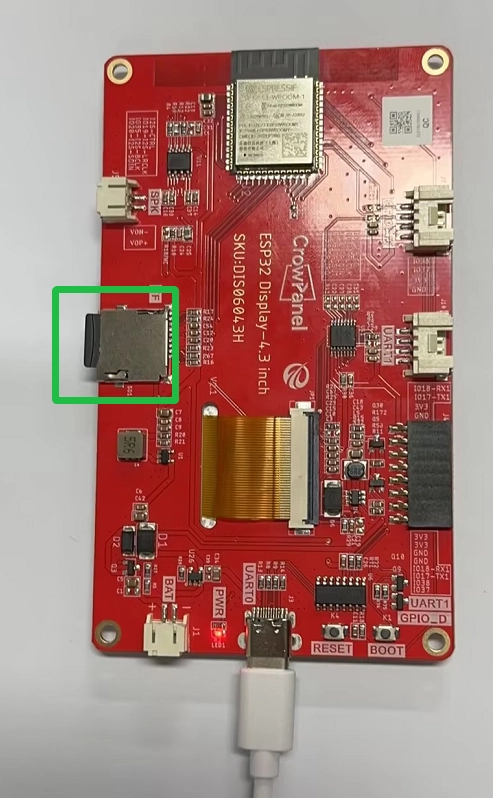
Insert an SD card formatted as FAT16 or FAT32. Cards using other file systems may not be recognized.
#include <Wire.h>
#include <SPI.h>
#include <SD.h>
#include <FS.h>

/*---------------------------------------------------------------
 * SD card SPI pin assignments
 * These GPIO connections match the 4.3-inch HMI board wiring.
 *--------------------------------------------------------------*/
#define SD_MOSI 11
#define SD_MISO 13
#define SD_SCK 12
#define SD_CS 10

/**
 * @brief Initialize the serial port, SPI bus, and SD card.
 *
 * The result printed here lets the learner distinguish a successful mount
 * from a missing card or an incorrect SPI connection.
 *
 * @param None
 * @return Nothing.
 * @note Arduino calls this function once after startup or reset.
 */
void setup() {
  Serial.begin(115200);
  SPI.begin(SD_SCK, SD_MISO, SD_MOSI);
  delay(100);
  if (SD_init() == 1)
  {
    Serial.println("Card Mount Failed");
  }
  else
    Serial.println("Initialize SD Card successfully");
}

/**
 * @brief Leave the processor idle after the one-time SD card inspection.
 *
 * All observable work is performed by setup(), so no repeated action is
 * required for this example.
 *
 * @param None
 * @return Nothing.
 * @note Arduino calls this function repeatedly after setup() finishes.
 */
void loop() {
}

/**
 * @brief Mount the SD card and print its capacity and directory contents.
 *
 * @param None
 * @return 0 when the card is mounted and inspected successfully.
 * @return 1 when the card cannot be mounted or no card is detected.
 * @note setup() calls this function once after the SPI bus is ready.
 */
int SD_init()
{
  if (!SD.begin(SD_CS))
  {
    Serial.println("Card Mount Failed");
    return 1;
  }
  uint8_t cardType = SD.cardType();

  if (cardType == CARD_NONE)
  {
    Serial.println("No TF card attached");
    return 1;
  }

  uint64_t cardSize = SD.cardSize() / (1024 * 1024);
  Serial.printf("TF Card Size: %lluMB\n", cardSize);
  listDir(SD, "/", 2);

  return 0;
}

/**
 * @brief Print files in a directory and optionally visit subdirectories.
 *
 * The levels argument limits recursion so a deeply nested card cannot keep
 * the lesson occupied indefinitely.
 *
 * @param fs File system that contains the directory.
 * @param dirname Directory path to inspect.
 * @param levels Maximum remaining subdirectory depth.
 * @return Nothing.
 * @note SD_init() calls this function after a successful card mount.
 */
void listDir(fs::FS & fs, const char *dirname, uint8_t levels)
{
  // Serial.printf("Listing directory: %s\n", dirname);

  File root = fs.open(dirname);
  if (!root)
  {
    // Serial.println("Failed to open directory");
    return;
  }
  if (!root.isDirectory())
  {
    Serial.println("Not a directory");
    return;
  }

  File file = root.openNextFile();
  while (file)
  {
    if (file.isDirectory())
    {

      if (levels)
      {
        listDir(fs, file.name(), levels - 1);
      }
    }
    else
    {
      Serial.print("FILE: ");
      Serial.print(file.name());

      Serial.print("SIZE: ");
      Serial.println(file.size());
    }

    file = root.openNextFile();
  }
}
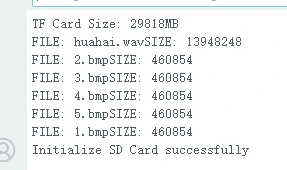
Observation: The Serial Monitor displays the SD card capacity and lists the file names and sizes on the card in order.
Example 4: Initialize the Touch
Purpose and Phenomenon: When the screen is touched, the serial port outputs the mapped Data x and Data y at 115200 baud. This example consists of the main sketch and the touch.h file in the same directory; both must be kept.
Use the library files and the corresponding touch.h file provided by us.
Example4_Initialize_the_touch.ino:
#include "touch.h"

/**
 * @brief Start serial logging and initialize the touch controller.
 *
 * The controller must be initialized before the loop can request samples.
 *
 * @param None
 * @return Nothing.
 * @note Arduino calls this function once after startup or reset.
 */
void setup() {
  Serial.begin( 115200 );
  touch_init();
}

/**
 * @brief Print the latest mapped coordinates while the screen is touched.
 *
 * A signal check avoids unnecessary controller reads when the interrupt line
 * indicates that no touch activity is available.
 *
 * @param None
 * @return Nothing.
 * @note Arduino calls this function repeatedly after setup() finishes.
 */
void loop() {
  if (touch_has_signal())
  {
    if (touch_touched())
    {
      Serial.print( "Data x :" );
      Serial.println( touch_last_x );

      Serial.print( "Data y :" );
      Serial.println( touch_last_y );
    }
  }
}
Example 5: BLE
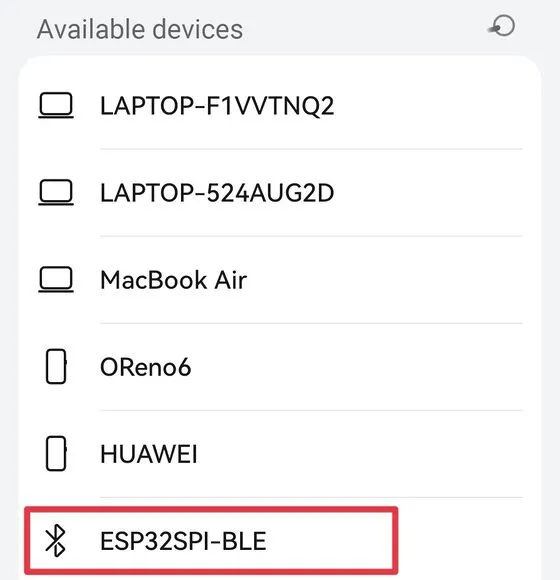
Upload the following code to the board, and use the phone to search the Bluetooth device.
#include "BLEDevice.h"
#include "BLEServer.h"
#include "BLEUtils.h"
#include "BLE2902.h"
#include <BLECharacteristic.h>

/*---------------------------------------------------------------
 * BLE server objects and identifiers
 * The pointers retain access to the objects created during setup().
 *--------------------------------------------------------------*/
BLEAdvertising* pAdvertising = NULL;
BLEServer* pServer = NULL;
BLEService *pService = NULL;
BLECharacteristic* pCharacteristic = NULL;

#define bleServerName "ESP32SPI-BLE"
#define SERVICE_UUID "6479571c-2e6d-4b34-abe9-c35116712345"
#define CHARACTERISTIC_UUID "826f072d-f87c-4ae6-a416-6ffdcaa02d73"

// Records whether a central device currently has an active connection.
bool connected_state = false;

/*---------------------------------------------------------------
 * BLE connection callbacks
 * The server updates shared connection state when a central connects.
 *--------------------------------------------------------------*/
class MyServerCallbacks: public BLEServerCallbacks
{
    /**
     * @brief Record that a BLE central has connected.
     * @param pServer Server that accepted the connection.
     * @return Nothing.
     * @note The BLE stack calls this callback after a connection is established.
     */
    void onConnect(BLEServer *pServer)
    {
      connected_state = true;
    }

    /**
     * @brief Record that the BLE central has disconnected.
     * @param pServer Server whose connection was closed.
     * @return Nothing.
     * @note The BLE stack calls this callback after a disconnection.
     */
    void onDisconnect(BLEServer *pServer)
    {
      connected_state = false;
    }
};

/**
 * @brief Create a readable, writable, and notifiable BLE service.
 *
 * Advertising includes the service UUID so a phone or BLE scanner can find
 * the board and read the initial characteristic value.
 *
 * @param None
 * @return Nothing.
 * @note Arduino calls this function once after startup or reset.
 */
void setup() {
  Serial.begin(115200);
  BLEDevice::init(bleServerName);
  pServer = BLEDevice::createServer();
  pServer->setCallbacks(new MyServerCallbacks());
  pService = pServer->createService(SERVICE_UUID);

  pCharacteristic = pService->createCharacteristic(
                      CHARACTERISTIC_UUID,
                      BLECharacteristic::PROPERTY_READ | BLECharacteristic::PROPERTY_WRITE | BLECharacteristic::PROPERTY_NOTIFY);
  pCharacteristic->setValue("ELECROW");

  /* Start advertising only after the service and characteristic have been
   * configured, ensuring that scanners see a complete GATT definition. */
  pAdvertising = BLEDevice::getAdvertising();
  pAdvertising->addServiceUUID(SERVICE_UUID);
  pAdvertising->start();
  pService->start();
  // pAdvertising->stop();
  // pService->stop();
}

/**
 * @brief Leave BLE processing to the ESP32 BLE stack.
 *
 * No polling is required because connection changes are delivered through
 * MyServerCallbacks.
 *
 * @param None
 * @return Nothing.
 * @note Arduino calls this function repeatedly after setup() finishes.
 */
void loop() {
}
Example 6: Initialize the Wi-Fi
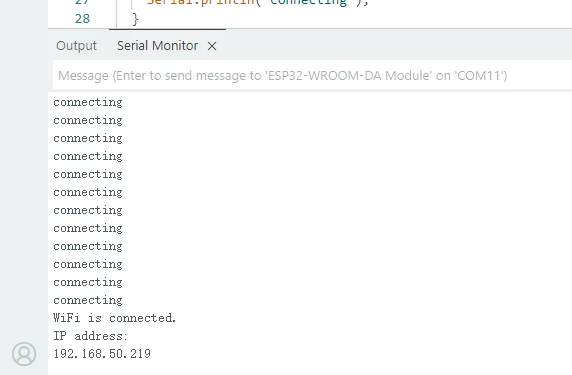
Upload the following code to ESP display. Note: Please change the Wi-Fi SSID and password to your own.
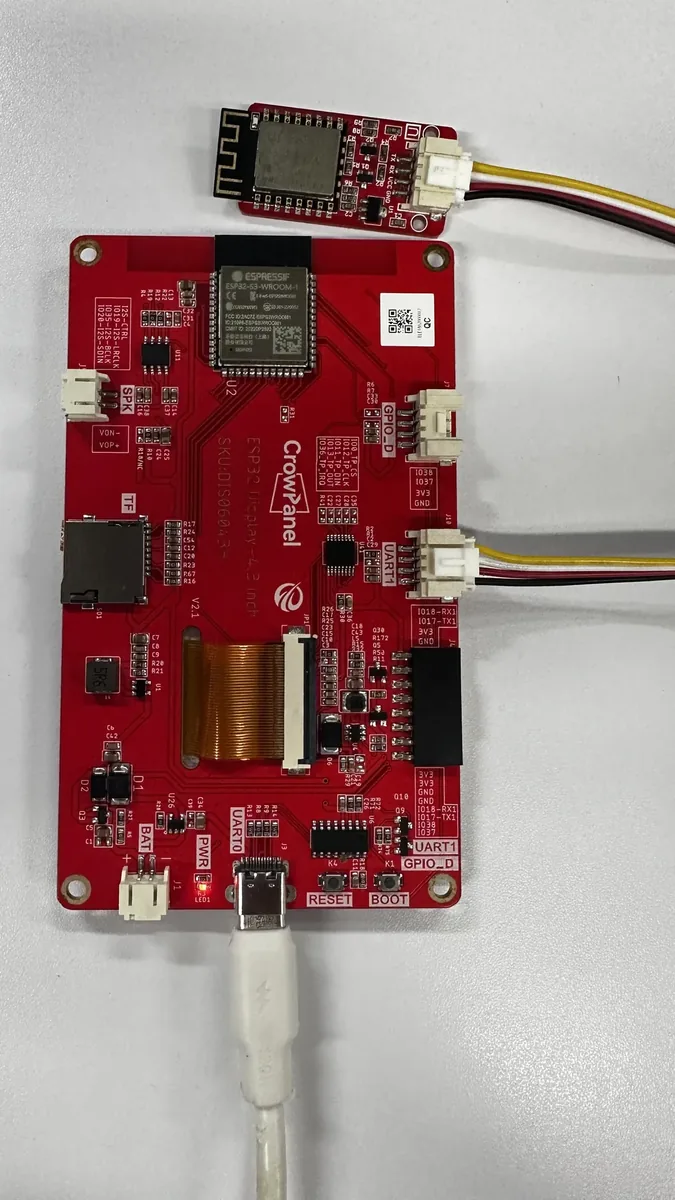
#include <WiFi.h>

// Identifies the Wi-Fi network used by this public example.
const char *ssid = "elecrow888";

// Stores the password supplied when the station joins the network.
const char *password = "elecrow2014";

/**
 * @brief Connect the ESP32-S3 to Wi-Fi and print its assigned IP address.
 *
 * Setup waits until the station is connected so the final address is valid.
 * Automatic reconnection lets the station recover after a brief outage.
 *
 * @param None.
 * @return Nothing.
 * @note Arduino calls this function once after startup or reset.
 */
void setup() {
  Serial.begin(115200);
  WiFi.begin(ssid, password);
  WiFi.setAutoReconnect(true);
  while (WiFi.status() != WL_CONNECTED) {
    delay(100);
    Serial.println("connecting");
  }
  Serial.println("WiFi is connected.");
  Serial.println("IP address: ");
  Serial.println(WiFi.localIP());
  // WiFi.disconnect();
}

/**
 * @brief Keep the sketch available for future network work.
 *
 * Wi-Fi maintenance runs in the background, so this example needs no polling.
 *
 * @param None.
 * @return Nothing.
 * @note Arduino calls this function repeatedly after setup() finishes.
 */
void loop() {
}
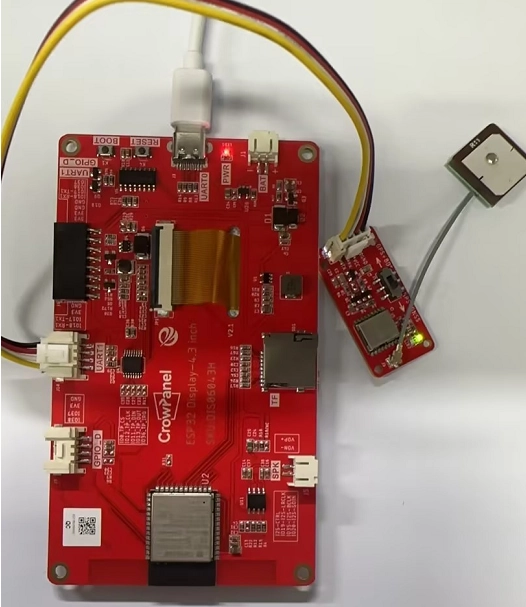
Example 7: Connect Crowtail-GPS module via UART to Get Location
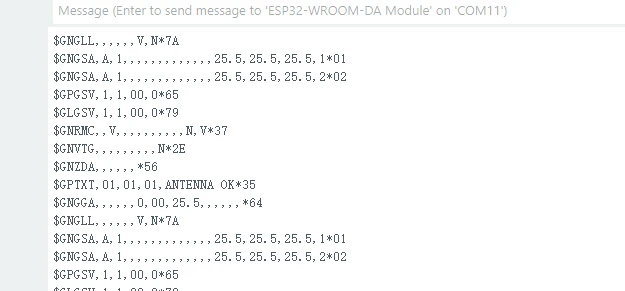
Connect the GPS module to the UART interface. After running the program, you can view the GPS data returned in the serial monitor. For better GPS signal reception, it is recommended to operate outdoors.
GPS module purchase link: https://www.elecrow.com/crowtailgps-p-1515.html.
/*---------------------------------------------------------------
 * GPS serial bridge configuration.
 * UART1 receives NMEA data from the Crowtail GPS module.
 *--------------------------------------------------------------*/
#define SERIAL_BAUD 9600

// Provides the UART1 connection to the GPS module.
HardwareSerial cardSerial(1);

// Temporarily stores one batch of bytes received from the GPS module.
unsigned char buffer[256];

// Tracks the number of valid bytes currently stored in buffer.
int count_1 = 0;

/**
 * @brief Clear the portion of the receive buffer used by the last batch.
 *
 * @param None.
 * @return Nothing.
 * @note loop() calls this function after forwarding a GPS data batch to USB.
 */
void clearBufferArray()
{
  for (int i = 0; i < count_1; i++).
  {
    buffer[i] = 0;
  }
}

/**
 * @brief Configure USB serial and the GPS UART connection.
 *
 * UART1 uses GPIO 18 for RX and GPIO 17 for TX at the module's 9600-baud.
 * default rate.
 *
 * @param None.
 * @return Nothing.
 * @note Arduino calls this function once after startup or reset.
 */
void setup() {
  Serial.begin( 115200 );
  cardSerial.begin(SERIAL_BAUD, SERIAL_8N1, 18, 17);
}

/**
 * @brief Forward data in both directions between the GPS module and USB.
 *
 * GPS bytes are collected in bounded batches before being written to the.
 * serial monitor. Bytes entered in the monitor are sent back to the module.
 *
 * @param None.
 * @return Nothing.
 * @note Arduino calls this function repeatedly after setup() finishes.
 */
void loop() {
  if (cardSerial.available()).
  {
    while (cardSerial.available()).
    {
      buffer[count_1++] = cardSerial.read();
      if (count_1 == 256) break;
    }
    Serial.write(buffer, count_1);
    clearBufferArray();
    count_1 = 0;
  }
  if (Serial.available()).
    cardSerial.write(Serial.read());
}