Lesson05_UART_WiFi: Connecting to a Wireless Network Using UART AT Commands
1. Course Introduction
In this lesson, UART1 (TX=43, RX=44, 115200 baud) is used to communicate with a Wi-Fi AT module. The program sequentially sends AT, sets STA mode, connects to the specified network, and queries the IP address. At the same time, it displays the current stage on the LCD and outputs the module responses to the serial port. Before publishing this example publicly, replace the sample Wi-Fi credentials with secure test credentials.
2. Learning Objectives
- Configure the UART1 pins and baud rate.
- Explain AT commands, response timeouts, and the
OKdetection mechanism. - Diagnose issues such as the module not being connected or network access failing based on the screen status and serial responses.
3. Preparation
-
ESP32-S3 1.46 development board, LCD, and a Wi-Fi serial module with AT firmware support.
-
Module power supply, GND, and crossed TX/RX connections; the module voltage levels must be compatible with 3.3 V.
-
Arduino IDE, LVGL, LovyanGFX, and the project libraries.
-
Lesson05-Serial_port_usage.inoandCommon_1_46.h.
Code download link: https://github.com/Elecrow-RD/CrowPanel-1.46inch-HMI-ESP32-Rotary-Display/tree/master/example/V1.0/Arduino/Examples/
4. Software Operation Steps
-
Open the project and change
SSIDandPASSWORDin the code to those of a local test network. Do not commit real credentials.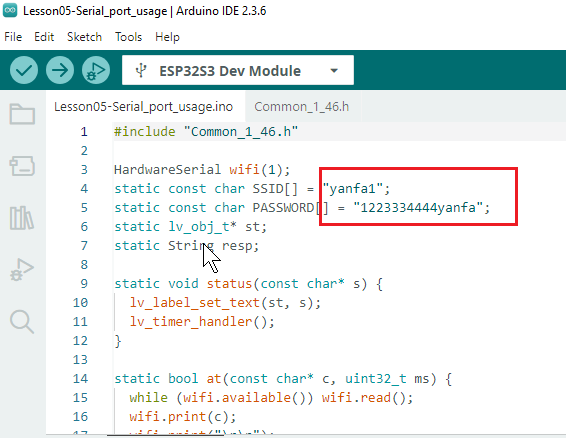
-
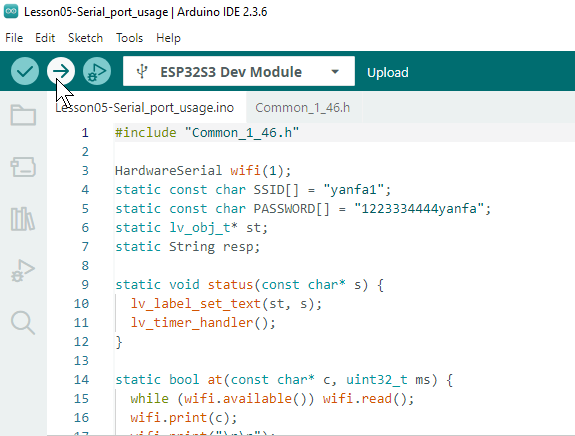
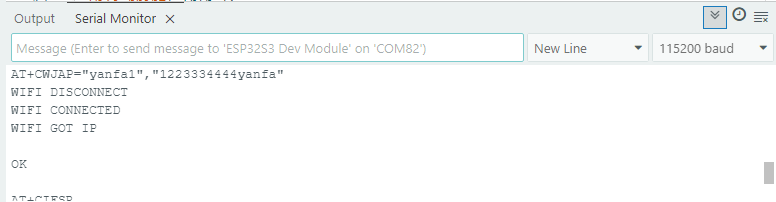
Compile and upload the program, then open the debug serial monitor (115200 baud).
5. Hardware Operation Steps
- With the power off, connect the module TX→GPIO44, RX→GPIO43, and GND→GND, and verify the supply voltage.
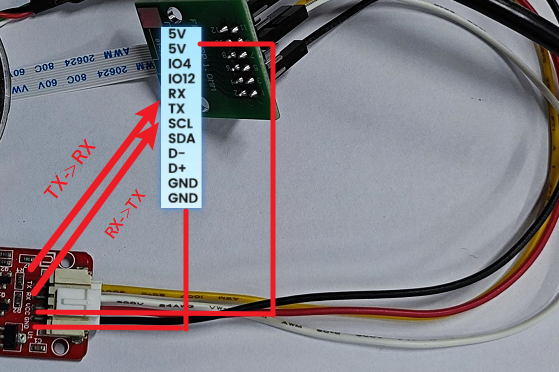
The rotary display exposes additional UART pins, so you can connect a UART device directly here without an FPC.
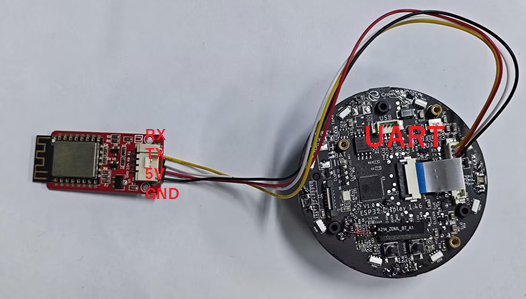
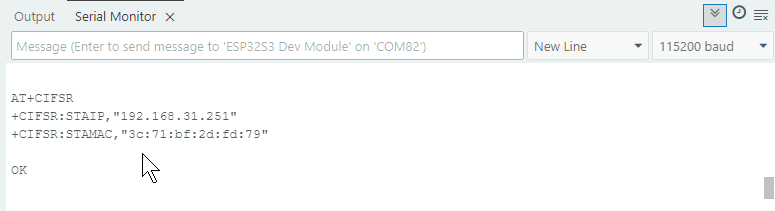
- After powering on, observe the LCD status change in sequence to detecting the module, configuring the mode, and connecting to Wi-Fi. Check the AT responses and final IP information in the serial window.
6. Key Code Explanation
wifi.begin(115200,SERIAL_8N1,44,43);
status("UART1 TX43/RX44\nChecking module...");
if(!at("AT",1000)){ status("Module not found"); return; }
UART1 uses the specified RX/TX pins. at() sends a command, collects the response within the specified time, and checks for OK. If detection fails, the subsequent process stops immediately, and the screen displays that the module was not found.
snprintf(join,sizeof(join),"AT+CWJAP=\"%s\",\"%s\"",SSID,PASSWORD);
if(!at(join,15000)){ status("Connect failed"); return; }
at("AT+CIFSR",1500);
The connection command uses a 15-second timeout because joining the network may take longer. After a successful connection, the IP address is queried. An incorrect password, insufficient signal, or reversed TX/RX connections will cause a timeout or prevent OK from being received.
7. Experimental Results
The screen displays the status of each stage. When successful, the serial output contains the AT module responses and IP address. When unsuccessful, the process stops at Module not found or Connect failed. Do not retain real passwords in the documentation or repository.
8. Code Download
Code download link: https://github.com/Elecrow-RD/CrowPanel-1.46inch-HMI-ESP32-Rotary-Display/tree/master/example/V1.0/Arduino/Examples/