Product Wiki: 10.1-Inch Home Assistant Smart Control Panel (Elecrow CrowPanel ESP32-P4)
Table of Contents
- What Is This Product?
- Key Features
- Hardware Specifications
- System Architecture and How It Works
- Unboxing Checklist and Prerequisites
- Ten-Minute Quick Start
- Part One: Home Assistant Server Setup
- Part Two: Panel Setup
- Daily Use
- Firmware Updates
- Troubleshooting
- Frequently Asked Questions (FAQ)
- Security and Privacy Information
- References
- Glossary
1. What Is This Product?
This is a 10.1-inch, ready-to-use Home Assistant wall-mounted control panel, built on the Elecrow CrowPanel Advanced 10.1" ESP32-P4 HMI platform (SKU: DHE01101C).
It ships with dedicated Home Assistant firmware preinstalled. You do not need to write ESP32 programs or develop an LVGL interface. Setup consists of just three steps:
- Configure the network — Connect the panel to Wi-Fi;
- Enter the settings — Enter your Home Assistant server address and account credentials on the panel;
- Install the add-on — Install the official companion add-on on your Home Assistant server.
Once setup is complete, the panel displays the dashboard you already have in Home Assistant—the same cards, scenes, switches, and entities. Changes you make to your dashboard in Home Assistant automatically appear on the panel, without requiring you to maintain a separate interface on the panel.
It is not a standalone hub. The panel cannot replace a Home Assistant server and does not include an automation engine. It is an "always-online" wall-mounted control terminal (thin client).
Note: The 10.1-inch display ships without a housing (the official product page explicitly states: This 10.1-inch screen does not include the housing).
Use Cases
Always-on wall-mounted central control panels, lighting and scene control, temperature and humidity monitoring and HVAC monitoring, energy consumption dashboards, EV charging control, solar power generation dashboards, security and sensor dashboards, and home/building automation.
Typical Users
Users who already have a Home Assistant server and want a dedicated touchscreen without having to configure ESP32 firmware and develop an HMI interface themselves.
2. Key Features
| Feature | Description |
|---|---|
| Home Assistant Ready | Preinstalled firmware; configure Wi-Fi and enter the server address to get started |
| Ready to Use | No ESP32 programming or HMI development required |
| 10.1" IPS Touchscreen | 1024 × 600 resolution with responsive capacitive touch |
| Direct Wi-Fi Connection | Connects directly to your existing Home Assistant server |
| No Interface Development Required | Reuses existing dashboards, cards, scenes, and controls |
| Powerful ESP32-P4 Processing | Dual-core RISC-V processor for smooth HMI rendering |
| Wi-Fi 6 + Bluetooth | 2.4 GHz Wi-Fi 6 with BT 5.3 / BLE support |
| Built-In Audio | Dual speakers + microphone for interactive control, with provisions for voice features |
| Extensive Expansion Options | GPIO, UART, I²C, USB-C, SD card, and optional wireless modules |
3. Hardware Specifications
3.1 Processor and Memory
| Item | Specification |
|---|---|
| Main Chip | ESP32-P4NRW32 |
| CPU / SoC | ESP32-P4; HP system: 32-bit dual-core RISC-V, up to 400 MHz; LP system: 32-bit single-core RISC-V, up to 40 MHz |
| System Memory | 768 KB L2MEM (HP), 32 KB SRAM (LP), 8 KB TCM, 32 MB PSRAM |
| Storage | 128 KB ROM (HP), 16 KB ROM (LP), 16 MB Flash |
| Development Environment | ESP-IDF, Arduino IDE (no development required for everyday use of this product) |
| Firmware | Preinstalled Home Assistant firmware (Ready-to-use) |
3.2 Display
| Item | Specification |
|---|---|
| Size | 10.1 inches |
| Resolution | 1024 × 600 |
| Panel Type | IPS |
| Touch | Capacitive touch, single-touch / 5-point multitouch |
| Viewing Angle | 178° |
| Brightness | 400 cd/m² (typical) |
| Color Depth | 16.7M (8-bit) |
The 1024 × 600 resolution is critical: the server-side add-on captures the display at a fixed resolution of 1024 × 600. The panel resolution must match; otherwise, the image will be cropped or scaled.
3.3 Wireless Connectivity (Onboard Antenna)
| Item | Specification |
|---|---|
| Wi-Fi | 2.4 GHz (Wi-Fi 6), 802.11 b/g/n |
| Bluetooth | Bluetooth 5.3 + BLE |
| Optional | Zigbee, LoRa, nRF2401, Matter, Thread, Wi-Fi HaLow (requires an additional wireless module) |
3.4 Interfaces and Functions
| Item | Specification |
|---|---|
| Interfaces | USB 2.0, UART, I²C, GPIO female headers, SD card slot, battery connector, speaker connector, camera pin header, module female headers, etc. |
| Functions | Audio power amplifier, battery charging management, USB-to-UART, microphone, dual speakers |
3.5 Buttons and Indicators
| Item | Description |
|---|---|
| Reset Button | Included; press to reset the device |
| Boot Button | Included; press and hold the power button to flash a program |
| Power Button | Turns the device on or off |
| PWR Indicator | Indicates whether the device is on or off |
| CHG Indicator | Lithium battery charging status / low-battery status |
3.6 Physical Specifications and Mounting
| Item | Specification |
|---|---|
| Total Weight (Including Packaging/Accessories) | Approximately 960 g |
| Mounting Method | Mounting holes around the perimeter (M3, 3.2 mm) |
| Speaker Connector Model | BX-PH 2.0-2PWT, 1×2P, 2 mm pitch, 8 × 8.5 × 5.6 mm, horizontal SMT mount |
| Housing | Not included |
4. System Architecture and How It Works
Understanding this architecture helps explain most of the behavior you will observe during use.
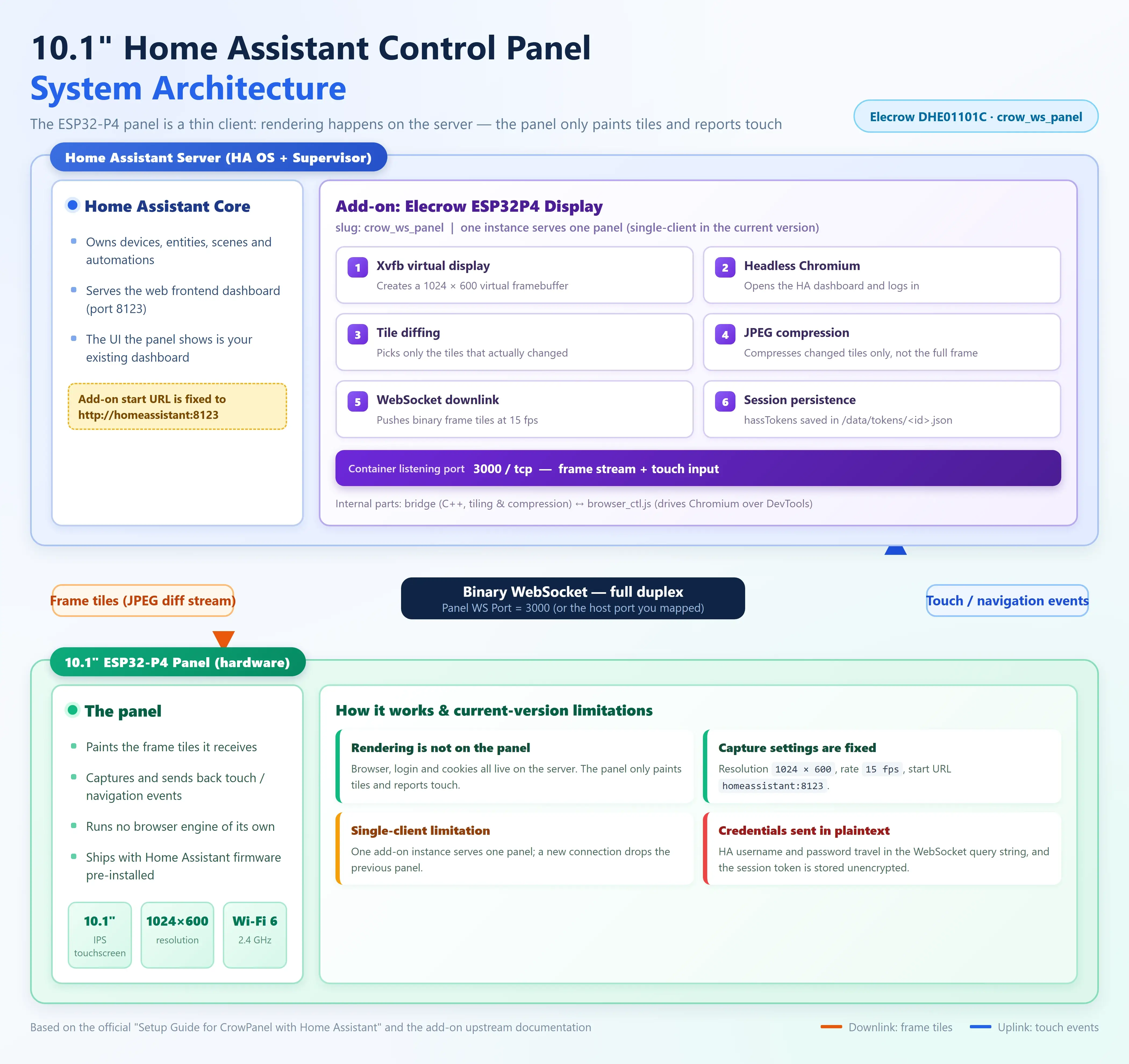
The text diagram below illustrates the same architecture for viewing in plain-text environments:
┌───────────────────────────────────────┐
│   Home Assistant Server               │
│   (HA OS + Supervisor)                │
│                                       │
│   ┌─────────────────────────────────┐ │
│   │ Add-on: Elecrow ESP32P4          │ │
│   │ Display (crow_ws_panel)         │ │
│   │                                 │ │
│   │  · Xvfb virtual display         │ │
│   │  · Headless Chromium            │ │
│   │    opens the HA dashboard       │ │
│   │  · Image tiling + change        │ │
│   │    detection                    │ │
│   │  · JPEG compression of changed  │ │
│   │    tiles only                   │ │
│   │  · WebSocket service:3000       │ │
│   └─────────────────────────────────┘ │
└───────────────────┬───────────────────┘
                    │  Binary WebSocket (image tiles sent to panel + touch events returned)
                    │  Container port 3000
                    ▼
┌───────────────────────────────────────┐
│   10.1" ESP32-P4 Panel                 │
│   · Draws image tiles                 │
│   · Returns touch / navigation events │
│   · Does not run a browser engine     │
└───────────────────────────────────────┘
Key Mechanisms:
- The image is not rendered on the panel. The panel displays an image stream rendered by headless Chromium on the server. The panel handles "drawing tiles" and "reporting touch input"; the browser, login, and cookies are all managed on the server.
- Incremental transmission. The add-on divides the image into tiles and sends only changed tiles after JPEG compression, using significantly less bandwidth than streaming the entire screen.
- Fixed parameters (current version): Capture resolution:
1024 × 600; frame rate:15 fps; start page:http://homeassistant:8123. The start page uses Supervisor's internal hostname, so it does not depend on your external or local network address. - Single client. Each add-on instance currently serves only one panel. A new connection disconnects the previous panel and restarts the capture process (officially identified as a "limitation of the current version").
- Session persistence. After the first successful login, the Home Assistant frontend session (
hassTokens) is saved to/data/tokens/<id>.jsonusing the panel'sid. Subsequent connections reuse the session and skip the login page. - Credentials are transmitted in plaintext through the WebSocket query string. This is explicitly identified as a limitation of the current version, so the panel and Home Assistant must be on a trusted network.
Port Overview:
| Port | Location | Purpose |
|---|---|---|
| 3000 | Add-on container (can be mapped to a host port) | WebSocket channel for the image stream + touch input; this is the port entered in the panel's WS Port field |
| 8123 | Home Assistant | HA web interface accessed by the add-on's internal browser |
5. Unboxing Checklist and Prerequisites
Prerequisites (Official Requirements)
- A running Home Assistant server;
- An available Wi-Fi network (2.4 GHz);
- Home Assistant login credentials (username + password);
- A USB cable that supports data transfer (not a charge-only cable).
Items to Prepare for Setup
- The 10.1" ESP32-P4 panel (housing not included);
- A USB power cable and 5V power adapter;
- M3 mounting screws (for wall mounting, use the 3.2 mm mounting holes around the perimeter);
- Your Home Assistant server address (for example,
http://homeassistant.local:8123or a local network IP address such ashttp://192.168.x.x:8123).
6. Ten-Minute Quick Start
- Server: Home Assistant →
Settings→Add-ons→ ⋮ in the upper-right corner →Repositories→ Addhttps://github.com/fintros/crow-ha. - Server: Search for and install the Elecrow ESP32P4 Display add-on, enable
Start on bootandWatchdog, clickStart, and wait for the status to change to Running. - Panel: Connect power using a USB cable and wait for startup (the first startup may take 1–2 minutes).
- Panel: Tap the gear icon in the upper-right corner to open
Settings→Wi-Fi, select your network, and enter the password. - Panel: If a firmware update prompt appears, select
Update(do not disconnect power during the update). - Panel: Open
Settings→Home Assistant, enter the server address and account credentials, and setWS Portto 3000. - Panel: Return to the Home Assistant interface. The panel automatically connects and opens your dashboard.
7. Part One: Home Assistant Server Setup
Complete this before setting up the panel. Original section title in the official manual: Setting Up Your Home Assistant Server.
Step 1: Open Home Assistant in a Browser
Use a browser to access your Home Assistant instance (for example, http://homeassistant.local:8123) and sign in with an administrator account.
Step 2: Open the Add-on Store
Settings → Apps / Add-ons → Install app.
Step 3: Open Repository Management
Click the three-dot menu ⋮ in the upper-right corner and select Repositories.
Step 4: Add the Third-Party Repository
Click Add and enter the repository address:
Confirm the addition.
Step 5: Return to the Add-on Store
Click the back arrow to exit the "Repositories" page.
Step 6: Search for the Add-on
Enter Elecrow in the search field and locate the Elecrow ESP32P4 Display add-on.
Step 7: Install the Add-on
Open Elecrow ESP32P4 Display, click Install, and wait for the installation to complete.
The add-on pulls the prebuilt image
grovety/crow-ws-serverrather than building it locally, so installation is usually quick.
Step 8: Enable Key Options
Open the installed add-on's page and enable:
- Start on boot — Recommended;
- Watchdog — Recommended.
Step 9: Start the Add-on and Confirm Its Status
Click Start. Wait for the status to change to Running.
Verification Checklist:
- The add-on status shows Running;
- Both
Start on bootandWatchdogare enabled; - The add-on's
Logshows that the WebSocket service is listening on port 3000 (a connection entry will appear after the panel connects).
Changing the Port (Optional): The add-on's WebSocket service always listens on container port
3000. To use a different host port, open the add-on'sNetworkpanel, map3000/tcpto the desired host port, and restart the add-on. Then enter the new port in the panel'sWS Portfield.
8. Part Two: Panel Setup
Original section title in the official manual: Panel Setup. Complete the server setup in Section 7 first.
Step 1: Connect Power and Start the Panel
Connect the panel to power using a USB cable and wait for it to start.
The first startup may take 1–2 minutes. Please wait patiently and avoid repeatedly disconnecting power.
During startup, the screen displays Waiting for WiFi..., and Wi-Fi and gear icons appear in the upper-right corner.
Step 2: Open Settings
Tap the gear icon in the upper-right corner to open Settings.
Step 3: Select a Wi-Fi Network
Open the Wi-Fi tab and select your network from the Available Networks list (the list shows signal strength, such as -64 dBm).
Step 4: Enter the Password and Save
Enter your Wi-Fi password in the password dialog and tap Confirm. A Show button lets you temporarily view the password in plaintext.
Confirm the Connection: The network name should show a Connected status.
If Your Network Is Not Listed: Exit the Wi-Fi page and reopen it to trigger another scan.
If the network does not show "Not connected", do not proceed to the next step.
Step 5: Install a Firmware Update (If Prompted)
If the panel displays a Firmware update available prompt (showing the current and target versions):
- Expand
Release notesto view the changes; - Tap
Updateto begin the update; - Do not disconnect power or disconnect the panel during the update or restart.
Strong Recommendation: Update the firmware to the latest version before configuring Home Assistant. Older versions may have connection or TLS issues (such as those addressed by fixes like
1.1.1: TLS replace request).
Step 6: Open the Home Assistant Settings Page
On the panel, open: Settings → Home Assistant.
This page contains four sections:
| Section | Description |
|---|---|
| Server URL | Home Assistant server address |
| Account | Login username (Login) and password (Password) |
| WS Port | WebSocket port, default: 3000 |
| Setup via QR | Scan a QR code to configure from your phone (displays Connected to <your Wi-Fi> and Setup Page <IP>) |
Status badges on the right: CONFIGURED = configured; DEFAULT = using the default value.
Step 7: Enter the Server Address
In Server URL, enter your Home Assistant server address, for example:
Tip: If your router or network environment has limited mDNS (
*.local) support, entering the local network IP address directly is more reliable, for example,http://192.168.0.109:8123.Be sure to enter the complete address including port 8123, which is the port used by the Home Assistant web interface.
Step 8: Enter Your Home Assistant Account Credentials
In Account, enter your Home Assistant username and password.
Official Recommendation: Create a separate Home Assistant user for the panel (for example,
panel). This makes it easier to: - Manage the panel's access permissions for entities and dashboards separately; - Revoke or replace the panel's credentials at any time without affecting your primary account.
Step 9: Enter the WS Port
In the WS Port field, enter:
(If you changed the add-on's host port mapping in Section 7, enter the corresponding new port here.)
Step 10: Return and Connect
Return to the Home Assistant interface. The panel automatically connects to the server and opens your Home Assistant dashboard.
Verification Checklist:
-
Server URL,Account, andWS Porteach showCONFIGURED(orDEFAULT) on the right; - The panel successfully loads your Home Assistant dashboard;
- Touch input responds, and you can switch tabs and scroll;
- A panel connection entry appears in the server-side add-on logs.
Alternative QR Code Setup: The bottom of the
Home Assistantpage providesSetup via QR. Scanning the QR code with your phone opens the panel's configuration page (the address is the IP shown underSetup Page, such as192.168.0.102). You can enter and submit your Home Assistant connection details directly from your phone. Similarly, theWi-Fipage provides aSetup via mobileQR code (1. Connect to ESP32-P4-Config/2. Open setup 192.168.4.1) for network setup when no screen is available or keyboard input is inconvenient.
9. Daily Use
Interface Access
The panel's main interface is your Home Assistant dashboard. Two persistent icons appear in the upper-right corner:
- Wi-Fi Icon — Network status;
- Gear Icon — Opens
Settings.
Settings Page Structure
Three tabs are arranged vertically on the left:
| Tab | Contents |
|---|---|
| System | System settings, including checking for and installing firmware updates |
| Wi-Fi | Network selection, password, connection status, and Wi-Fi setup by scanning a QR code with a phone |
| Home Assistant | Server address, account credentials, WS port, QR code setup, and the HA OS Application entry |
The ← back button in the lower-left corner exits settings.
Editing the Dashboard
No action is required on the panel. Edit dashboards, add or remove cards, and adjust entities in Home Assistant; the panel's display updates automatically (the server renders and streams the image in real time).
Using Multiple Panels
The current version of the add-on supports a single client: each add-on instance serves only one panel, and a new connection replaces the previous connection. To operate multiple panels simultaneously, deploy multiple add-on instances (or wait for support in a future version).
10. Firmware Updates
From
CrowPanel_Quick_Update_Guide_v3.pdf: If the panel is not working properly or behaves abnormally, the first step is to check for firmware updates.
Ensure the panel is connected to Wi-Fi before updating.
| Step | Action |
|---|---|
| Step 1 | Tap the Settings icon on the main screen |
| Step 2 | Select System in Settings, then tap Check in the Firmware update section |
| Step 3 | If an update is available, a confirmation dialog appears; tap Update |
| Step 4 | Wait for the firmware to finish downloading and installing. |
| Step 5 | After restarting, go to Settings → System again, check the version number shown in the Firmware update section, and confirm that the update completed successfully |
Update Notes:
- You must connect to Wi-Fi first; otherwise, updates cannot be checked;
- Power loss during the update may cause device malfunctions. Ensure a stable power supply;
- The panel's built-in version prompt displays both
Current versionandNew version, along withRelease notes; - Keeping the server-side add-on updated is recommended (the add-on page has an
Auto updateswitch).
11. Troubleshooting
Server Side (Add-on)
| Symptom | Possible Cause and Resolution |
|---|---|
| Panel displays a black screen / connection refused | Confirm that the add-on is in Started status and that you are connecting to the host port mapped in the Network panel |
| Stuck on the login screen | Check whether the username and password entered on the panel are correct; search the add-on logs for [JS] Login failed |
| Display is cropped or scaled | The capture resolution is fixed at 1024 × 600. Set the panel to the same resolution |
| Force a new login | Log out from the Home Assistant interface, or stop the add-on and delete /data/tokens/<id>.json |
| Dashboard is incorrect / HA cannot be accessed | The add-on's start page is fixed at http://homeassistant:8123 and cannot be configured in the current version. If your HA is not reachable at this address, adjust HA or wait for the add-on to support custom addresses |
| Add-on is not visible after installation | Close and reopen the repository dialog, then wait for Home Assistant to refresh the add-on list |
Panel Side
| Symptom | Possible Cause and Resolution |
|---|---|
| No response for a long time after first boot | The first startup takes 1–2 minutes. This is normal; please wait |
| My network is not listed in the Wi-Fi list | Exit the Wi-Fi page and re-enter it; the panel will scan again. Confirm that you are using the 2.4 GHz band |
| Continuously shows Not connected | Check the password; confirm that AP isolation or MAC filtering is not enabled on the router |
| Failed to connect to the server | Confirm that the Server URL format includes http:// and :8123; use the LAN IP instead of homeassistant.local |
| Display does not refresh / is frozen | First check for firmware updates; then confirm that the server-side add-on is still running; finally check network stability |
| Panel behaves abnormally | Check for firmware updates first (see Section 10) |
General Troubleshooting Order
- Is the panel actually connected to Wi-Fi? (Settings → Wi-Fi, check Connected)
- Is the panel firmware up to date? (Settings → System → Check)
- Is the server-side add-on Running? (HA → Add-ons → Elecrow ESP32P4 Display)
- Is
WS Portset to 3000 (or the host port you mapped)? - Try replacing
*.localinServer URLwith the LAN IP? - Are the HA account credentials correct, and is the user enabled?
12. Frequently Asked Questions (FAQ)
Q1: Do I need to write programs or design an interface for the panel myself?
No. The firmware is preinstalled, and the interface directly reuses your existing Home Assistant dashboard. No ESP32 programming or LVGL development is required.
Q2: Can the panel work independently?
No. It is not an independent smart home hub and requires a running Home Assistant server.
Q3: Does the panel render locally or mirror the screen remotely?
It mirrors the screen remotely. The server-side add-on renders Home Assistant pages in headless Chromium, compresses them into tiles, and pushes them to the panel via WebSocket. The panel renders the tiles and sends touch events back.
Q4: Why must WS Port be set to 3000?
The WebSocket service inside the add-on container listens on port 3000 by default. The panel uses it to receive the display and send touch input back. You only need to enter a different port if you modify the add-on's host port mapping.
Q5: Should Server URL be homeassistant.local:8123 or an IP address?
Either works, but using the LAN IP is recommended (for example, http://192.168.0.109:8123). mDNS resolution may be unstable on some routers or network environments.
Q6: Can I log in to the panel using my main account?
Yes, but it is recommended to create a separate Home Assistant user for the panel to simplify permission isolation and credential revocation.
Q7: Can multiple panels be connected simultaneously?
The current version of the add-on supports a single client: one panel per add-on instance. Multiple panels require multiple instances.
Q8: Can I disconnect power while updating the firmware?
No. Power loss during the update or restart may prevent the device from booting. Also ensure that Wi-Fi is connected before starting the update.
Q9: Does it include an enclosure from the factory?
No. The official product page clearly states that the 10.1-inch display does not include an enclosure.
Q10: What is the screen resolution?
1024 × 600, IPS, capacitive touch, 178° viewing angle, and 400 cd/m² brightness.
Q11: Does it support voice control?
The hardware includes dual speakers and a microphone. The official description states that it "supports interactive control and reserves space for future voice applications." Touch interaction is currently the primary method.
Q12: Does data pass through the cloud?
No. Rendering takes place on your local Home Assistant server, and the panel connects directly to the server over WebSocket on the LAN.
13. Security and Privacy Notice
Be sure to understand the current-version limitations explicitly identified in the official documentation:
- Credentials are transmitted in plain text. The panel sends the Home Assistant username and password in the WebSocket query string, without encryption. Therefore:
- Keep the panel and Home Assistant server on a trusted LAN and do not expose them to the public internet;
- Creating a separate, permission-limited Home Assistant user for the panel is recommended.
- The server side stores a long-lived session. The add-on stores the Home Assistant frontend session, including a non-expiring
refresh_tokenwith full account privileges, in plain text at/data/tokens/<id>.json. Protect the Home Assistant host. - To force a new login: stop the add-on → delete the corresponding
/data/tokens/<id>.jsonfor the panel → restart the add-on. - The add-on has no standalone display interface. It only serves connected physical panels; its output can be viewed only on the panel.
14. References
Workspace Documentation
User_Manual_of_10.1inch_ESP43-P4_Display_for_Home_Assistant.pdf— Official Setup Guide for CrowPanel with Home Assistant (server-side configuration + panel configuration, 10 steps)CrowPanel_Quick_Update_Guide_v3.pdf— Official quick firmware update guide (5 steps)
Online Resources
- Official product page: 10.1inch Smart Home Control Panel for Home Assistant (SKU
DHE01101C) - Hardware platform page: CrowPanel Advanced 10.1inch ESP32-P4 HMI AI Display 1024x600 IPS Touch Screen
- Official hardware repository: Elecrow-RD / CrowPanel-Advanced-10.1inch-ESP32-P4-HMI-AI-Display
- Home Assistant add-on repository: fintros/crow-ha (add-on name Elecrow ESP32P4 Display,
crow_ws_panel) - ESPHome self-compilation solution (advanced, optional): fintros/ESPHome-CrowPanel-ESP32-P4
- Technical support email: techsupport@elecrow.com (specified in the official manual for installation and panel connection issues)
15. Glossary
| Term | Meaning |
|---|---|
| Home Assistant (HA) | An open-source local smart home platform; the server-side software this product depends on |
| Add-on / 加载项 / 插件 | An extension application that runs in a container on Home Assistant OS. This product requires the Elecrow ESP32P4 Display add-on |
| Supervisor | The component in Home Assistant OS that manages add-ons and the system |
| Server URL | The Home Assistant address the panel connects to, such as http://homeassistant.local:8123 |
| WS Port | The WebSocket port used for the add-on's display stream and touch channel; the default is 3000 |
| WS / WebSocket | A full-duplex network protocol used by this product to transmit display tiles and touch events |
| Tile | A rectangular region into which the display is divided; the add-on compresses and sends only regions that have changed |
| ESP32-P4 | Espressif's high-performance dual-core RISC-V MCU, used as the product's main controller |
| PSRAM | Pseudo-static random-access memory, 32 MB, used for graphics buffering |
| IPS | Wide-viewing-angle LCD panel technology with a 178° viewing angle |
mDNS / .local | LAN hostname resolution; homeassistant.local is resolved this way, but it may be unstable on some networks |
hassTokens | Home Assistant frontend login session tokens, which the add-on stores persistently |
| thin client | The product's architecture: the local device handles only display and input, while computation and rendering occur on the server |
| Firmware | The ESP32 software on the panel, which can be updated online through Settings → System |