Lesson06_USB_Touch_Mouse: Simulating a USB HID Mouse with a Touchscreen
1. Lesson Introduction
This lesson reads touch coordinates from the CST816T and converts touch dragging into computer mouse movement through the ESP32-S3 USB HID Mouse. The left button remains pressed while the screen is being touched and is released when the touch ends. The program uses USB OTG/TinyUSB host mode and is suitable for learning USB HID mapping after completing the basic display and touch lessons.
2. Learning Objectives
- Explain how touch-coordinate differences are converted into relative mouse movement.
- Complete USB HID initialization and identify the mouse device.
- Verify the left-button press, movement, and release process through dragging and releasing.
3. Preparation
- ESP32-S3 1.46 development board with onboard LCD/CST816T touch.
- A cable and computer that support USB OTG/TinyUSB host mode.
- Arduino IDE, ESP32 USB-related libraries, CST816T, LovyanGFX, and the project libraries.
Lesson06-USB2.0.inoandCommon_1_46.hin the same directory.
Code download link: https://github.com/Elecrow-RD/CrowPanel-1.46inch-HMI-ESP32-Rotary-Display/tree/master/example/V1.0/Arduino/Examples/
4. Software Operation Steps
-
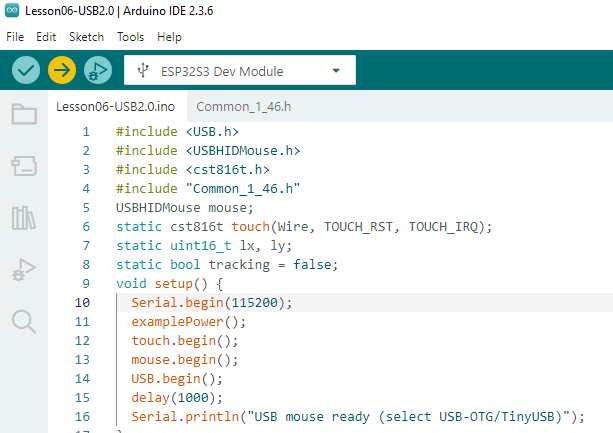
Open the project.
-
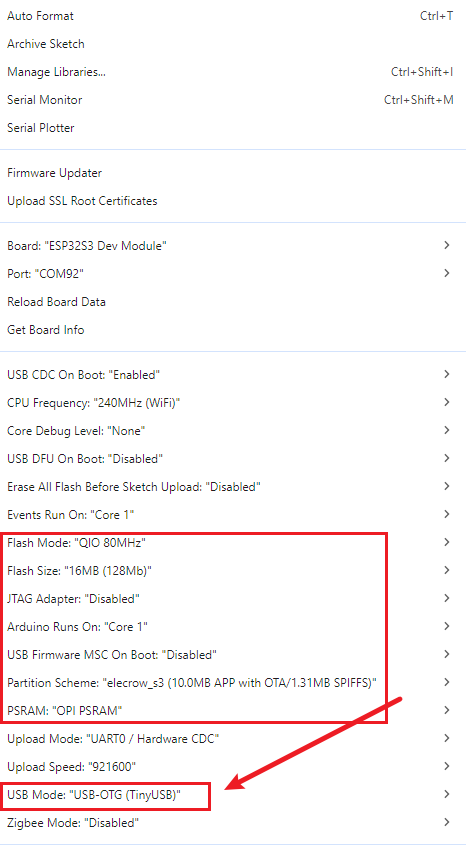
Select USB-OTG (TinyUSB). Do not select Hardware CDC and JTAG.
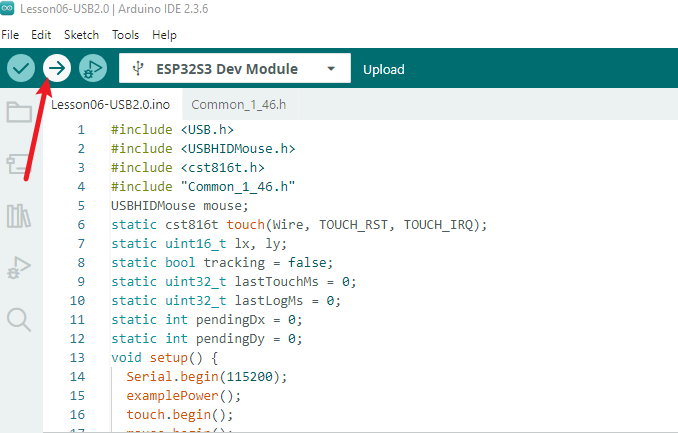
- Compile and upload the program.
5. Hardware Operation Steps
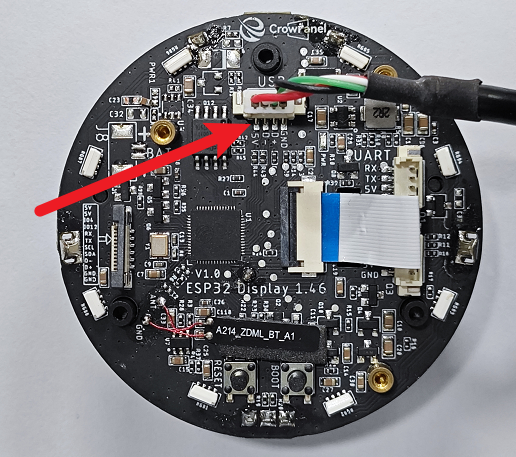
- With the power off, connect the USB OTG data cable to the computer, and make sure that the interface supports data transfer.
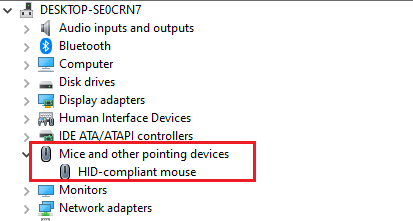
- After powering on, a mouse device appears on the computer.
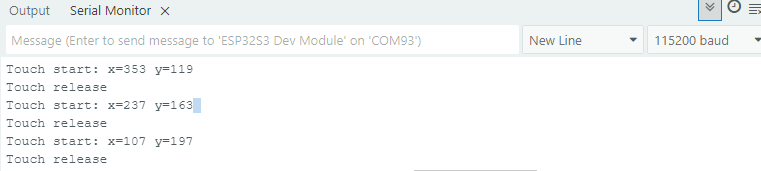
- Press and drag your finger on the screen, and observe the computer pointer move. After lifting your finger, confirm that the left button is released.
6. Key Code Explanation
if(touch.available()){
  if(!tracking){ lx=touch.x; ly=touch.y; tracking=true; }
  int dx=constrain((int)touch.x-lx,-127,127);
  int dy=constrain((int)touch.y-ly,-127,127);
  if(dx||dy) mouse.move(dx,dy,0);
  if(!mouse.isPressed(MOUSE_LEFT)) mouse.press(MOUSE_LEFT);
  lx=touch.x; ly=touch.y;
}
The first touch only records the starting point. Each subsequent loop calculates the coordinate differences as the HID relative movement values and limits them to the range accepted by the protocol. While the touch remains active, the left button is kept pressed. Recording the latest coordinates prevents repeated accumulation.
When the touch disappears, the left button is released immediately and the tracking state is cleared; otherwise, the computer will assume that the mouse button is still being held down. If the computer does not respond, first check the OTG connection direction, USB mode, and serial-port readiness information.
7. Experimental Results
After startup, the serial port reports that the USB mouse is ready. When you drag your finger across the screen, the computer pointer moves in the corresponding relative direction while the left button remains pressed; after you lift your finger, the left button is released. The device should not restart or freeze during continuous dragging.
8. Code Download
Code download link: https://github.com/Elecrow-RD/CrowPanel-1.46inch-HMI-ESP32-Rotary-Display/tree/master/example/V1.0/Arduino/Examples/