Lesson02_Encoder_Brightness: Knob-Controlled Backlight and Button Status Display
1. Lesson Introduction
This lesson reads the A/B signals from a rotary encoder and determines the rotation direction using a four-state transition table, adjusting the screen backlight brightness in 5% increments. The button is used only to display the “pressed” or “released” status on the screen. Learners can observe the knob input, PWM output, and button-level changes.
2. Learning Objectives
- Identify the functions of the rotary encoder A/B pins and the button input.
- Explain how the four-state transition table distinguishes clockwise from counterclockwise rotation.
- Verify backlight brightness changes with the knob and verify the “pressed/released” prompt with the button.
3. Required Materials
- An ESP32-S3 2.1-inch development board with a rotary encoder and a 480×480 RGB display.
- A USB cable that supports data transfer.
- Arduino IDE, ESP32 Arduino Core, Arduino_GFX_Library, PCF8574, and LVGL; versions to be added.
- Retain
Board21.h,Board21.cpp, and the knob lesson sketch in the project directory.
Code download link: https://github.com/Elecrow-RD/CrowPanel-2.1inch-HMI-ESP32-Rotary-Display-480-480-IPS-Round-Touch-Knob-Screen/tree/master/example/Arduino/Examples/
4. Software Operation Steps
- Open
Lesson02-rotate.inoand confirm that the project usesBoard21.hfrom the current directory.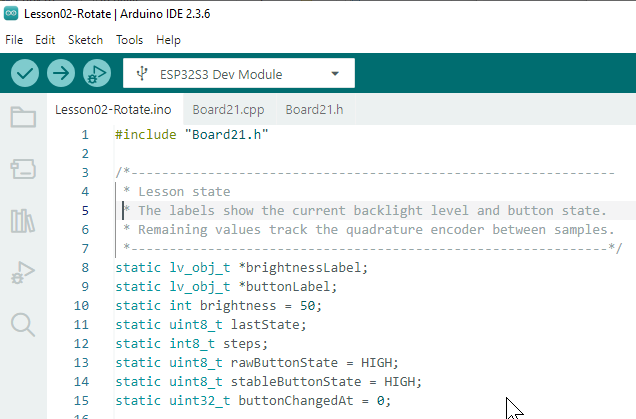
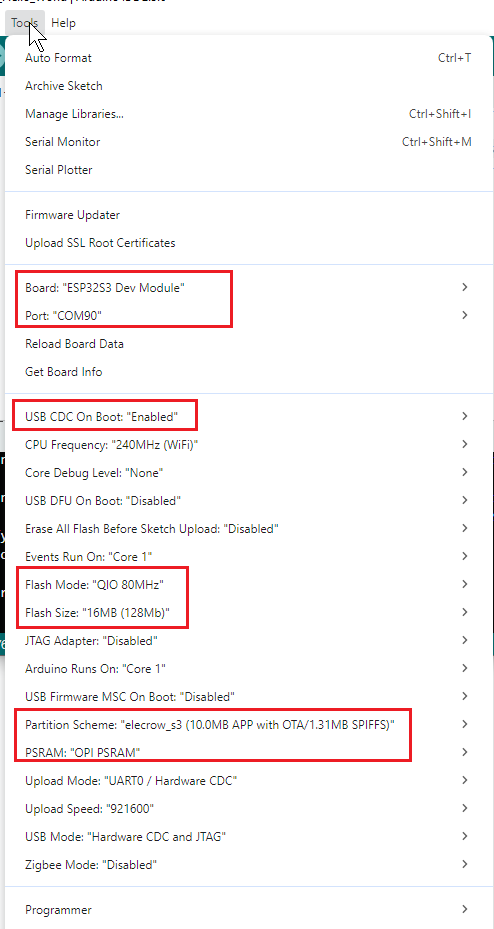
- Select the ESP32-S3 board type, port, and other settings.
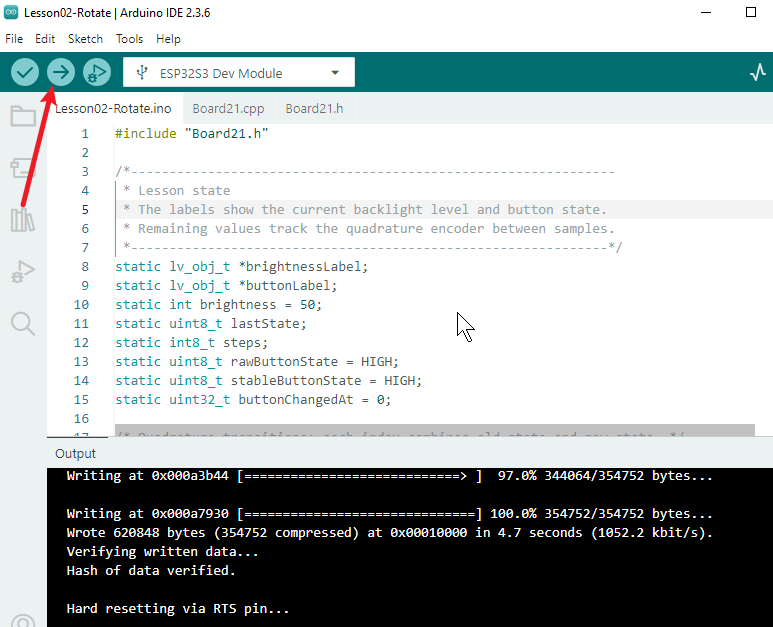
- Upload the program and wait for the development board to reset. Open the serial monitor and check for any unexpected restart messages.
5. Hardware Operation Steps
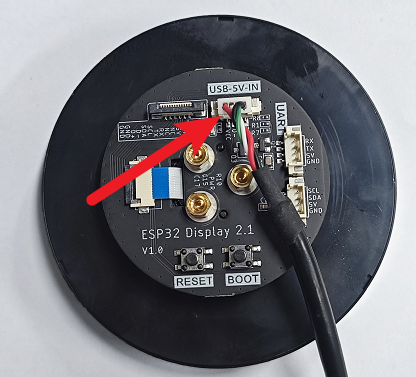
- With the power off, connect the USB cable and confirm that the knob is not obstructed by the enclosure or any other object.
- After powering on, observe the screen. It should initially display
Brightness: 50%andButton released.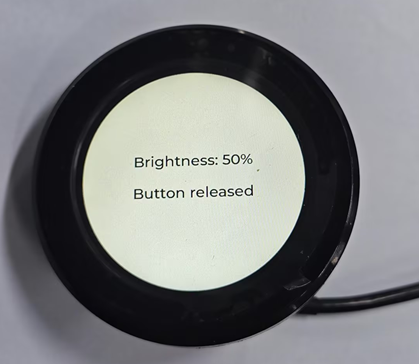
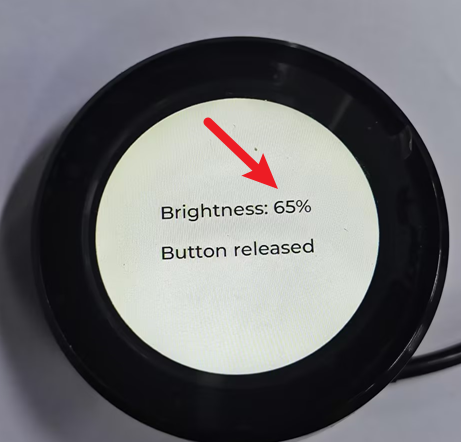
- Slowly rotate the encoder clockwise and confirm that the brightness increases by approximately 5% each time. Rotating it counterclockwise should decrease the brightness, with the range remaining between 0% and 100%.
- Press and release the encoder button, confirming that the screen prompts change to
Button pressedandButton released, respectively.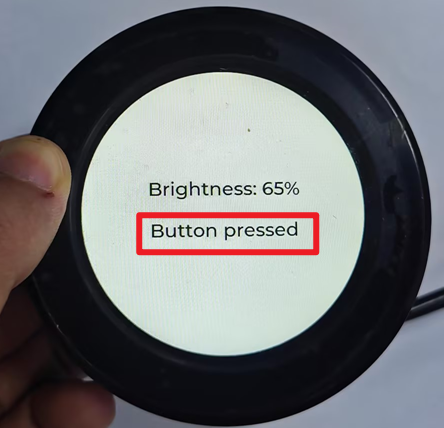
6. Key Code Explanation
const int8_t trans[16] = {0,-1,1,0,1,0,0,-1,-1,0,0,1,0,1,-1,0};
steps += trans[(lastState << 2) | s];
The encoder produces a two-bit A/B state at each sample. The previous and new states are combined into a 4-bit index, and the direction increment is obtained from the transition table. A step is confirmed only when the accumulated value reaches 4 or -4, which reduces bouncing and false half-step detections. If the table is removed or the index is incorrect, the knob may rotate in the wrong direction, jump unpredictably, or fail to respond completely.
brightness = constrain(brightness + 5, 0, 100);
ledcWrite(SCREEN_BACKLIGHT_PIN, brightness * 255 / 100);
The brightness variable uses a percentage, while ledcWrite() uses an 8-bit PWM duty cycle. Therefore, the conversion is completed by multiplying by 255 and then dividing by 100. constrain() ensures that the value remains between 0 and 100. Removing this limit may cause the displayed value and PWM parameters to exceed the expected range.
lv_obj_set_style_text_font(brightnessLabel, &lv_font_montserrat_32, 0);
lv_obj_set_style_text_font(buttonLabel, &lv_font_montserrat_32, 0);
The brightness and button prompts use the Montserrat 32 font consistently, making them easy to observe on the 480×480 screen.
P5 uses a pull-up input. A low level indicates that the button is pressed, and a high level indicates that it is released.
if (sampledState != rawButtonState) {
  buttonChangedAt = millis();
  rawButtonState = sampledState;
}
if (rawButtonState != stableButtonState && millis() - buttonChangedAt >= 50) {
  stableButtonState = rawButtonState;
  lv_label_set_text(buttonLabel,
    stableButtonState == LOW ? "Button pressed" : "Button released");
}
digitalRead(P5, true) refreshes the PCF8574 input latch. rawButtonState, stableButtonState, and the 50 ms check together provide debouncing. The label is updated only when the stable state changes, so it does not toggle repeatedly while the button is held down. The program no longer controls the onboard LED.
7. Experimental Results
After startup, the screen displays approximately 50% brightness and Button released. As the knob is rotated clockwise or counterclockwise, the backlight intensity and percentage change synchronously, and the value does not exceed 0%–100%. When the button is pressed and held, the prompt remains steadily displayed as the larger-font Button pressed; after release, it returns to Button released without repeatedly toggling while the button is held. If the brightness text changes but the backlight does not, first check GPIO6, PWM initialization, and the backlight circuit. If the knob direction is incorrect, check the A/B pins and the transition-table index.
8. Code Download
Code download link: https://github.com/Elecrow-RD/CrowPanel-2.1inch-HMI-ESP32-Rotary-Display-480-480-IPS-Round-Touch-Knob-Screen/tree/master/example/Arduino/Examples/