Lesson03_I2C_DHT20: Reading Temperature and Humidity
1. Course Introduction
In this lesson, measurement commands are sent via I2C to the DHT20 at address 0x38. The 6-byte raw data is read and converted into temperature and relative humidity values, which are then displayed on the LCD and output through the serial port. The program performs one reading approximately every 2 seconds. If a reading fails, it displays DHT20 read error, helping learners distinguish communication failures from data display issues.
2. Learning Objectives
- Be able to explain the DHT20's I2C address, measurement command, and data reading process.
- Be able to understand how raw bit data is converted into temperature and humidity values.
- Be able to determine whether sensor communication is successful based on the screen and serial output.
3. Preparation
- ESP32-S3 2.1-inch development board.
- DHT20 sensor module (confirm that it uses 3.3 V and has an I2C address of 0x38).
- USB cable that supports data transfer and correct SDA/SCL wiring; this code uses GPIO38/GPIO39.
- Arduino IDE, ESP32 Arduino Core, Arduino_GFX_Library, and LVGL; versions to be added.
Code download link: https://github.com/Elecrow-RD/CrowPanel-2.1inch-HMI-ESP32-Rotary-Display-480-480-IPS-Round-Touch-Knob-Screen/tree/master/example/Arduino/Examples/
4. Software Operation Steps
- Open
Lesson04-Temperature_and_Humidity.inoand confirm thatBoard21.hand the sketch are located in the positions specified by the example directory.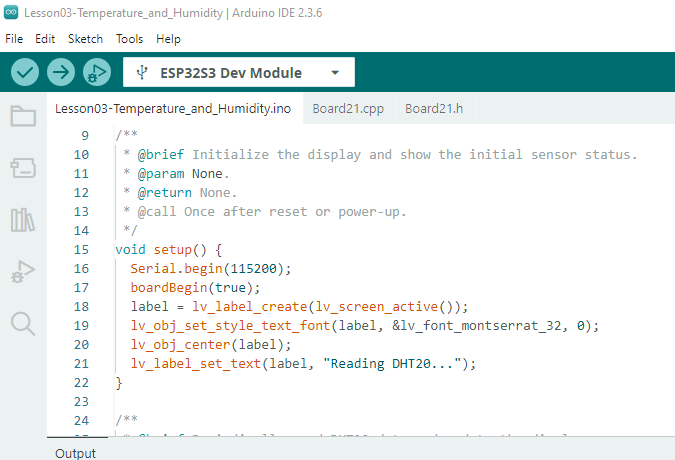
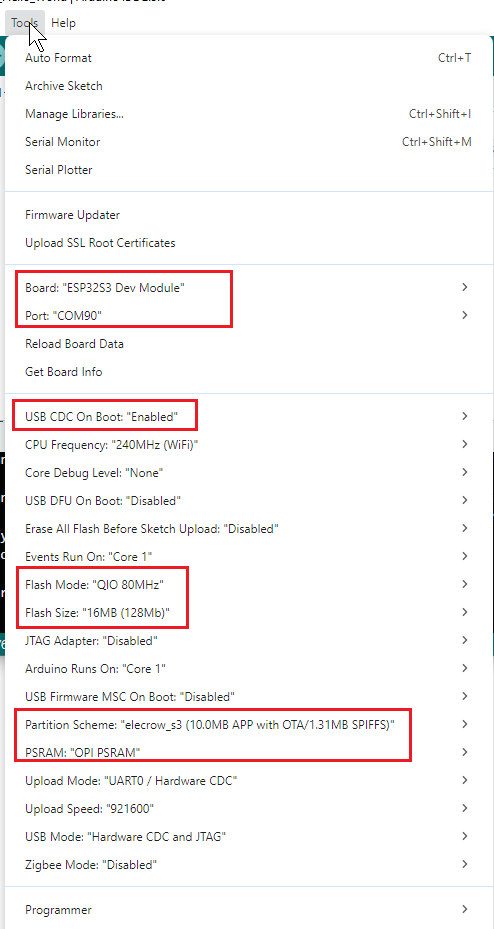
- Select the ESP32-S3 board type and serial port, then compile the project. Confirm that there are no header file or port errors.
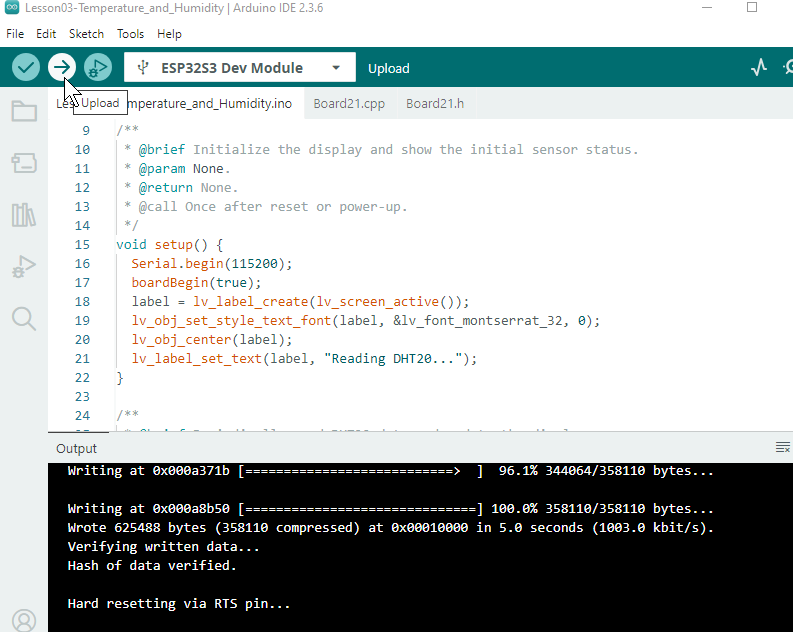
- Upload the program and open the serial monitor at a baud rate of 115200.
5. Hardware Operation Steps
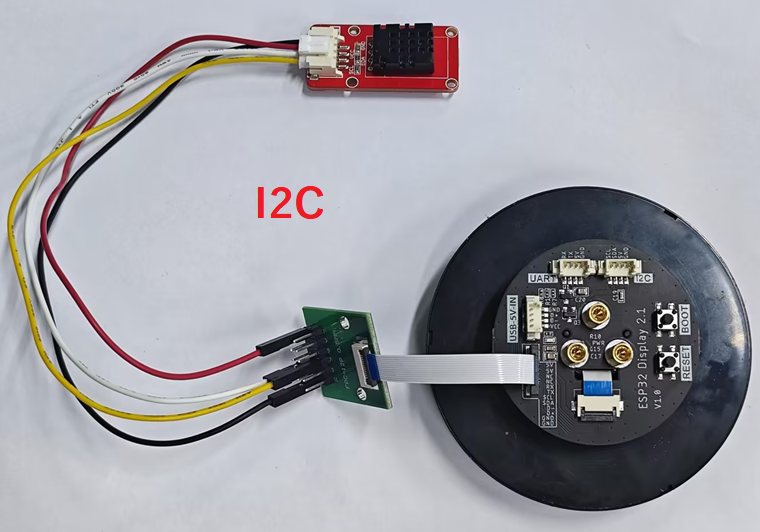
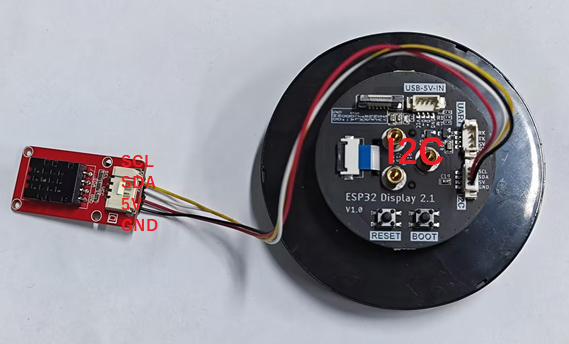
- Power off the system and connect the DHT20: connect VCC to 3.3 V, GND to ground, SDA to GPIO38, and SCL to GPIO39. Confirm that the module is not connected in reverse.
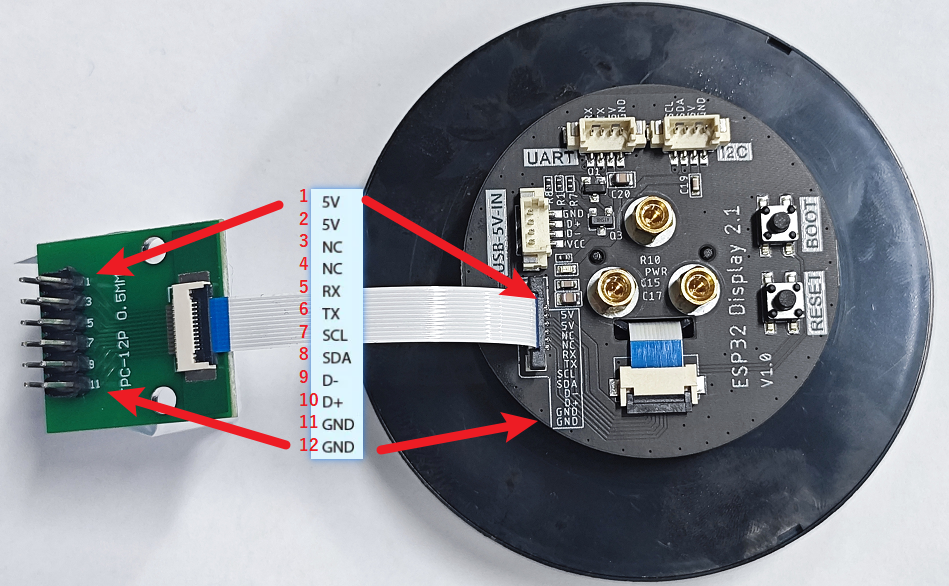
FPC Pin Interface Diagram
The rotary display also exposes UART pins, so you can connect a UART device directly here without using the FPC.
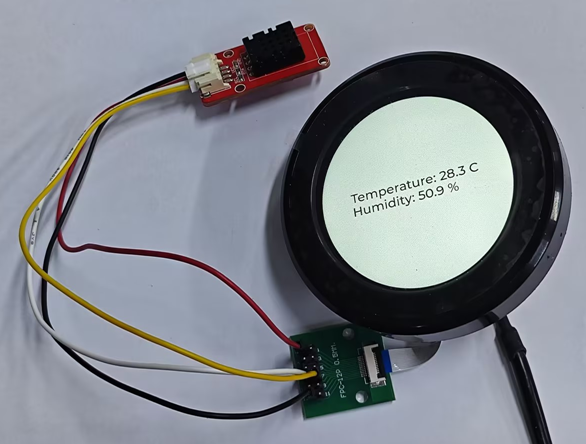
- Power on the system and wait approximately 2 seconds. Observe whether temperature and humidity values appear on the screen and in the serial output. Keep the air around the sensor circulating.
6. Explanation of Key Code
uint8_t c[] = {0xAC, 0x33, 0};
Wire1.beginTransmission(0x38);
Wire1.write(c, 3);
bool ok = Wire1.endTransmission() == 0;
Each measurement begins by sending a start command to the DHT20 at address 0x38. Reading continues only if endTransmission() returns success. An incorrect address, SDA/SCL connection, or power supply will cause ok to become false.
After the sensor completes the measurement, the code requests 6 bytes of data. It uses a logical AND to preserve the previous error state; the data is parsed only when both command transmission and the complete read succeed.
float h = (((uint32_t)d[1] << 12) | ((uint32_t)d[2] << 4) | (d[3] >> 4)) * 100.0 / 1048576.0;
float temp = (((uint32_t)(d[3] & 15) << 16) | ((uint32_t)d[4] << 8) | d[5]) * 200.0 / 1048576.0 - 50;
These two lines recombine the raw bit fields arranged across multiple bytes, then convert them according to the full-scale ratio specified in the DHT20 datasheet. Do not “calibrate” the sensor by modifying only the display format. If the values are clearly abnormal, first check the power supply, wiring, and reading sequence.
7. Experimental Results
After reset, the screen first displays a waiting prompt. Approximately 2 seconds later, the temperature and humidity are updated, and the serial port outputs the same text simultaneously. Under normal conditions, the readings should change slowly as the environment changes, and errors should not occur frequently. When DHT20 read error appears, first check 3.3 V, GND, GPIO38/GPIO39, the I2C pull-up, and address 0x38.
8. Code Download
Code download link: https://github.com/Elecrow-RD/CrowPanel-2.1inch-HMI-ESP32-Rotary-Display-480-480-IPS-Round-Touch-Knob-Screen/tree/master/example/Arduino/Examples/