Chunk identifier: CHUNK-0001
Lesson04-Serial_port_usage: Sending AT Commands via the Serial Port
1. Course Introduction
In this lesson, the second hardware serial port of the ESP32-S3 is used to communicate with an external Wi-Fi module. The program initializes the UART at 115200 bit/s on GPIO44 (RX) and GPIO43 (TX). After startup, it sends AT. Once the module's response is received, it is displayed simultaneously on the LCD and the debug serial port. Learners will understand the respective roles of the “module serial port” and the “computer debug serial port.”
2. Learning Objectives
- Distinguish between the USB debug serial port and the second UART connected to the Wi-Fi module.
- Configure the UART baud rate, data format, and RX/TX pins.
- Determine whether the module's power supply, crossover wiring, and serial communication are working properly based on the
ATresponse.
3. Preparation
- ESP32-S3 2.1-inch development board.
- A Wi-Fi/UART module that supports 3.3 V logic levels and responds to AT commands (exact model TBD).
- USB data cable; the module's power supply and logic levels must comply with its datasheet.
- Arduino IDE, ESP32 Arduino Core, Arduino_GFX_Library, and LVGL; versions TBD.
Code download link: https://github.com/Elecrow-RD/CrowPanel-2.1inch-HMI-ESP32-Rotary-Display-480-480-IPS-Round-Touch-Knob-Screen/tree/master/example/Arduino/Examples/
4. Software Operation Steps
- Open
Lesson05-Serial_port_usage.inoand verify that the relative path toBoard21.his valid and that the Wi-Fi credentials are valid.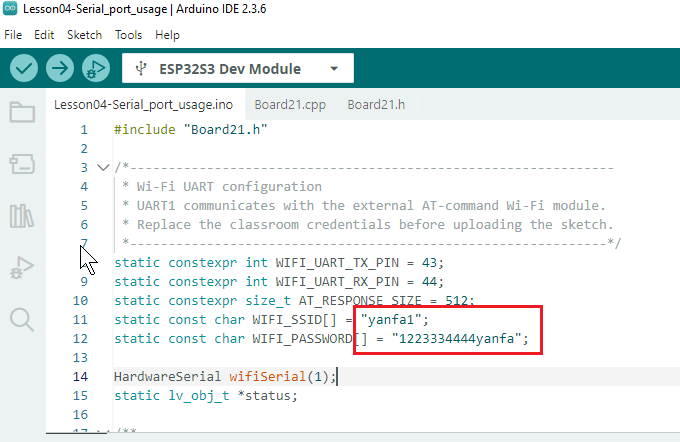
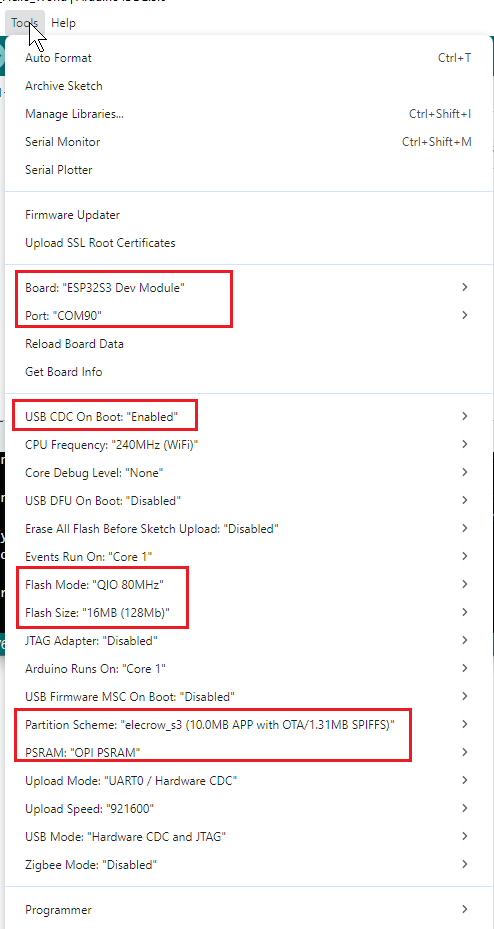
- Select the ESP32-S3 board and configure the serial port and other settings.
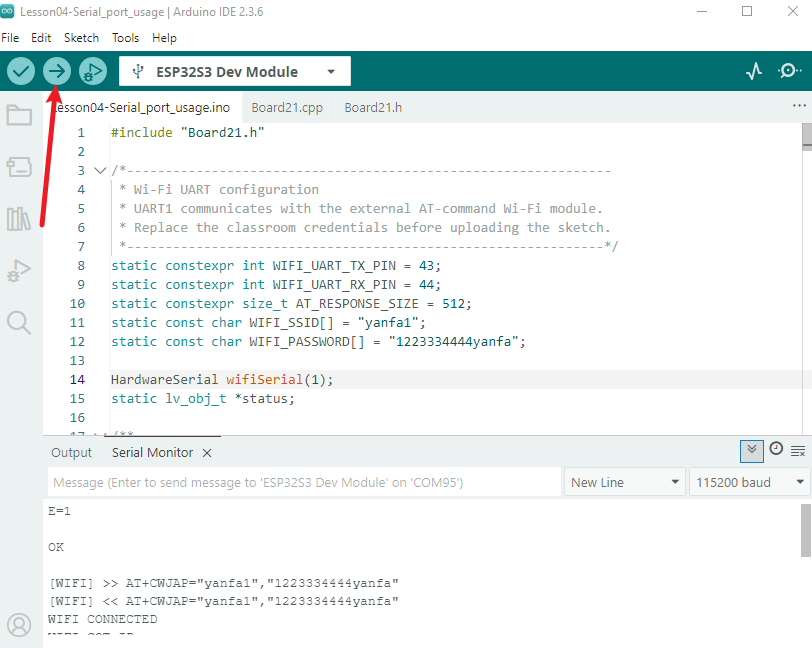
- Upload the program and open the computer's debug serial monitor, with the baud rate set to 115200.
5. Hardware Operation Steps
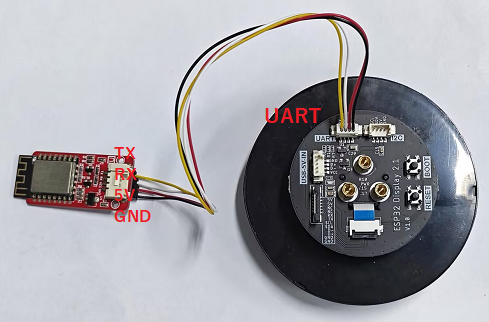
- Power off the device and connect the Wi-Fi module: connect the module TX to GPIO44 (UART RX) on the development board, and the module RX to GPIO43 (UART TX) on the development board. Connect the grounds and provide power as required by the module.
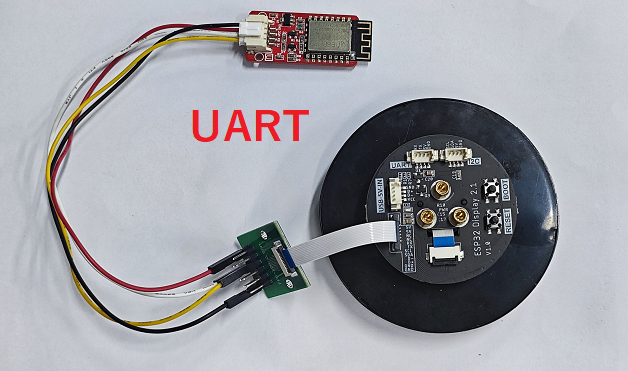
The rotary screen also exposes UART pins, so you can connect a UART device directly here without an FPC.
-
After powering on, observe the initial prompt
AT...on the screen. Do not plug in or unplug signal wires while the device is powered.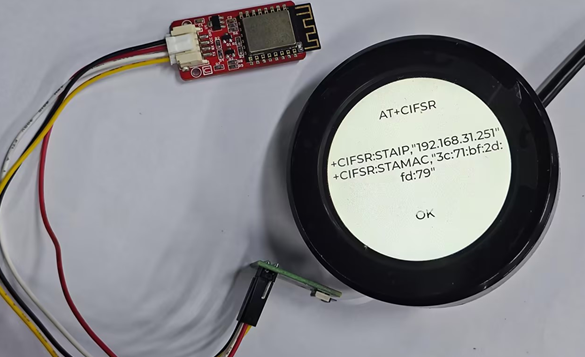
-
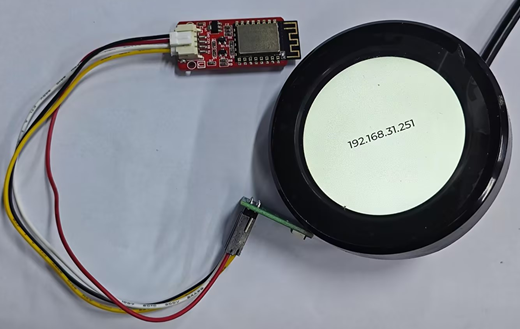
Wait for the module to return a response, and confirm that the same response appears simultaneously on the screen and the computer's debug serial monitor, with the IP displayed successfully.
6. Explanation of Key Code
HardwareSerial wifiSerial(1);
wifiSerial.begin(115200, SERIAL_8N1, 44, 43);
wifiSerial.println("AT");
HardwareSerial(1) creates UART1, separate from the default computer debug serial port. The parameters represent, in order, the baud rate, 8 data bits/no parity/1 stop bit, RX pin 44, and TX pin 43. TX and RX must be connected in a crossover configuration; sending AT is a minimal connectivity test.
if (wifiSerial.available()) {
  String r = wifiSerial.readString();
  Serial.println(r);
  lv_label_set_text(status, r.c_str());
}
When data is available in the UART receive buffer, the program reads the response and sends it separately to the computer debug serial port and the LCD. If the debug serial port receives a response but the screen does not update, first check the LVGL main loop. If neither displays a response, first check the module's power supply, TX/RX connections, and baud rate.
7. Observed Results
After startup, the screen displays the transmission prompt. When the module is operating normally, the AT response appears almost simultaneously on the LCD and in the computer's serial monitor; the exact returned text depends on the module firmware. No response does not necessarily mean that the program has crashed; the module may not be powered on, the serial parameters may be mismatched, or the wiring may be incorrect.
8. Code Download
Code download link: https://github.com/Elecrow-RD/CrowPanel-2.1inch-HMI-ESP32-Rotary-Display-480-480-IPS-Round-Touch-Knob-Screen/tree/master/example/Arduino/Examples/