Lesson05-USB2.0: Controlling a USB Mouse with the Touchscreen
1. Course Introduction
In this lesson, the ESP32-S3's native USB functionality is used to create an HID mouse. Continuous touchscreen movement is converted into mouse movement, the left mouse button remains pressed while the screen is being touched, and the left button is released when contact ends. LVGL is not enabled; only the display and touch controller are initialized to highlight the relationship between USB HID and touch input.
2. Learning Objectives
- Explain the basic process of USB HID mouse enumeration, movement, and button-state handling.
- Understand how touch-coordinate differences are converted into constrained relative mouse movement.
- Verify touch dragging, left-button press and release behavior on a computer, and safely disconnect the device.
3. Preparation
- A development board and computer that support native USB HID on the ESP32-S3.
- A USB cable that supports data transfer; after connection, the computer may recognize a new HID mouse.
- Arduino IDE, ESP32 Arduino Core, and USB HID components; version to be added.
- Ensure that
USB.h,USBHIDMouse.h, andBoard21.hcan be found by the project.
Code download link: https://github.com/Elecrow-RD/CrowPanel-2.1inch-HMI-ESP32-Rotary-Display-480-480-IPS-Round-Touch-Knob-Screen/tree/master/example/Arduino/Examples/
4. Software Operation Steps
-
Open
Lesson06-USB2.0.ino.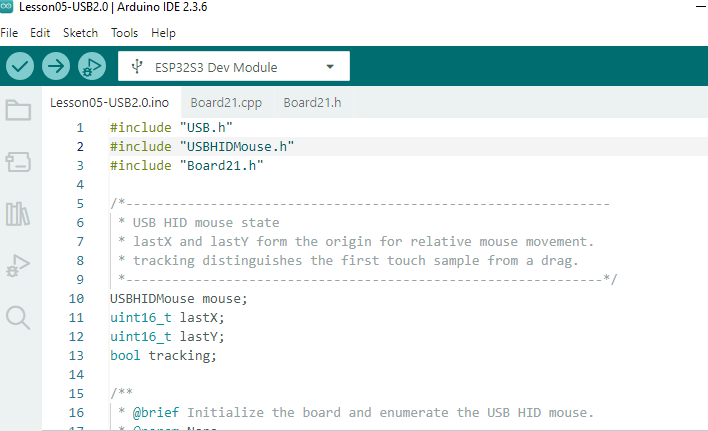
-
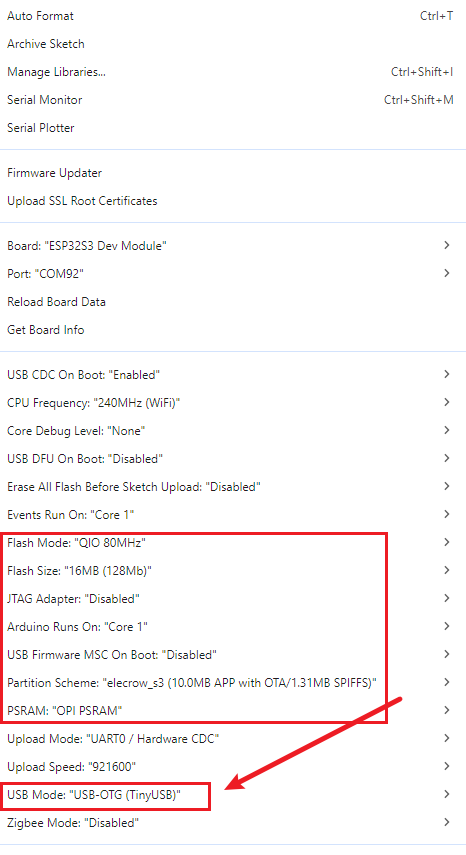
Select the correct USB port and other settings, then select “USB-OTG(TinyUSB).”
-
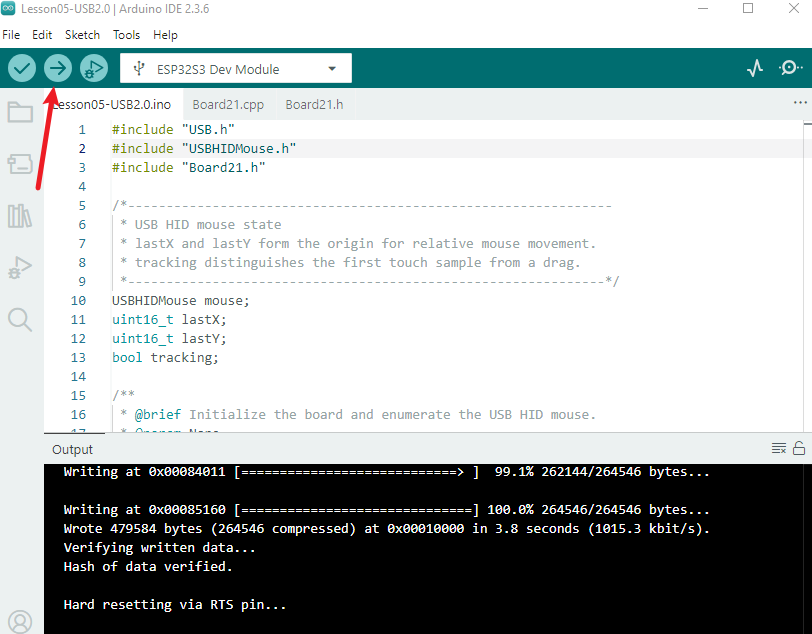
Download.
5. Hardware Operation Steps
- Connect the USB cable while the device is powered off, and ensure that there are no sharp objects on the touchscreen surface. USB HID affects mouse input on the current computer, so using a test window is recommended.
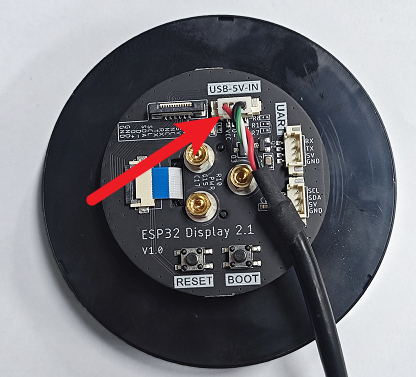
- After powering on, a mouse device appears on the computer.
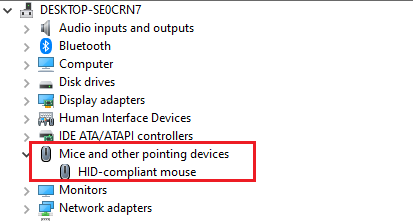
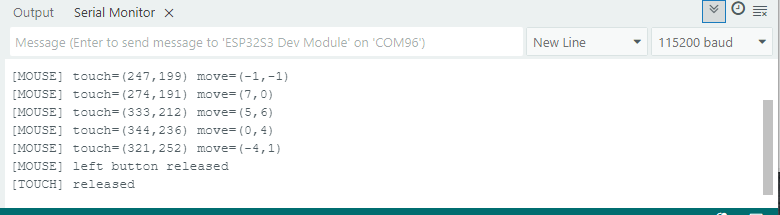
- Press and hold the screen with your finger and move it. Observe whether the computer cursor follows the relative movement; touching the screen is equivalent to holding down the left mouse button. Release your finger and confirm that the left mouse button is released. Do not unplug the USB cable while moving; safely disconnect it after testing is complete.
6. Explanation of Key Code
if (boardTouchRead(x, y)) {
  if (!tracking) { lastX = x; lastY = y; tracking = true; }
  int dx = constrain((int)x - lastX, -127, 127);
  int dy = constrain((int)y - lastY, -127, 127);
  if (dx || dy) mouse.move(dx, dy);
  if (!mouse.isPressed(MOUSE_LEFT)) mouse.press(MOUSE_LEFT);
  lastX = x; lastY = y;
}
When a touch is detected for the first time, only the starting point is recorded to prevent the cursor from jumping suddenly. The current coordinates are then subtracted from the previous coordinates to obtain the relative movement, which is constrained to the range accepted by a single HID report. The left button is pressed while the touch continues to produce a dragging effect; no unnecessary report is sent when there is no movement.
After the touch ends, the left button is released and the tracking state is cleared. If release() is omitted, the computer may continue to consider the mouse button pressed. If tracking is not reset, the next touch may reuse the old coordinates and cause a jump.
Start the HID mouse first, then start the USB stack, and wait for the host to complete enumeration. If the computer does not recognize the mouse, first check whether the native USB port is being used, whether the USB cable supports data transfer, and whether the target chip is an ESP32-S3.
7. Experimental Results
After uploading and waiting approximately 1 second, the computer should recognize a USB HID mouse. When the screen is pressed and moved, the cursor moves according to the touch displacement while the left button remains pressed; when the touch is released, the left button is released. If the cursor does not move, check touch reading and USB enumeration. If the cursor jumps, check whether lastX/lastY is initialized correctly on the first touch.
8. Code Download
Code download link: https://github.com/Elecrow-RD/CrowPanel-2.1inch-HMI-ESP32-Rotary-Display-480-480-IPS-Round-Touch-Knob-Screen/tree/master/example/Arduino/Examples/