Lesson 16: Wi-Fi STA, SoftAP, and STA+AP Modes
This lesson uses the onboard ESP32-C6 Wi-Fi coprocessor and includes three independent Arduino example projects.
1. Course Introduction
This lesson demonstrates the three Wi-Fi operating modes—STA, SoftAP, and STA+AP—separately. The STA example connects the development board to an existing router; the SoftAP example lets the development board create a local hotspot; the STA+AP example enables both roles simultaneously and forwards hotspot client traffic to the external network via NAT.
In this section, we will conduct a systematic study on the Wi-Fi core functions of the ESP32 series chips (including models such as ESP32-C6): Firstly, we will deeply analyze the underlying fundamental principles of Wi-Fi communication, including the technical logic and application scenarios of the three core working modes: Station (STA), SoftAP (AP), and STA+AP coexistence.
2. Learning Objectives
- Understand the working principles, underlying logic and typical application scenarios of the three core Wi-Fi modes (STA, SoftAP, STA+AP coexistence) of the ESP32 series chips (such as ESP32-C6).
- Master the core programming process of Wi-Fi: protocol stack / driver initialization, mode and parameter configuration, connection startup and implementation methods of event callbacks (disconnection/reconnection, device access, etc.).
- Master the code implementation of the three Wi-Fi modes (STA connecting to the router, AP creating a hotspot, STA+AP coexistence + NAT shared external network) under the ESP32-P4 + ESP32-C6 architecture
3. Prerequisites
- 1 × CrowPanel Advanced 5-inch ESP32-P4 HMI AI Display development board.
- A USB Type-C cable that supports data transfer.
- Arduino IDE 2.x, ESP32 Arduino Core 3.3.3, and the course's bundled dependency libraries.
- A 2.4 GHz Wi-Fi router, and a phone or computer that can connect to a hotspot.
4. General Configuration
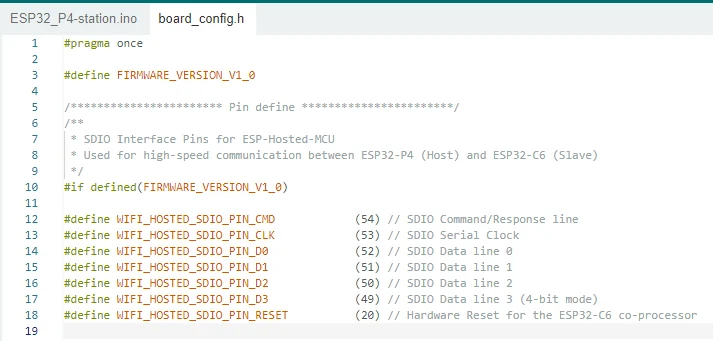
All three examples must first call WiFi.setPins() so that the ESP32-P4 communicates with the onboard ESP32-C6 via SDIO. When uploading, select ESP32P4 Dev Module, 16 MB Flash, PSRAM Enabled, and the COM port corresponding to UART0.
For detailed instructions on how to configure the Arduino IDE platform before uploading code, please refer to Lesson 1.
Note: The SSID and password in the examples are placeholder values only. You must change them to your experimental network information before uploading, and do not submit real long-term passwords.
5. Hardware Operation Steps
Connect the data-capable USB-C cable to the development board's UART0 port and your computer, to upload the three Arduino Wi-Fi examples and view the serial logs.

The ESP32-C6 Wi-Fi coprocessor is already installed on the development board, so no external module is needed. Make sure the antenna area is unobstructed and the power supply is stable.

- STA mode: Open the Station project in Arduino IDE, modify the router SSID and password, then click Upload. Open the serial monitor at 115200 baud and confirm that the development board obtains a LAN IP.
For how to open the serial monitor and set the baud rate, please see Lesson 1 in detail.

- SoftAP mode: Open the SoftAP project and upload it, then use your phone to search for the
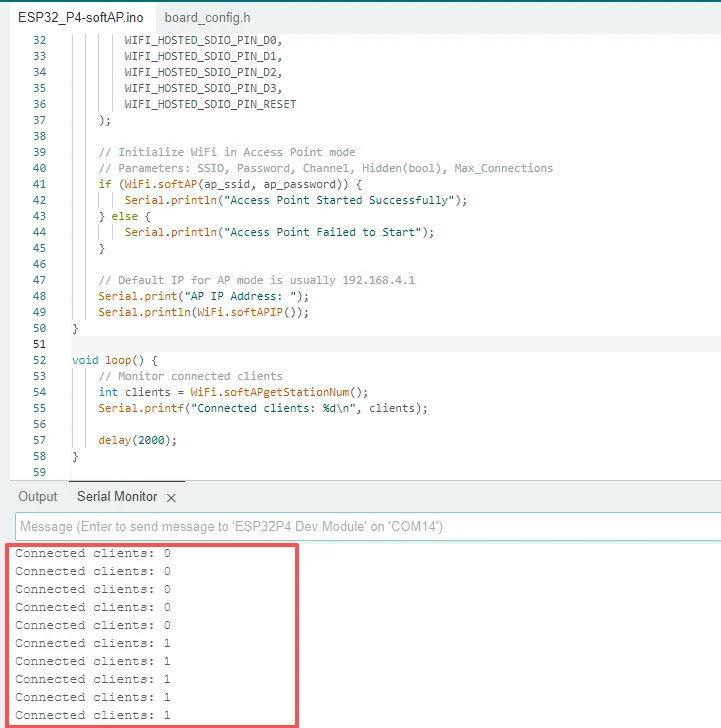
ELECROWhotspot and connect with the example password. The serial monitor should display client join events and the current number of connected clients.

- STA+AP mode: Open the STA+AP project, set the router and hotspot credentials separately, then upload. Confirm that the STA is connected to the router, that the AP hotspot is discoverable by your phone, and test whether hotspot clients can access the internet after NAT is enabled.

The three examples should be uploaded and verified separately; do not mix different projects in a single run. After switching projects, reconfirm the development board, COM port, and serial baud rate in Arduino IDE.
6. STA Mode
STA mode lets the development board act as a client to connect to an existing router, obtain an IP address from the router, and access the LAN or the internet.
6.1 Open the Project and Configure the Network
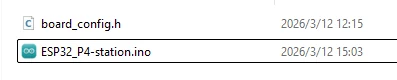
Open ESP32_P4-station.ino, check the SDIO pins in board_config.h, and modify sta_ssid and sta_password.
6.2 Initialize and Connect
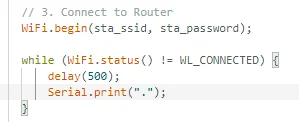
After configuring SDIO, the program calls WiFi.mode(WIFI_STA) and WiFi.begin(). The connection progress is output to the serial port during the process, and the local IP address is displayed once connected successfully.


7. SoftAP Mode
SoftAP mode lets the development board create its own wireless hotspot, which phones or computers can join to form a local network. When used alone, SoftAP has no external network forwarding capability.
7.1 Open and Configure the SoftAP Project
Open ESP32_P4-softAP.ino, and set the hotspot name and a password of at least 8 characters.


The program calls WiFi.softAP() to create the hotspot and uses WiFi.softAPIP() to obtain the hotspot address, which defaults to 192.168.4.1.

7.2 Connect and Verify
After uploading, use your phone to search for the example hotspot and enter the password. The WiFi.softAPgetStationNum() call in the serial output displays the number of connected clients.


8. STA+AP and NAT Mode
STA+AP mode lets the ESP32-C6 act both as a router client and as a local hotspot. Since there is only one set of RF hardware, the two roles share the same channel and operate via time multiplexing. The router channel that the STA connects to determines the channel the SoftAP ultimately uses.
8.1 Open the Project
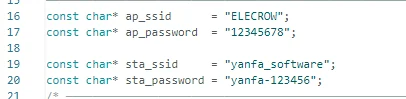
Open ESP32_P4-softap_sta.ino, and set the external router credentials and the local hotspot credentials separately.

8.2 Start Dual Mode and NAT
The program uses WiFi.mode(WIFI_AP_STA) to enable dual mode, first creating the hotspot and then connecting to the external router. Once connected successfully, ip_napt_enable() enables NAT forwarding on the hotspot interface.


8.3 Verify the Results
After uploading, first observe whether the serial output shows the STA IP and the SoftAP IP, then connect your phone to the development board's hotspot and test internet access.


9. Key Code Explanation
9.1 STA
The station sketch calls WiFi.mode(WIFI_STA) and WiFi.begin(sta_ssid, sta_password), then waits for WL_CONNECTED before printing the assigned IP address. STA mode makes the ESP32-C6 a client of an existing router and is suited to weather services, cloud APIs, and other remote services.
9.2 SoftAP
The SoftAP sketch calls WiFi.mode(WIFI_AP) and WiFi.softAP(ap_ssid, ap_password), then prints WiFi.softAPIP(). The board becomes the access point, so a phone or computer can connect directly for provisioning, local control, or debugging.
9.3 STA+AP and NAT
WiFi.mode(WIFI_AP_STA);
WiFi.softAP(ap_ssid, ap_password);
WiFi.begin(sta_ssid, sta_password);
ip_napt_enable(WiFi.softAPIP(), 1);
The STA+AP sketch starts both interfaces, waits for the station connection, and calls ip_napt_enable(WiFi.softAPIP(), 1) to enable NAT on the SoftAP address. NAT forwards hotspot-client traffic to the upstream STA network; a visible hotspot alone is not sufficient, because internet access remains unavailable until STA association succeeds.
10. Experimental Observations
- STA: The serial port shows the IP assigned by the router, and the development board can access the internet.
- SoftAP: The phone can connect to the development board's hotspot, the serial port shows the number of clients, but by default it cannot access the internet.
- STA+AP: After the phone connects to the development board's hotspot, it can use the external router network via NAT.
11. Frequently Asked Questions and Troubleshooting
- STA keeps failing to connect: Check the 2.4 GHz network, SSID, password, and signal strength.
- Hotspot not visible: Check the return value of
WiFi.softAP()and the hotspot password length. - Can connect to the hotspot but cannot access the internet: Confirm that the STA has obtained an IP, and check whether
ip_napt_enable()executed successfully. - Compilation cannot find
lwip_napt.h: Confirm that you are using the course-specified ESP32 Arduino Core and the complete project dependencies. - Unstable operation: Check the USB power supply and the ESP32-C6 SDIO pin definitions.