P4_Micropython_02_SD_Card: SD Card Mounting, Capacity Reading, and File Traversal
1. Course Introduction
This lesson uses MicroPython's machine.SDCard and virtual file system interface on the CrowPanel Advanced 7-inch ESP32-P4 HMI to mount a FAT-formatted SD card to /sd in 1-bit SDIO mode. The program outputs interface parameters, the root directory file list, and the total capacity, used space, and free space, allowing learners to verify the power supply, bus, file system, and file access chain through the serial log.
2. Learning Objectives
- Be able to correctly identify the SD card slot, insert a FAT/FAT32-formatted SD card with the power off, and complete firmware preparation.
- Be able to explain the GPIO38 power supply, the CLK/CMD/D0 signals of GPIO43/44/39, and the 1-bit SDIO mounting process.
- Be able to run
sd_card.pyand determine whether the SD card is functioning normally based on the mount path, file list, and capacity information. - Be able to perform orderly troubleshooting based on initialization exceptions, format errors, or empty-directory symptoms.
3. Preparations
-
Hardware: One CrowPanel Advanced 7 / 9 / 10.1 inch ESP32-P4 HMI AI Display development board, and one USB Type-C data cable that supports data transmission.
-
Compatibility note: The hardware and software code for the 7 / 9 / 10.1-inch development boards are fully interchangeable; only the board dimensions differ. Please select the appropriate model based on display size and use case.
-
One USB data cable that supports data transmission; do not use a cable that only supports charging.
-
A Windows PC with Thonny IDE installed; if the latest version encounters flashing or runtime errors, use the documented and verified Thonny 4.1.7.
-
Elecrow custom MicroPython firmware
lvgl_micropy_ESP32_GENERIC_P4-C6_WIFI-16_ELECROW_INCH7-9-10_1_V1_0.bin. -
Before flashing, confirm that the serial port is not occupied by other software; power off before wiring or plugging/unplugging any expansion hardware.
-
One microSD card formatted as FAT or FAT32; it is recommended to preload an easily recognizable test file.
-
sd_card.pyand the specified firmware from this lesson's directory.
4. Software Operation Steps
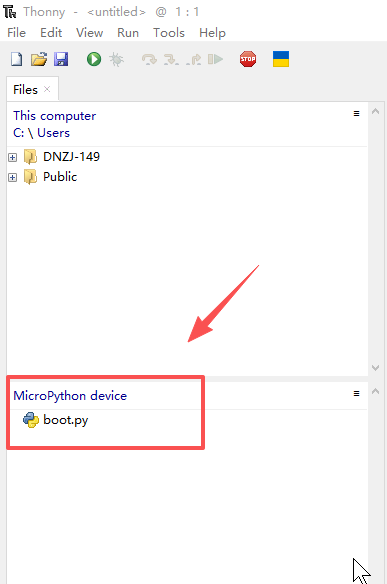
The firmware flashing method is the same as in Lesson 1. After flashing succeeds, a boot.py should appear in Thonny's device file area.
Flashing the firmware follows the same process as the first case. You need to flash the "lvgl_micropy_ESP32_GENERIC_P4-C6_WIFI-16_ELECROW_INCH7-9-10_1_V1_0.bin" firmware onto the device.
Once the flashing is successful, a "boot.py" file will appear.
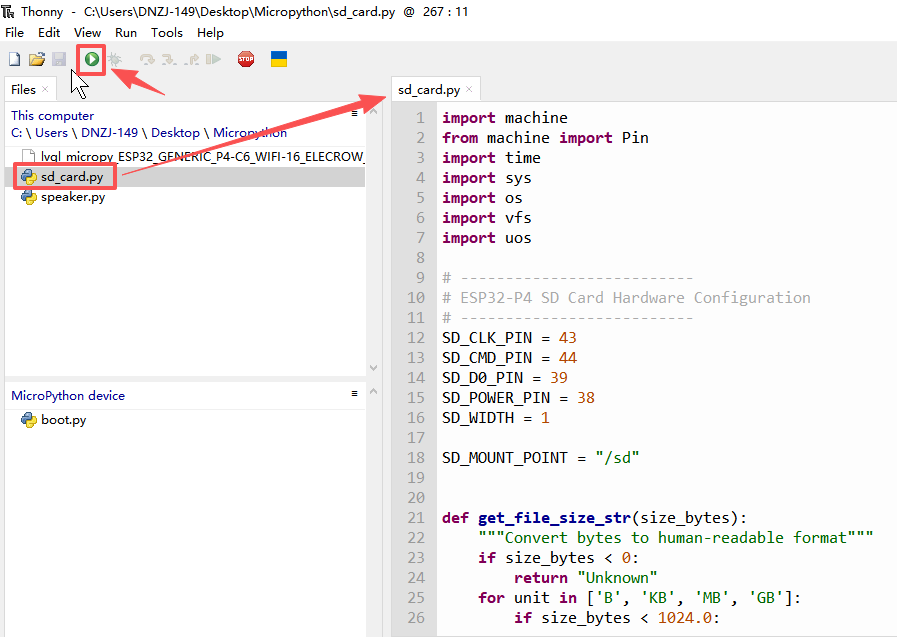
Upload sd_card.py to the device root directory, double-click to open it, and click Run; you can also create a blank file, paste the complete code, and then run it.
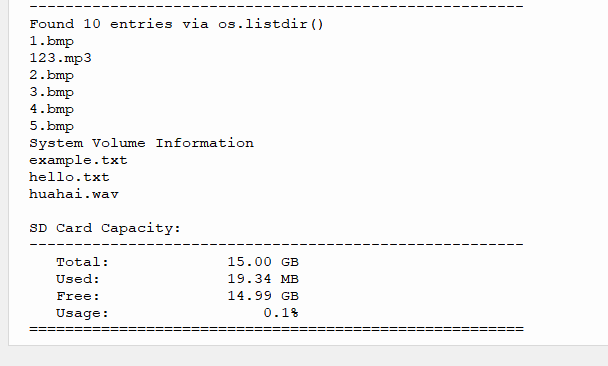
Check the Shell output and confirm the appearance of SD card mounted successfully at /sd, the file count, and the capacity statistics.
5. Hardware Operation Steps
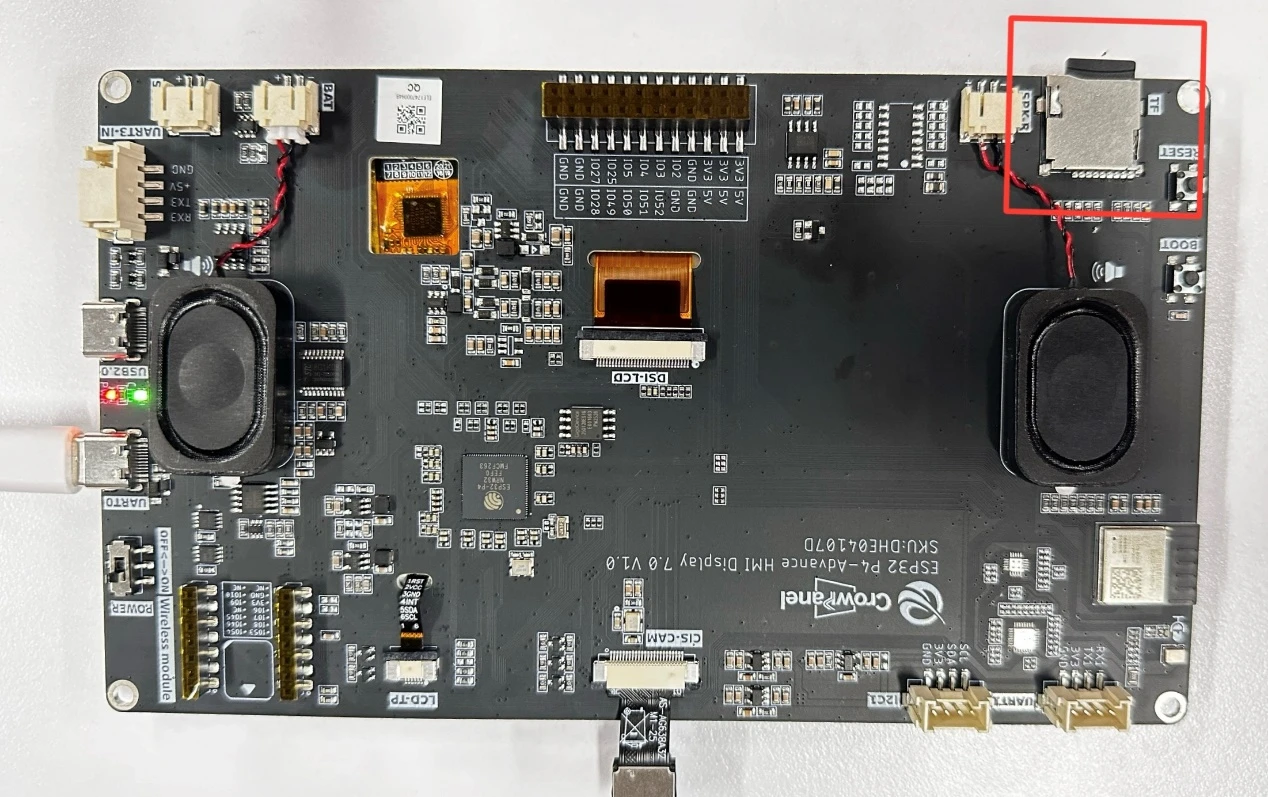
First disconnect the development board power, insert the FAT/FAT32-formatted microSD card flat in the direction indicated by the slot, and confirm the card is locked in place before powering on.
Do not remove the card while the program is reading from or writing to the SD card. When you need to remove the card, first stop the program and power off; if you continuously use the card in a self-written program, you should call the unmount logic first.
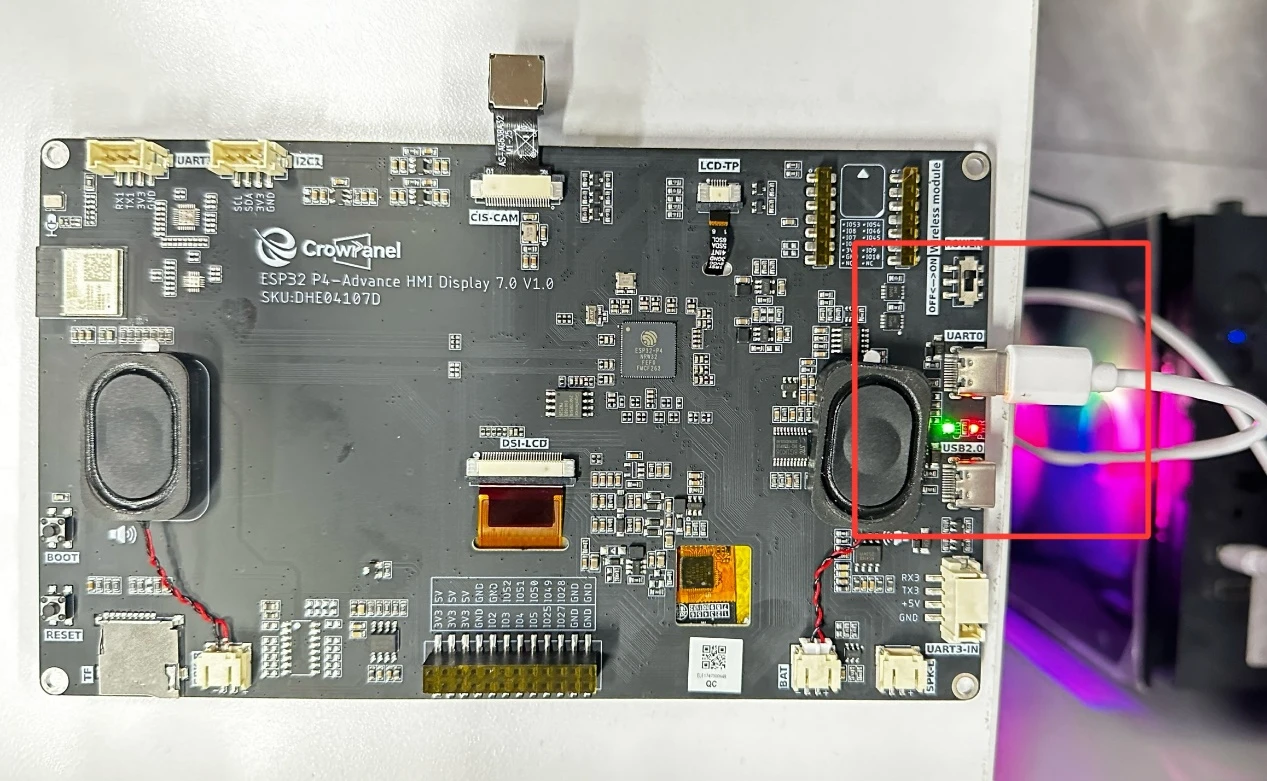
Connect the CrowPanel Advanced 7-inch ESP32-P4 HMI AI display to your computer using a USB cable.
6. Key Code Explanation
6.1 Power Supply and SDIO Parameters
SD_CLK_PIN = 43
SD_CMD_PIN = 44
SD_D0_PIN = 39
SD_POWER_PIN = 38
SD_WIDTH = 1
SD_MOUNT_POINT = "/sd"
GPIO38 turns on the card slot power; GPIO43, 44, and 39 serve as clock, command, and D0 data, respectively. width=1 must be consistent with the board-level connection; any incorrect pin or bus width will cause initialization failure.
6.2 Mounting and Repeated Execution
The program first attempts to read /sd: if successful, it indicates the card is already mounted, which avoids repeated-mount errors; otherwise, it turns on the power, creates machine.SDCard(slot=0, width=1, freq=20000000), and mounts it. 20 MHz is the bus frequency; when an exception occurs, first check the card format, insertion direction, and power supply—do not blindly increase the frequency.
    try:
        sd = machine.SDCard(slot=0, width=SD_WIDTH, freq=20000000)
        vfs.mount(sd, SD_MOUNT_POINT)
        print(f"SD card mounted successfully at {SD_MOUNT_POINT}")
        return True
6.3 File and Capacity Information
The get_sd_card_info() function is mainly used to obtain the storage capacity information of the SD card. Firstly, it retrieves the relevant parameters of the /sd file system through os.statvfs(SD_MOUNT_POINT), where fs_stat[0] represents the size of each storage block, fs_stat[2] represents the total number of storage blocks on the SD card, and fs_stat[3] represents the current number of remaining storage blocks. Then, it calculates the total capacity and remaining capacity of the SD card by multiplying block_size * total_blocks and block_size * free_blocks respectively. Finally, it obtains the used capacity by subtracting free_bytes from total_bytes and returns the total capacity, remaining capacity, and used capacity together. If an OSError exception occurs during the acquisition process, it returns 0, 0, 0 to indicate that the capacity information acquisition failed.
def get_sd_card_info():
    """Get SD card capacity info using statvfs"""
    try:
        fs_stat = os.statvfs(SD_MOUNT_POINT)

        block_size = fs_stat[0]
        total_blocks = fs_stat[2]
        free_blocks = fs_stat[3]

        total_bytes = block_size * total_blocks
        free_bytes = block_size * free_blocks
        used_bytes = total_bytes - free_bytes

        return total_bytes, free_bytes, used_bytes

    except OSError as e:
        print(f"Failed to get SD card info: {e}")
        return 0, 0, 0
7. Experimental Observations and Acceptance Criteria
After powering on and running, the Shell first prints the ESP32-P4, Slot 0, GPIO, and 1-line SDIO parameters; then the mount success message appears. The file list should contain the preloaded test file, the total capacity in the capacity statistics should be greater than 0, and the sum of used and free space should be close to the total capacity. If an initialization failure is reported, check in order whether the card was inserted with the power off, whether the card is fully locked, whether the format is FAT/FAT32, and whether the specified firmware is used.