The First Lesson: Installation and Configuration of IDF-IDE and Printing "Hello World" via Serial Port
1. Download Visual Studio Code
Open the official website link:
Click to download.

Accept the license agreement and go next.

Accept the default location or click 'Browse...' to change the installation location.
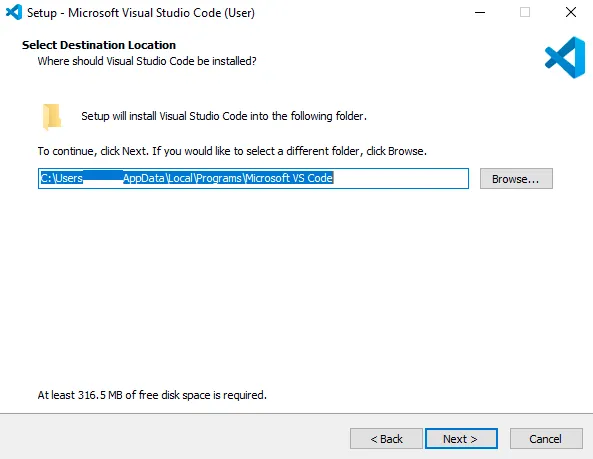
Accept the resting default option and click 'Next >'...
Click install and waiting for the installation ...

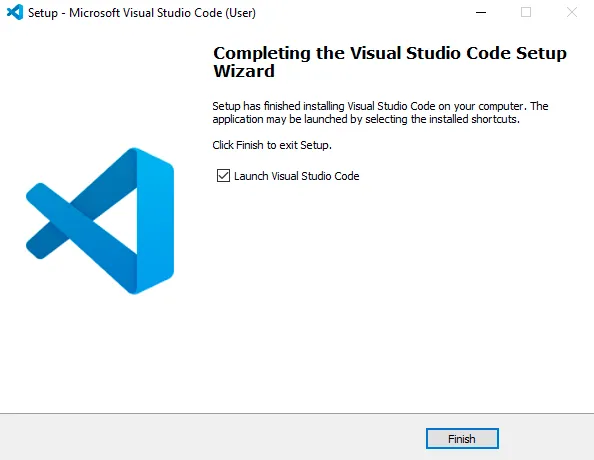
Click 'Finish' to exit the installation and (by default) launch Visual Studio Code
2. Install the extension
Open Visual Studio Code and open Extension Manager
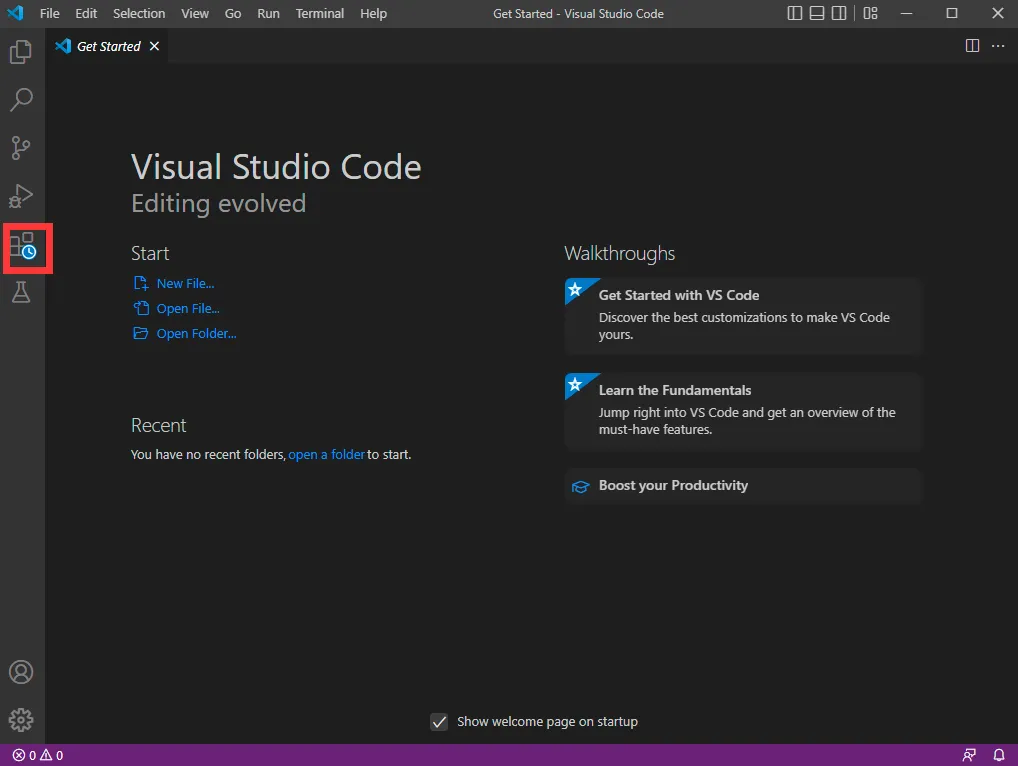
Click on the [Extensions] extension icon.
Select the C/C++ extension plugin and click [Install].

Search for keywords such as espressif, esp-idf, esp32, esp32s2, etc. in the Extensions.
Click [Install] for the esp-idf extension.
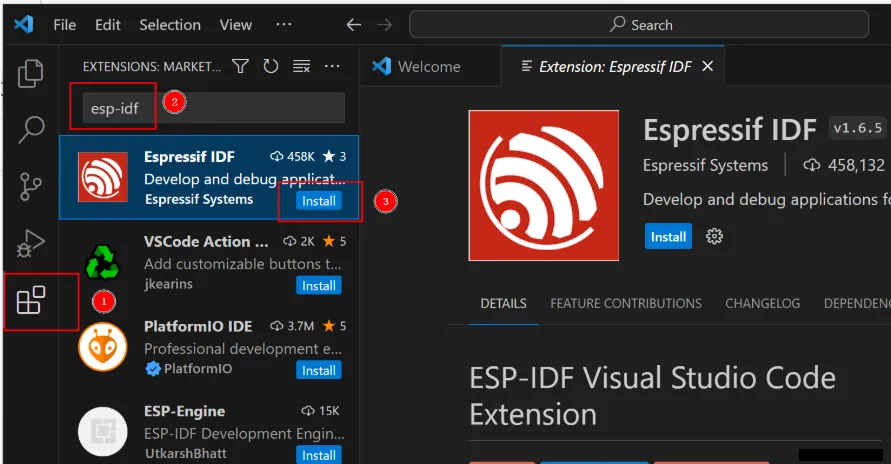
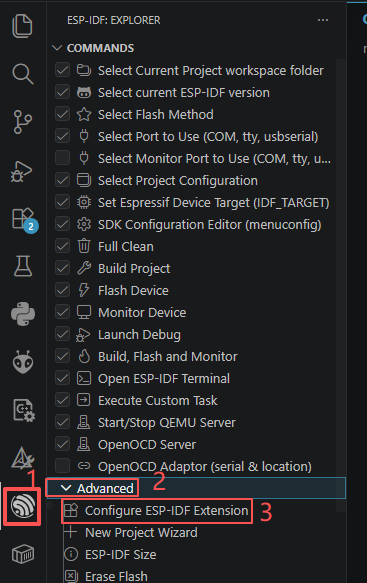
After the installation is complete, we enter ESP-IDF, select "Configure ESP-IDF Extension", and get ready to download the version of ESP-IDF for use.
After entering, select [EXPRESS].

Note: Select version v5.1.1.
Follow the instructions in the red box in the picture step by step to make your choices.
In the following interface,click [Install] to start the installation.

Then, just wait patiently for the installation to be completed.
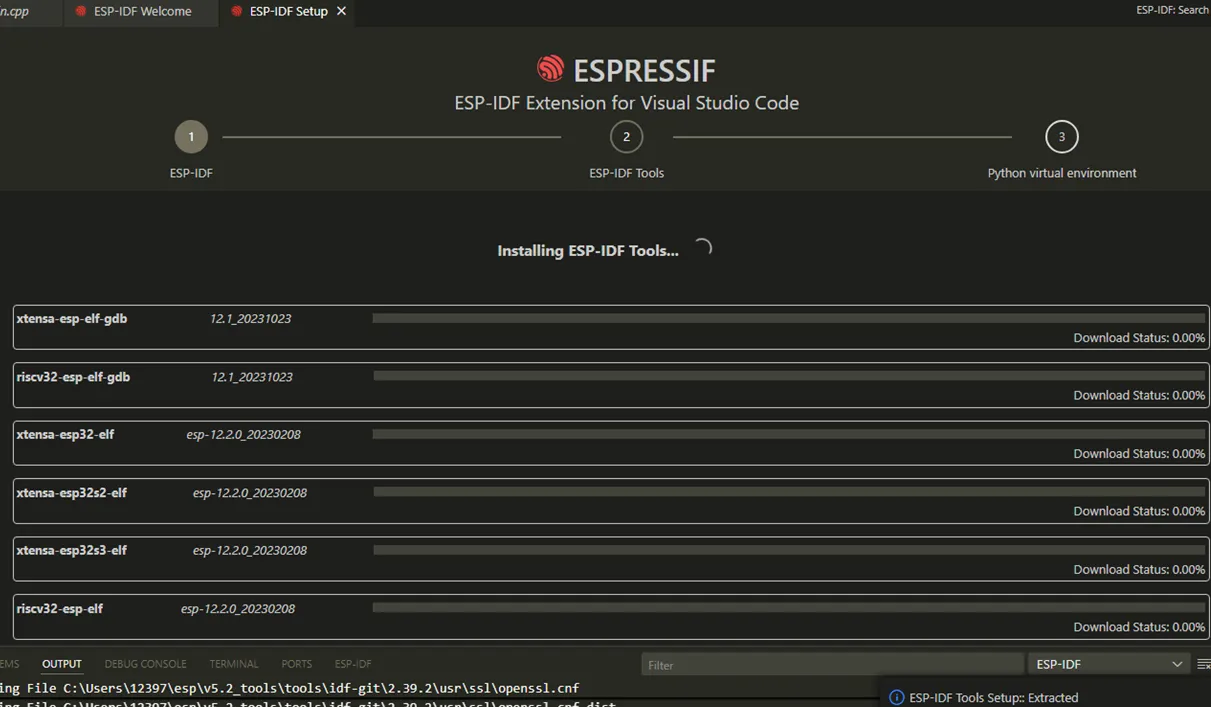
When you see this interface, it means the installation has been completed correctly.
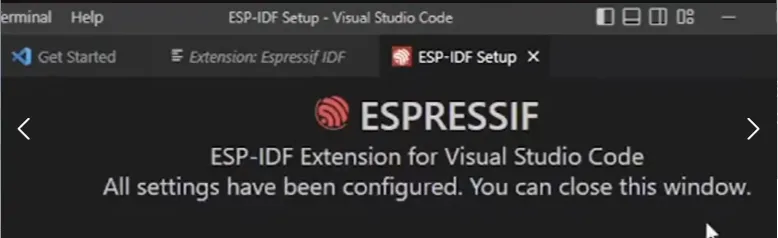
In this way, we have successfully installed the ESP-IDF version V5.1.1 required for the subsequent code compilation.
3. Create a new IDF project.
click ”New project”.
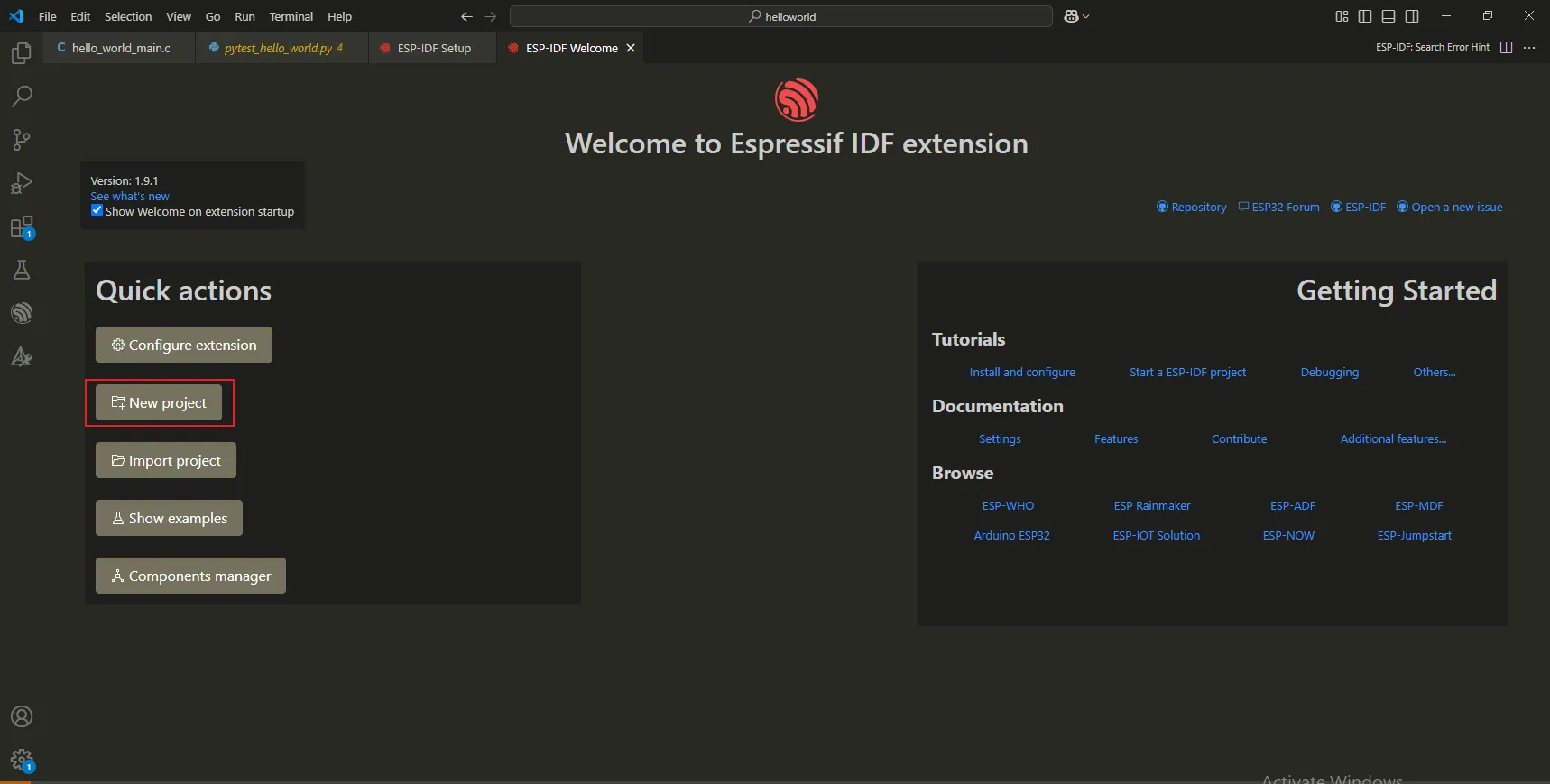
Fill in the project name, select the save location and the chip model.
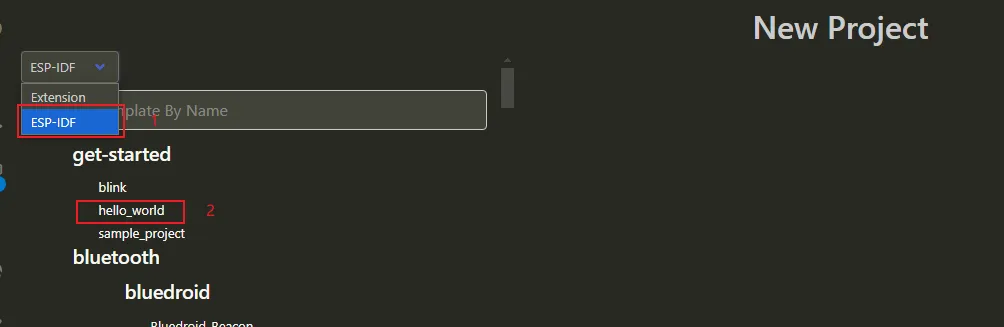
Click "Choose Template".

Select an official Espressif example and choose the “hello_world” template.
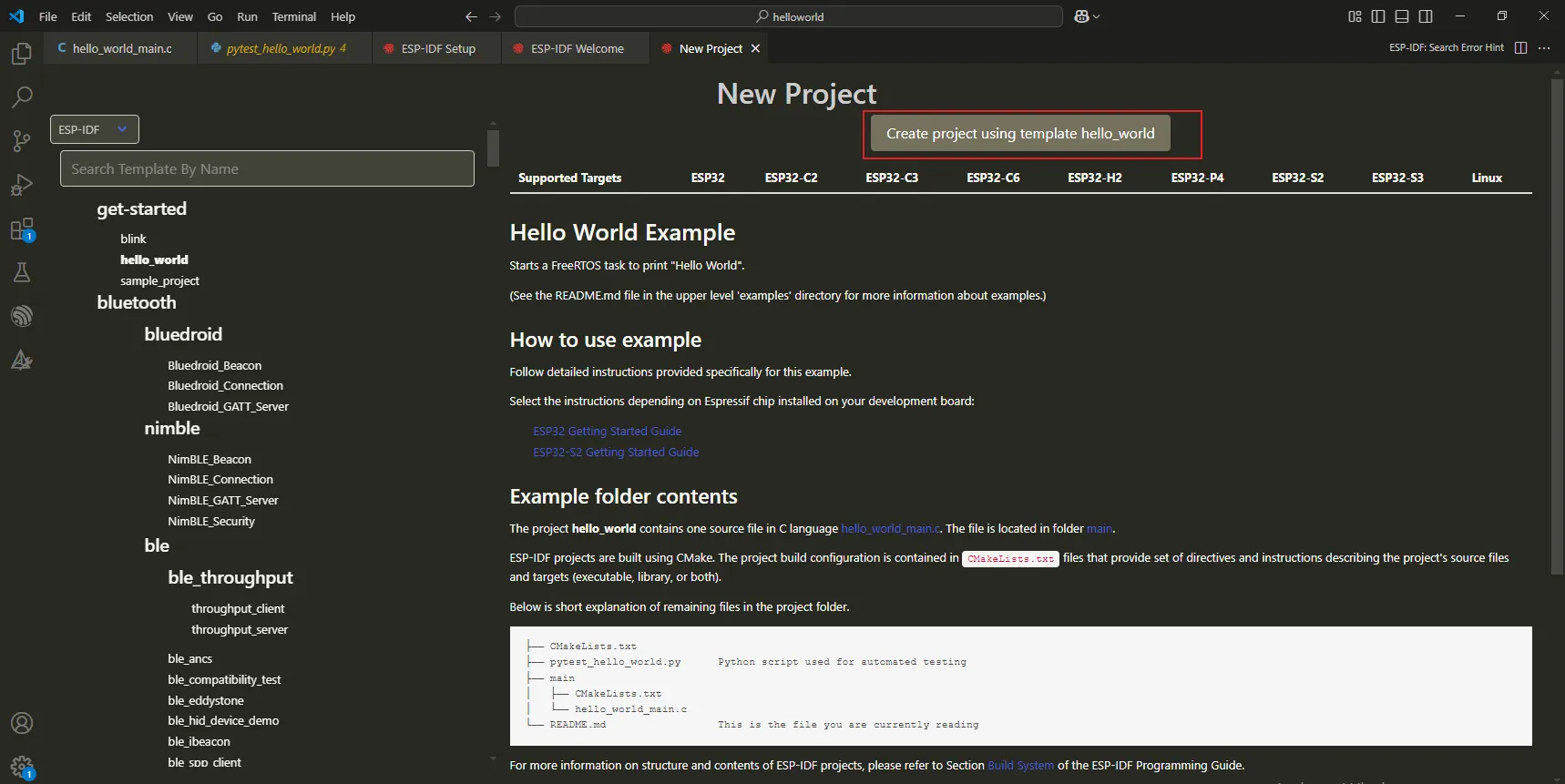
Click”Create project using template hello_world”
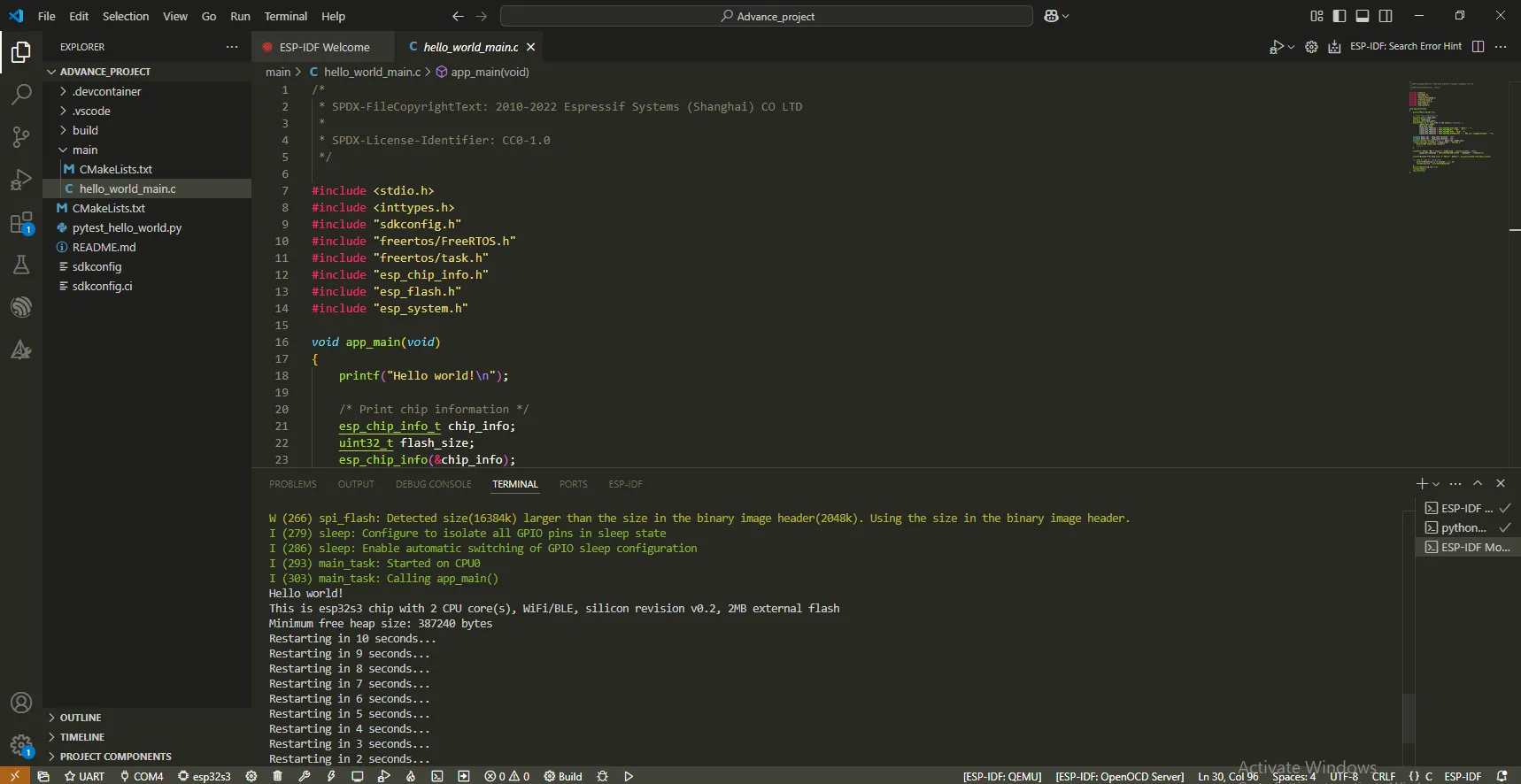
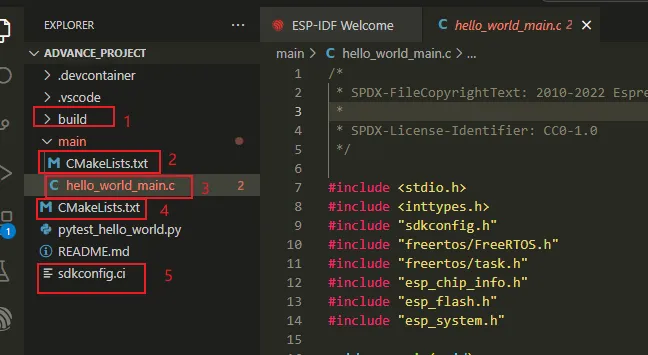
Generate the newly created IDF project.
-
The
buildfolder is the build directory, used to store files generated during the compilation process. -
CMakeLists.txtis the CMake build file for the main application. -
hello_world_main.cis the source file of the main application. -
CMakeLists.txtis the top - level CMake build file, used to configure the entire project. -
sdkconfigis the project configuration file, which saves the configuration ofidf.py menuconfig.
The significance of the header files included in the main program:
-
stdio.h: The function ofstdio.his basically the same as its function in a standard C program. However, there are some specific considerations and extensions, especially in the embedded development environment related to the ESP32 series of chips. -
The function of the
inttypes.hheader file is similar to its function in standard C programming. It is mainly used to provide a series of macros, which can help developers write code that is independent of the size of integer types. -
The
sdkconfig.hfile is a very important configuration header file. It is generated by the project's configuration system, based on the choices made by the user during the project configuration process. -
The
esp_chip_info.hheader file provides some macro definitions and functions, which are used to obtain detailed information about the ESP chip, such as the chip model, functional features, and hardware configuration. -
The
esp_flash.hheader file provides functions and macro definitions related to the flash memory operations on the ESP chip. -
esp_system.his a header file in the ESP-IDF (Espressif IoT Development Framework). It contains functions and macro definitions related to the system-level functions of Espressif chips such as ESP32, ESP32-S, and ESP8266. -
freertos/freertos.his a general header file that includes the core functions of FreeRTOS. -
freertos/task.his a header file specifically used for task management.
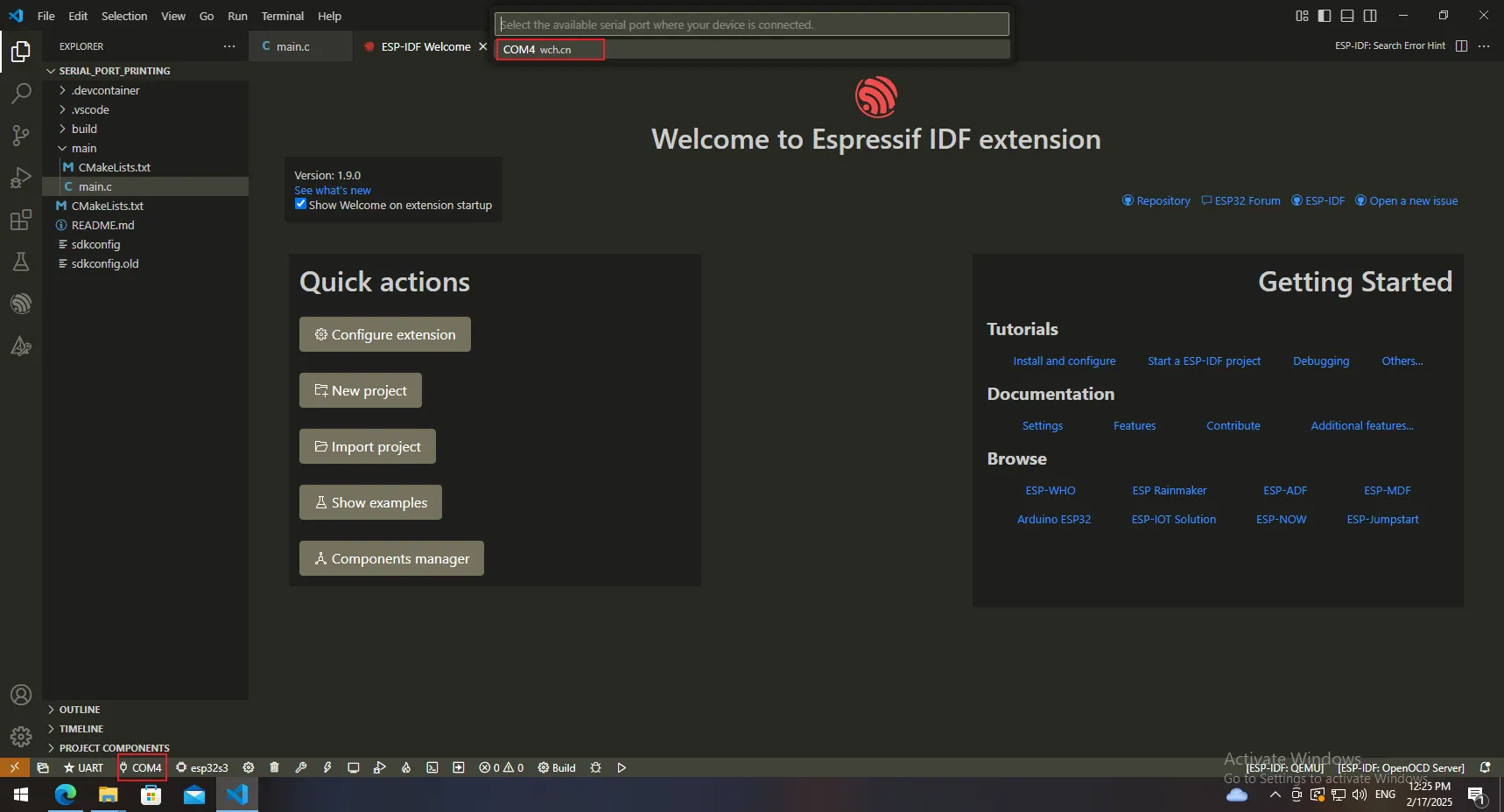
Select the corresponding serial port.
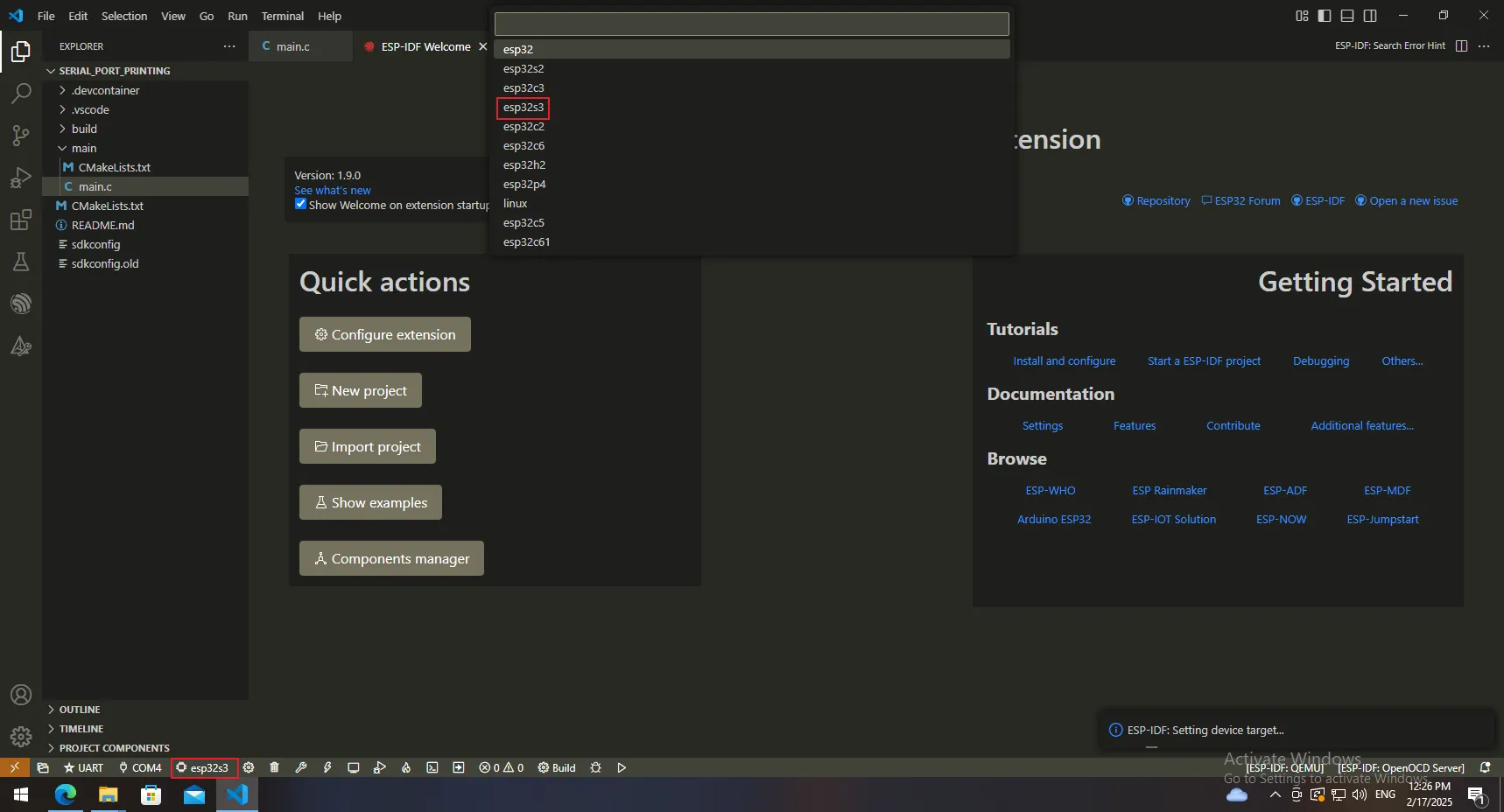
Select the chip type.

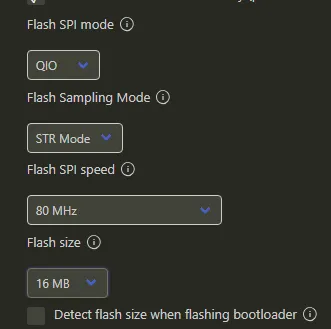
Configure the development board options.

Set the flash parameters.
Set the PSRAM parameters.

Click [Save].

Click to compile the project.

Wait for the compilation to complete.

Click "Flash".

Open the serial port and view the printed information.