Lesson01_Serial_Hello: Periodically Output “Hello World” via Serial
1. Course Introduction
This lesson uses the ESP32-S3 and Arduino serial functions to run Lesson01-Print_Hello_World.ino. After the development board resets, it waits approximately 300 ms, outputs Hello World once through the serial port at 115200 baud, and then repeats the output approximately every 1 second. This lesson establishes the basic workflow of “compile—upload—open the Serial Monitor—verify based on the logs.”
2. Learning Objectives
- Be able to upload the project to the ESP32-S3 and set the Serial Monitor to 115200 baud.
- Be able to explain the relationship between the one-time initialization performed by
setup()and the periodic execution ofloop(). - Be able to determine whether the program is running normally based on the intervals between serial outputs.
3. Required Preparations
- One ESP32-S3 1.46 development board and a USB cable that supports data transfer.
- Arduino IDE (the version verified by the project is recommended) and the ESP32-S3 board package.
课程代码/Examples/1.46_Lesson01-Print_Hello_World/Lesson01-Print_Hello_World.ino.- https://github.com/Elecrow-RD/CrowPanel-1.46inch-HMI-ESP32-Rotary-Display/tree/master/example/V1.0/Arduino/Examples/
4. Software Operation Steps
When using the board for the first time, complete the configuration in the order described in this section. First confirm the development environment and project, then connect the hardware, select the board and port, and finally compile and upload.
4.1 Confirm the Arduino IDE Version
Launch the Arduino IDE, open Help > About Arduino IDE, and confirm that you are using Arduino IDE 2.x. The version number shown in the screenshot is for demonstration only, and does not need to match the screenshot exactly.
Software installation: Download_Arduino_IDE - Elecrow Wiki
4.2 Install the ESP32 Board Support Package
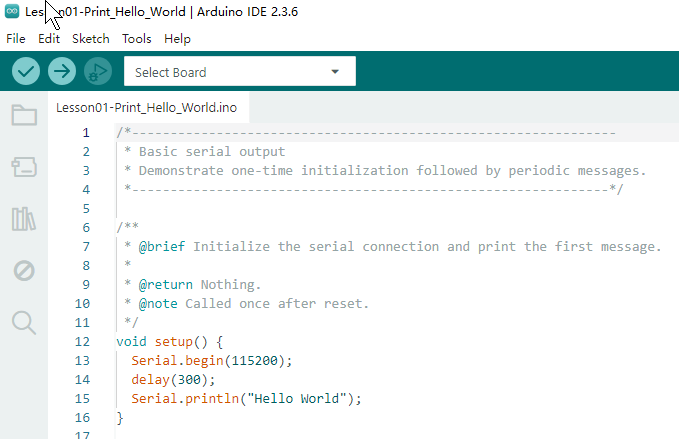
After the installation is completed, open the Arduino IDE. First, randomly open a project.
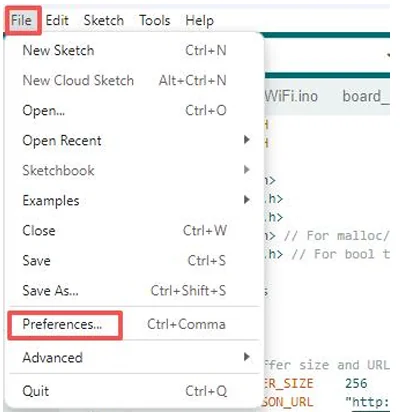
Go to "Preferences"
Configure "Additional Boards Manager URLs"
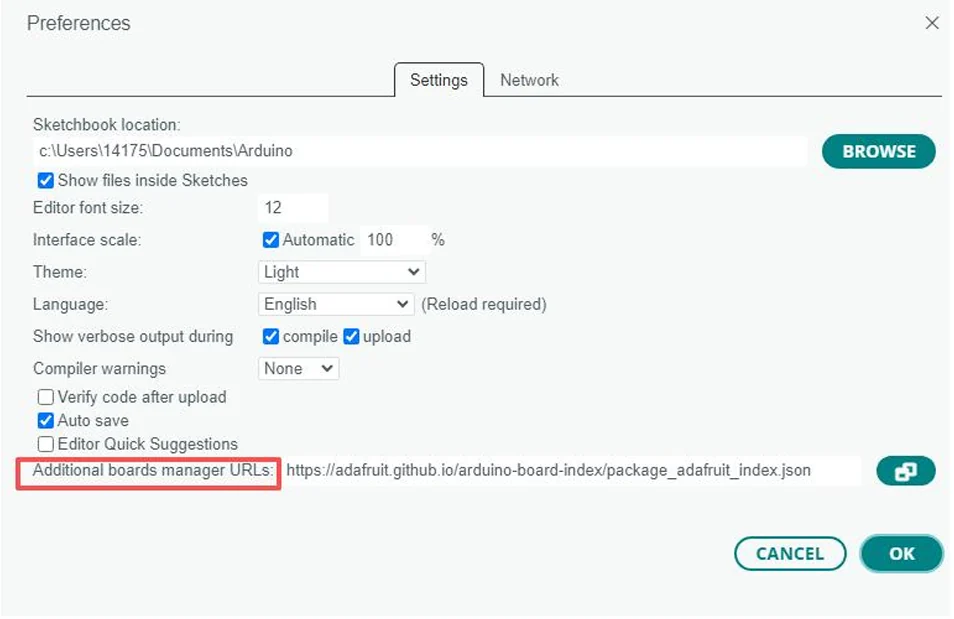
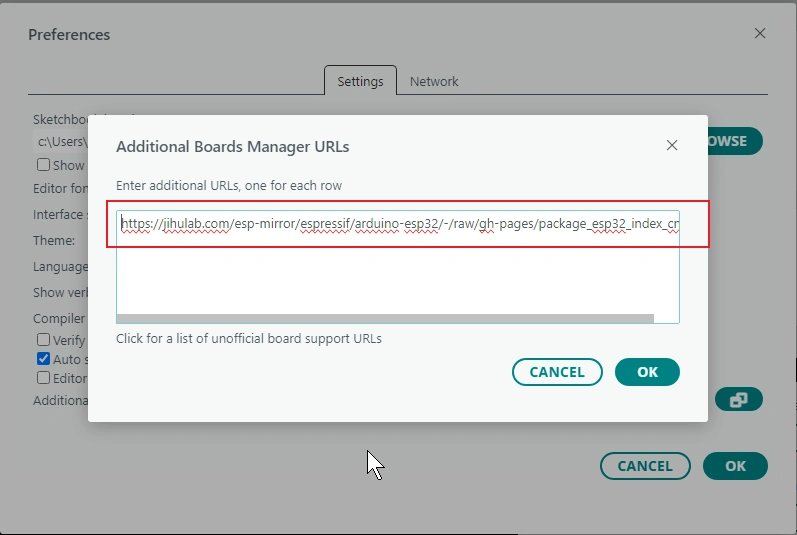
Add this in
https://jihulab.com/esp-mirror/espressif/arduino-esp32/-/raw/gh-pages/package_esp32_index_cn.json
Remember to save!
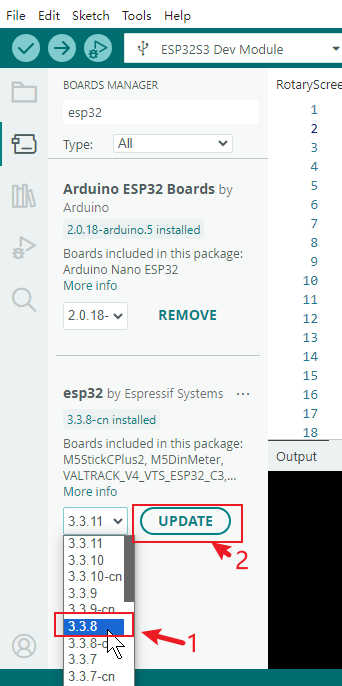
- Click Board Manager on the left side.
- Search for
esp32. - Locate esp32 by Espressif Systems, select the version required by the course, and install it.
- After installation, close the Board Manager; if the corresponding version already shows as
installed, there is no need to reinstall.
The reference image shows the entry point, search, and version status of the Board Manager. For this P4 lesson, version 3.3.8 should be installed.
4.3 Create or Open the Complete Project
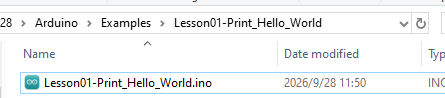
In the Arduino IDE, select File > New Sketch and save it as Lesson01-Print_Hello_World; alternatively, you can directly open Lesson01-Print_Hello_World.ino from the course code.
An Arduino sketch requires the project folder name to match the main .ino file name. For example:
If the IDE prompts you to automatically create a folder with the same name, confirm and proceed.
Write the following code into the sketch and save it:
void setup() {
  Serial.begin(115200);
  delay(300);
  Serial.println("Hello World");
}

/**
 * @brief Print a heartbeat message at a readable interval.
 *
 * @return Nothing.
 * @note Called repeatedly by the Arduino framework.
 */
void loop() {
  delay(1000);
  Serial.println("Hello World");
}
4.4 Connect the Board Using USB
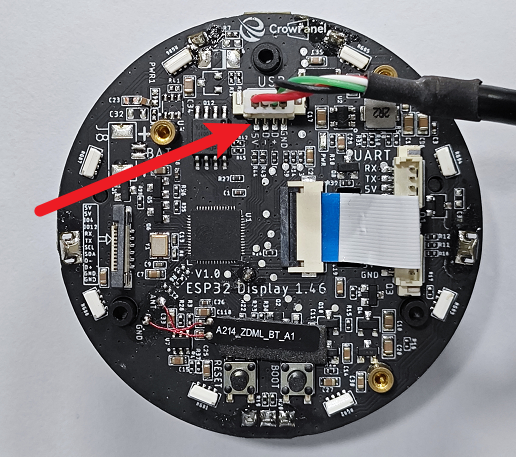
Connect a USB-C cable that supports data transfer to the port labeled USBoard, then connect it to your computer.
4.5 Select the Board and Port
Open Tools > Board > esp32 and select ESP32S3 Dev Module.
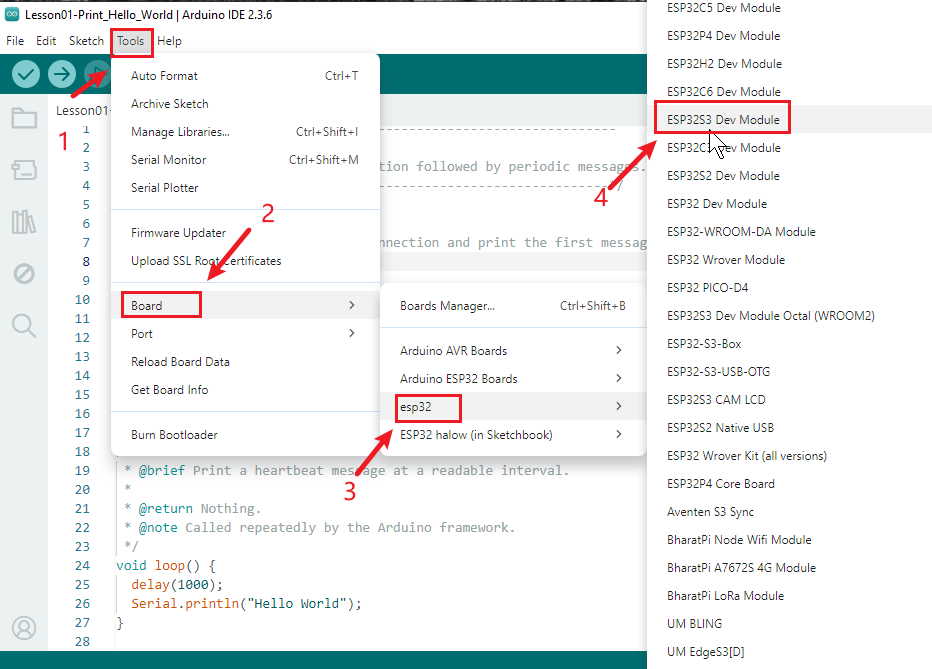
Then open Tools > Port and select the COM port that newly appears after connecting the board. If you are unsure which port to choose, unplug the data cable to observe which port disappears, then reconnect and select the port that reappears.
4.6 Verify the Upload Parameters
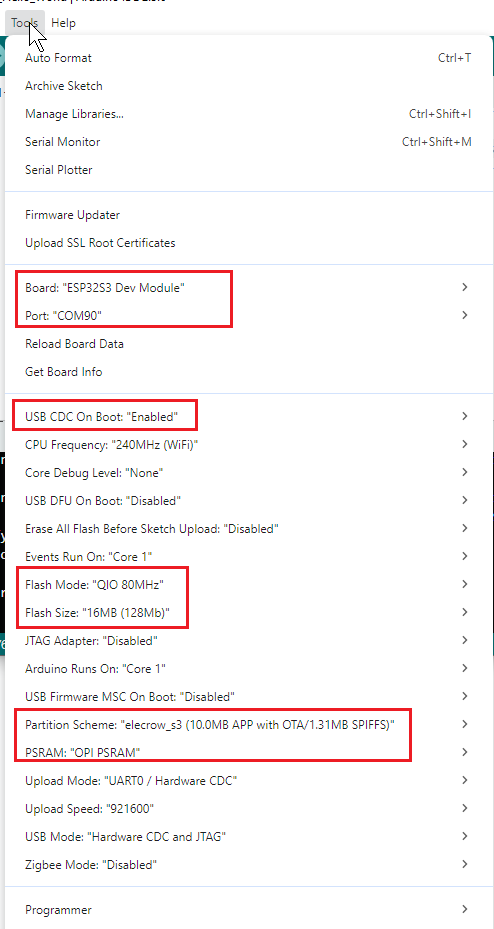
Check each item in the Tools menu:
- Board:
ESP32S3 Dev Module - USB CDC On Boot: "Enabled"
- Flash Mode: QIO
80MHz - Flash Size:
16MB (128Mb) - Partition Scheme:
elecrow_s3 (10.0MB APP with OTA/1.31MB SPIFFS) - PSRAM: "OPI PSRAM"
- Upload Mode:
UART0 / Hardware CDC - USB Mode:
Hardware CDC and JTAG - Port: the
COMport that actually corresponds to the board
4.7 Import the Library Files We Need to Use
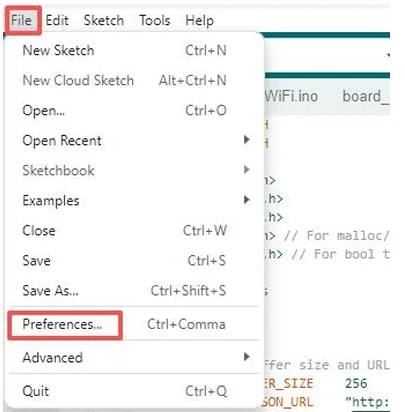
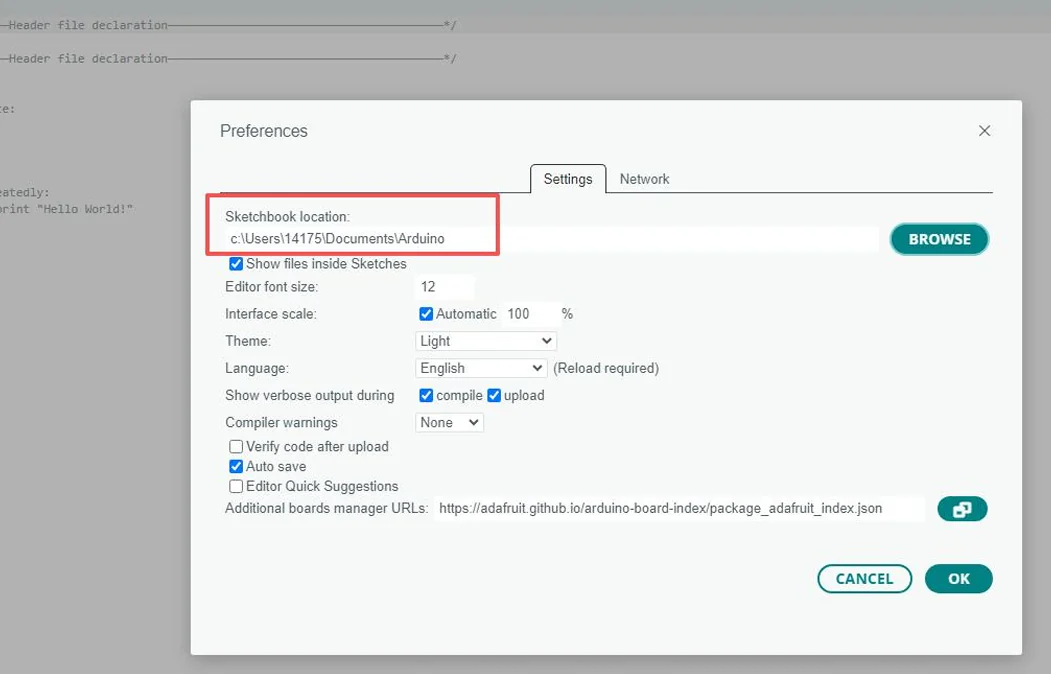
Open File > Preferences and note the "Sketchbook location".
Close the Arduino IDE, then confirm that the libraries folder exists in that directory.
Library file link for this project: https://github.com/Elecrow-RD/CrowPanel-1.46inch-HMI-ESP32-Rotary-Display/tree/master/example/V1.0/Arduino/Examples/
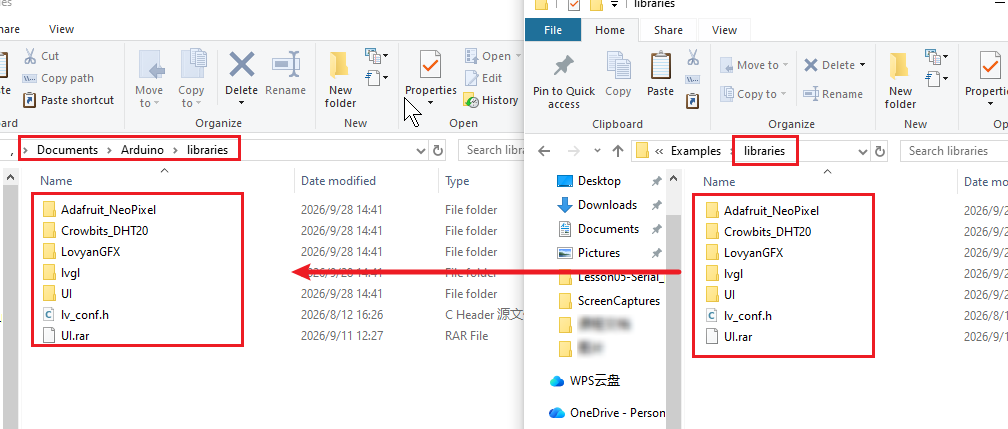
After determining the location where the library files are stored Copy all the library files contained in the downloaded "libraries" file to the "C:\Users\Username\Documents\Arduino\libraries" folder on your local computer.
How to add the library files: https://www.elecrow.com/wiki/Arduino_IDE_Library_Import_Guide.html
Note: The course dependency libraries need to be placed in the libraries directory under the Arduino Sketchbook folder. After copying is complete, restart the Arduino IDE to prevent the IDE from continuing to use the old library index.
Note: If there is no "libraries" folder in your path, please create one yourself.
4.8 Verify Compilation Before Uploading
- Click the Verify (checkmark) button in the upper left corner.
- Wait for the output area to show that compilation is complete; if errors appear, resolve them first and do not upload directly.
- Click the Upload (right arrow) button.
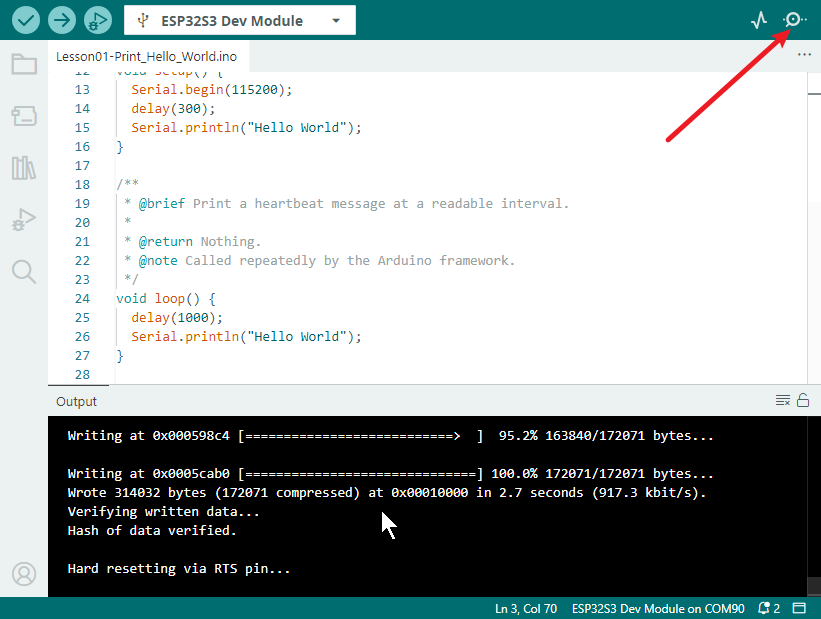
- Wait until writing reaches 100%, and see the upload complete or auto-reset message.
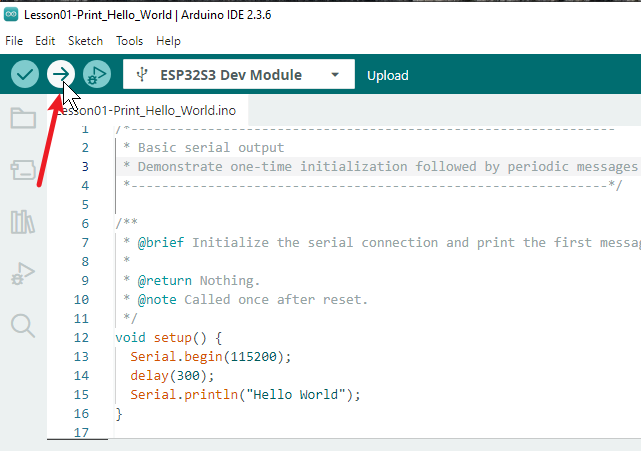
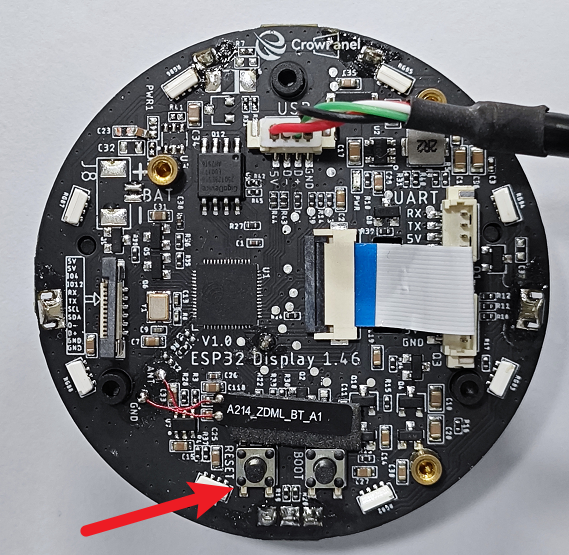
If it stays stuck at Connecting... for a long time, first confirm the UART0 connection, the data cable, and the COM port; if it still cannot connect, hold down the BOOT button on the board and release it once writing begins.
4.9 Open the Serial Monitor to Verify the Result
Click the Serial Monitor in the upper right corner and set the baud rate to 115200. The baud rate must match Serial.begin(115200).
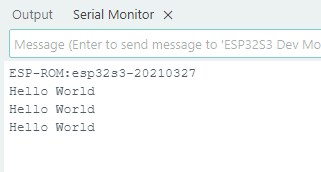
Under normal conditions, the monitor will continuously display:
Adjacent lines are spaced about 1 second apart.
5. Hardware Operation Steps
- With the power disconnected, connect the USB data cable, then connect it to the computer; after powering on, wait for the development board to reset.
- Keep the development board powered and observe the periodic output in the Serial Monitor.
6. Explanation of Key Code
void setup(){
    Serial.begin(115200);
    delay(300);
    Serial.println("Hello World");
}
void loop(){
    delay(1000);
    Serial.println("Hello World");
}
Serial.begin(115200) sets the communication speed and must match the monitor; setup() executes only once, so the startup message appears only once; loop() repeats continuously, and the 1-second delay causes subsequent messages to appear approximately once per second. Removing Serial.begin will make the serial output unreadable, while removing delay(1000) will cause the screen to refresh at high speed.
7. Observed Results
The first line of Hello World appears approximately 300 ms after reset, followed by the same text approximately every 1 second. If garbled characters appear, first check the serial baud rate; if there is no output, check the port, USB data cable, and whether the upload was successful.